3D model preparation and optimization
This article explains in detail how to prepare 3D models that meet EasyAR requirements, covering format specifications, recommended tools, and common troubleshooting, helping developers improve tracking success from the source.
Model format and specifications
EasyAR 3D object tracking supports only the Wavefront OBJ format. Follow the requirements and specifications below when using it.
Model file structure
A complete 3D model must include the following files:
- .obj file: Geometric model data, including vertices, faces, UV coordinates, and so on.
- .mtl file: Material definitions, including colors and texture map paths.
- Texture maps: At least one JPEG or PNG image. A resolution from 512×512 to 2048×2048 is recommended.
File requirements
- All files must be placed in the same folder and referenced with relative paths such as
texture.jpg. Absolute paths such asC:\Models\texture.jpgare not allowed. - File names and paths inside files must not contain spaces. English letters or numbers are recommended.
- File encoding must be UTF-8 to avoid loading failures caused by garbled text.
Minimum requirements for OBJ (.obj) files
- Must contain
vertex
Geometric vertices, represented by \((x, y, z [, w])\) coordinates. \(w\) is optional and defaults to 1.0. Vertex color parameters are not required; if provided, the system will not load them. - Must contain
texture coordinates
Texture coordinates, represented by \((u, v [,w])\) coordinates. \(w\) is optional and defaults to 0. In general, the values of \(u\) and \(v\) should be between 0 and 1. For values less than 0 or greater than 1, the system processes them inREPEATmode by default: the integer part of the coordinate is ignored, then an infinitely repeating pattern is constructed, the same asGL_REPEATprocessing inOpenGL. - Must contain
face
Face elements must include at least vertex indices and texture coordinate indices. Polygonal face structures with more than 3 vertices, such as quadrilaterals, are also supported. - Must contain
mtllib
Reference to a material file. At least one external MTL material file must be specified, and the file path must be relative, not absolute. - Must contain
usemtl
The material referenced by model elements must specify a material name, and this material name must match the material name defined in the external MTL material file.
Minimum requirements for MTL (.mtl) files
- An MTL file should define at least one material.
- Texture maps are required.
In general, only the ambient or diffuse texture map (map_Ka,map_Kd) needs to be specified;
The texture map path must be relative, not absolute. - Other optional texture map parameters are not required; if provided, the system will not use them.
Model preparation
You can prepare OBJ model files that meet the specifications in several ways.
Export from an existing model
Use professional tools such as Autodesk Maya / 3ds Max to import an existing FBX or other format model, select “OBJ Export” when exporting, and make sure the “Materials” and “UVs” options are enabled.Create a new model
Use modeling tools such as Autodesk Maya / 3ds Max to create or draw a 3D model and output it in OBJ format.Scan a real object and perform 3D reconstruction
Use 3D scanning and modeling software such as Autodesk ReCap or Bentley ContextCapture, or use a laser scanner to perform 3D reconstruction of a real object, then export the result in OBJ format.
Important
Model textures must accurately reproduce the visual features of the real object, otherwise recognition and tracking will not work properly.
Model best practices
The following lists common issues and examples encountered when preparing models for quick reference and checking.
Ensure rich texture details
The model texture should have rich texture details.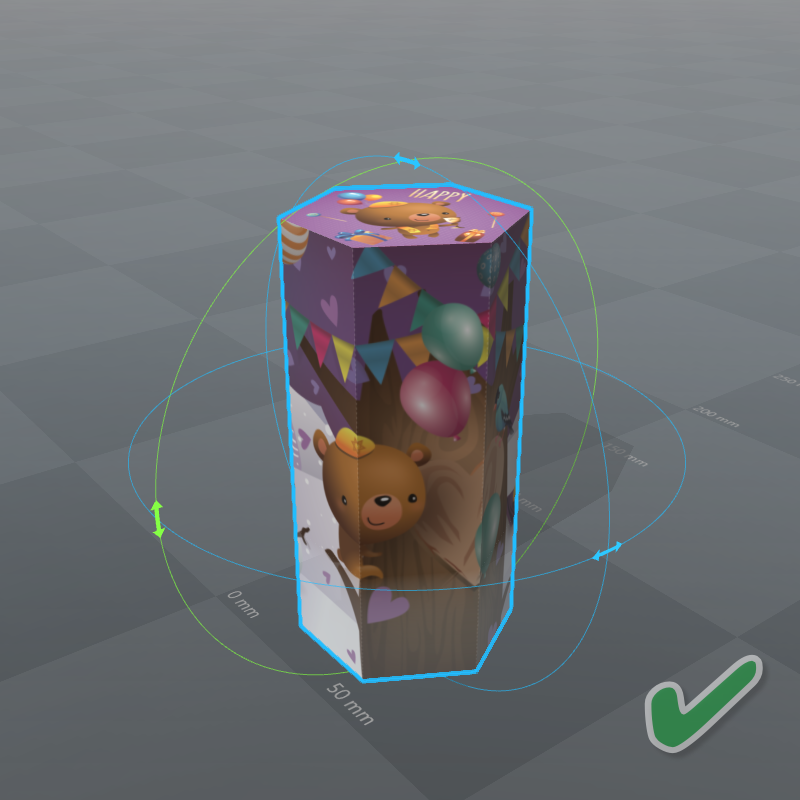
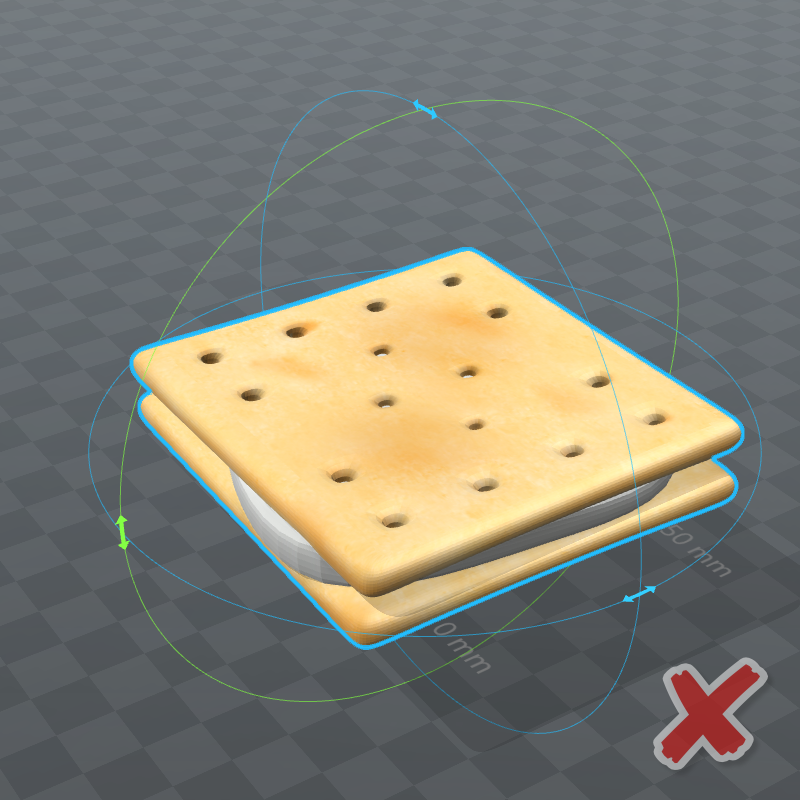
Reference image left: can be detected and tracked by EasyAR. Reference image right: cannot be detected or tracked because there is too little texture.
Model shape
Models support different shapes, but the main structure should be convex.
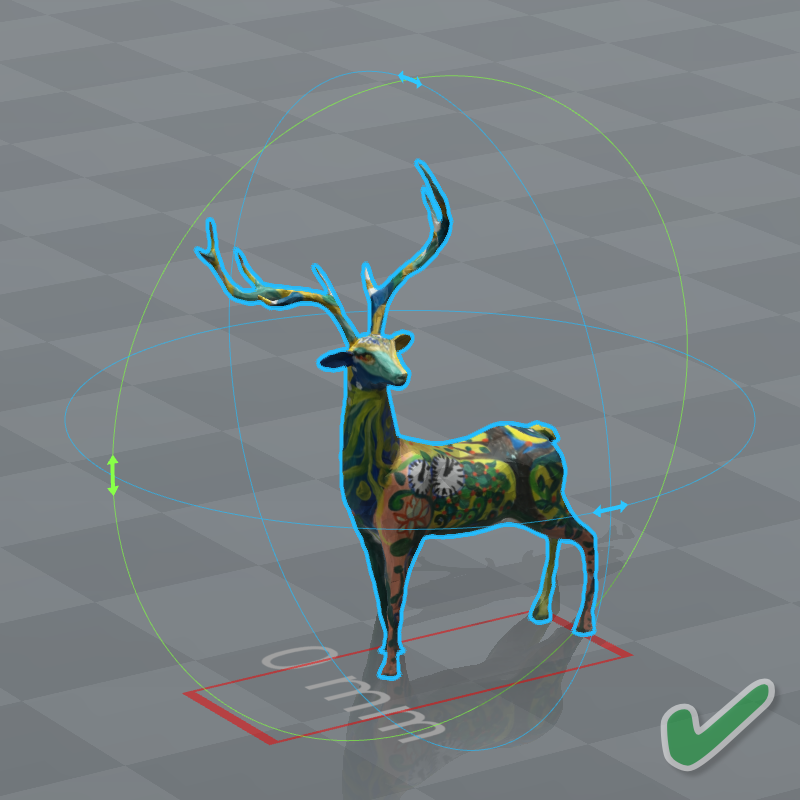
Both objects can be detected and tracked by EasyAR.
Check referenced paths inside the file
Paths referenced inside the model file must be relative paths, not absolute paths.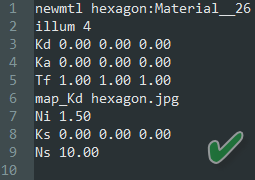
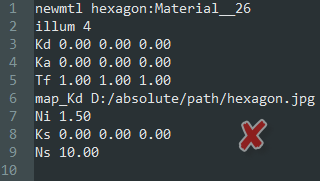
The model on the right cannot be loaded because EasyAR cannot find the file that uses an absolute path.
Paths referenced inside the model file cannot contain spaces or special characters.
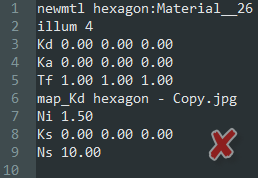
The model on the right cannot be loaded because the referenced path contains spaces.
Check the file encoding format
Model files should use UTF-8 encoding.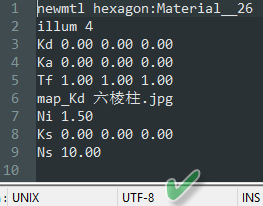
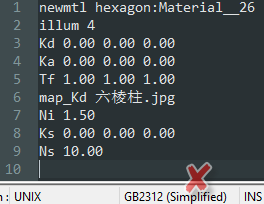
The model on the right cannot be loaded because its file encoding causes a decoding error during reading.
Check model normals
The positive direction of the normal vector of model faces should follow the right-hand rule.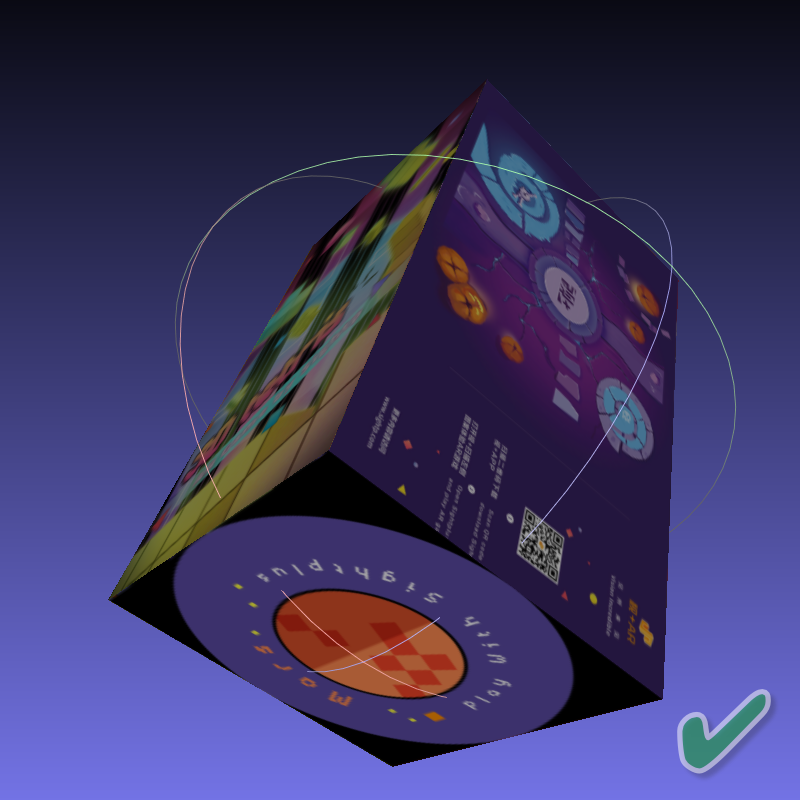
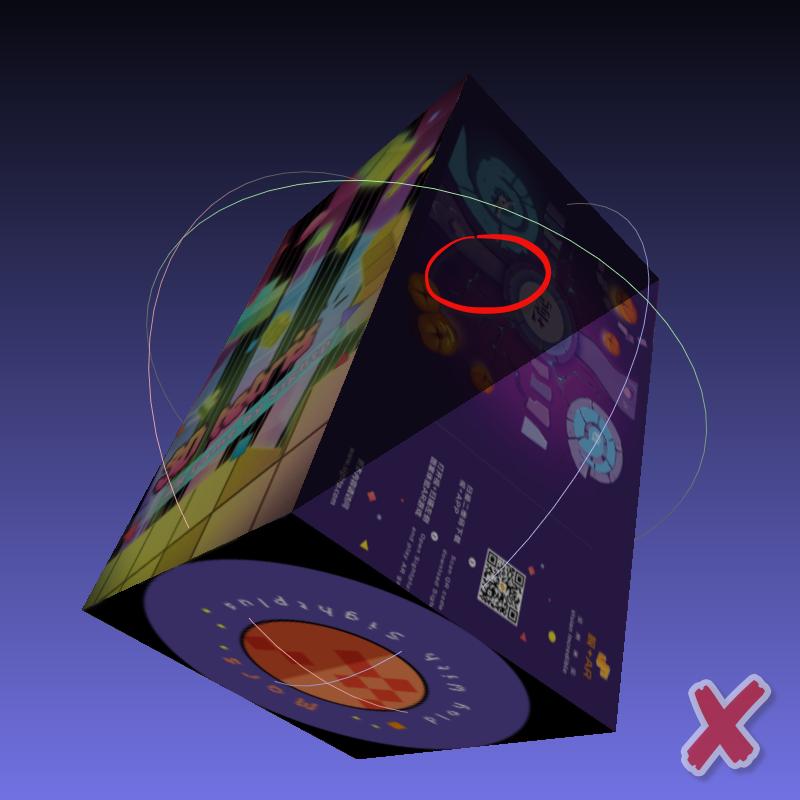
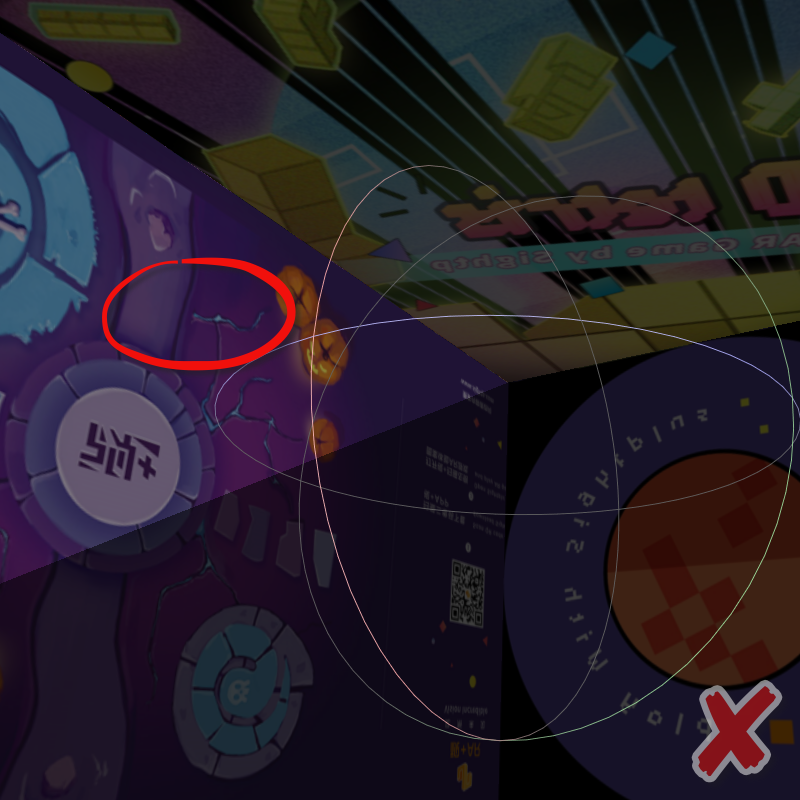
The normal vectors of the shaded faces in the second cube have negative orientation. Such faces are treated as invisible faces in EasyAR. If viewed from inside the model, it appears like the third cube.
The model should avoid all faces with negative normal orientation.Number of model faces
The number of model faces should be as small as possible while preserving the object's geometric shape, and usually should not exceed 100,000 triangles. Too many faces can cause:- Excessively long model loading time, affecting the user experience when the application starts
- Increased computation for face texture projection, affecting the application's frame rate during tracking
The quality of the 3D model directly determines tracking success. Developers must strictly follow the format specifications, focus on optimizing texture details, and make sure the file format is correct.