Player settings
This article describes the Player settings to pay attention to when packaging an application with the EasyAR Sense Unity Plugin in Unity.
Configuration notes for different platforms
When building in Unity, you need to check and confirm the following settings.
In the Unity menu File -> Build Settings-> Player Settings, click the Android icon to open the Android platform settings.

Usually the following options need to be set.
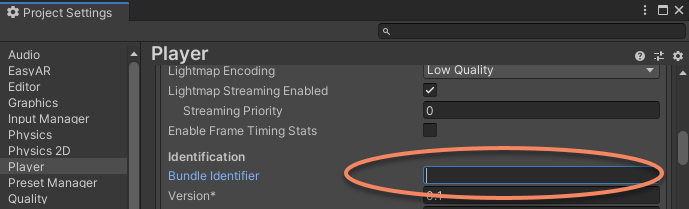
Package Name Set the Android app
Package Name. Note that thePackage Namemust match the one entered when creating the License Key.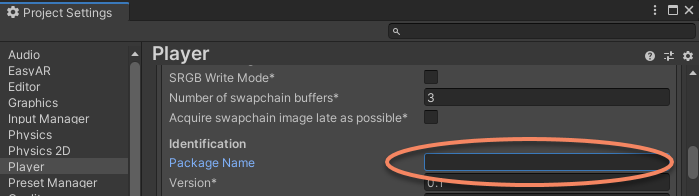
Minimum API Level The
Minimum API levelsupported by EasyAR depends on the variant in use. When using theFullvariant, Android API Level 24 or higher is required; when using other variants, EasyAR Sense requires Android API Level 21 or higher.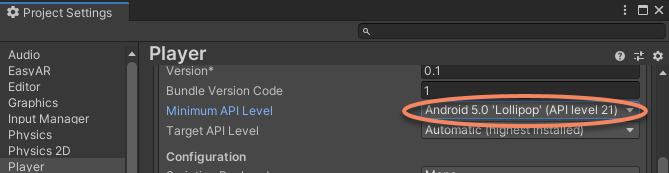
Tip
The
Fullvariant is usually used for Mega Go on-device localization features and 5DoF camera features. When using the Mega cloud localization service, 5DoF camera support is also enabled by default.The EasyAR Sense variant used by the target platform can be viewed in the
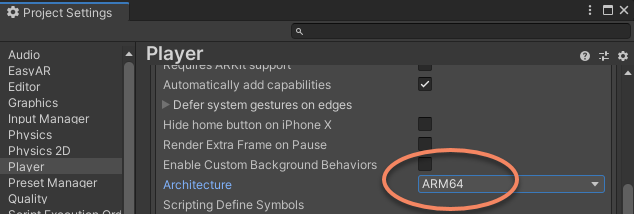
Project Settings > EasyAR > Sensemenu under Lib Variants.Target Architecture If you need to use Google ARCore or compile for ARM64 for other reasons, you need to use
IL2CPPand selectARM64 support. If ARM64 architecture support is not required, no configuration is needed.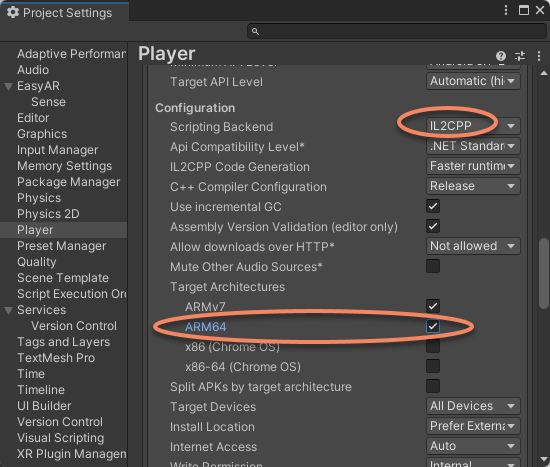
Special configuration for video recording
If you want to use video recording, set
Graphics APItoOpenGLES3orOpenGLES2, and uncheckMultithreaded Rendering. You also need to setLib Variants > AndroidtoVideoRecordingin EasyAR settings.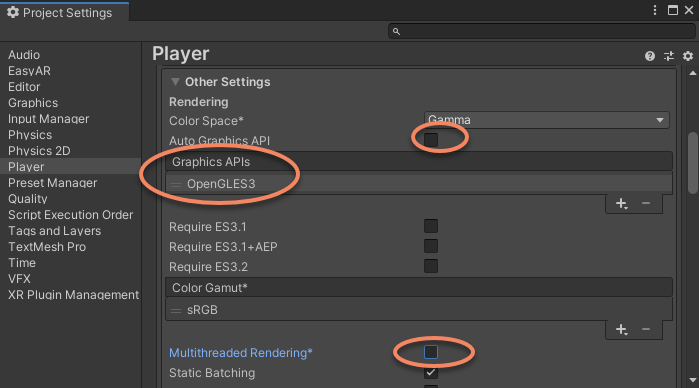

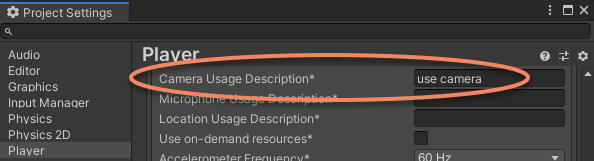
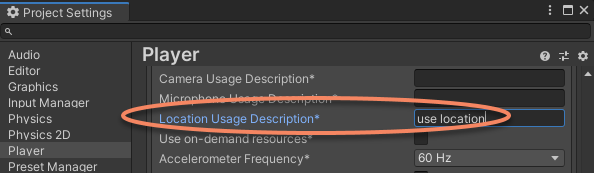
Common issues
The following are some common errors and solutions related to Player settings.
License Key exception
If there is an exception with the License Key (for example, the
Package Namedoes not match), a message similar tois not a valid EasyAR Sense license key or it does not match package namewill appear when packaging the application. If you choose to continue packaging at this point, the resulting app will not work properly. Please carefully check the window prompt and fix the problem before packaging again.Disabling license checks during packaging
In some special cases, if you initialize manually using EasyAR APIs and do not use the
License Keyin theSetttingsfile, you can chooseContinue and don't warn me again, or disable theEasyAR Sense License > Verify When Buildoption in EasyAR settings. This will turn off the packaging-time check.Android device support for non-ARM architectures
EasyAR Sense does not directly support x86 and x86-64 Android systems, but device chips based on x86 architecture usually can run ARM programs compatibly. Therefore you need to disable the x86 architecture selection so that some x86 devices can work properly.