MegaBlockController Component Reference
Note
This component only exists in version >= 4003
Explore the properties in the MegaBlockController component window.
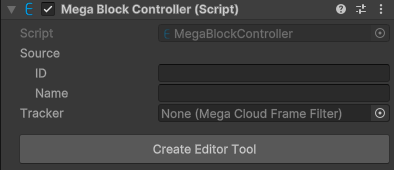
Screenshot of the component under default conditions.
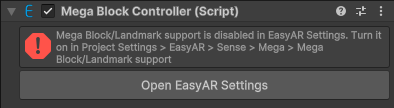
Screenshot when the Mega Block/Landmark support is turned off in the configuration and the component is unavailable.
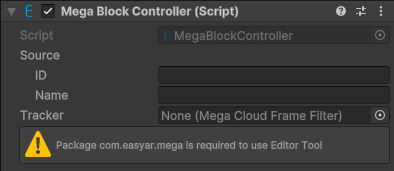
Screenshot when the com.easyar.mega package is not imported and the editor tool is unavailable.
The MegaBlockController component window consists of two parts: component configuration and editor tools.
Component Configuration
| Property | Description |
|---|---|
| Source | The data source for creating the block. |
| ID | Block ID. |
| Name | Block name. It can be left unspecified. |
| Tracker | The MegaCloudFrameFilter for loading the target. If set to null, the block will be unloaded from the previously set MegaCloudFrameFilter. It can be modified at any time, and the loading will only occur when the session is running. |
Editor Tools
Create
Note
The editor tools can only be used after importing the com.easyar.mega package.
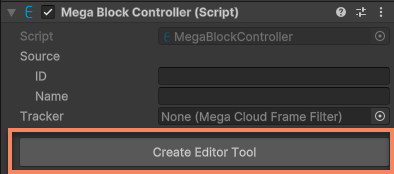
| Name | Description |
|---|---|
| Create Editor Tool | Create the editor tool. |
After clicking Create Editor Tool, an editor tool node will be created, and you will enter the service connection interface.
Connect to Service
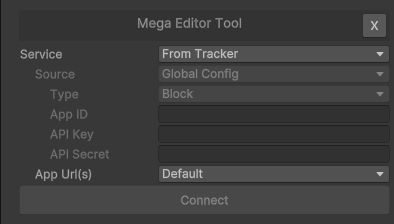
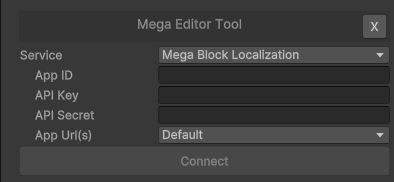
| Name | Description |
|---|---|
| X | Delete the editor tool. |
| Service | The source of service information. Options: From Tracker: Use the configuration in the Tracker.Mega Block Localization: Use the Mega Block localization service.Mega Landmark Localization: Use the Mega Landmark localization service. |
| Source | Read-only. Displayed when the Service is From Tracker. The type of data source for service access. Options: Global Config: Use the global server configuration. Select GlobalMegaBlockLocalizationServiceConfig or GlobalMegaLandmarkLocalizationServiceConfig according to the Service Type. The global configuration can be filled in the property panel after clicking the Unity menu EasyAR > Sense > Configuration.API Key: Use the access data of type APIKeyAccessData.Token: Use the access data of type TokenAccessData. This type of data is not supported by the tool. |
| Type | Read-only. The type of EasyAR Mega service. Options: Block: Mega Block.Landmark: Mega Landmark. |
| App ID | Read-only. Displayed when the Source is API Key. The service App ID. |
| API Key | Read-only. Displayed when the Source is API Key. The API Key. |
| API Secret | Read-only. Displayed when the Source is API Key. The API Secret. |
| App ID | Displayed when the Service is Mega Block Localization or Mega Landmark Localization. The service App ID. |
| API Key | Displayed when the Service is Mega Block Localization or Mega Landmark Localization. The API Key. |
| API Secret | Displayed when the Service is Mega Block Localization or Mega Landmark Localization. The API Secret. |
| App Url(s) | The service URL. Options: Default: Use the default configuration.Custom: Use the custom configuration. It is generally used only when cross-regional acceleration is required. |
| Localization | Displayed when the App Url(s) is Custom. The URL of the localization service. |
| Storage | Displayed when the App Url(s) is Custom. The URL of the storage service. |
| Connect | Connect to the service. |
After clicking Connect:
- If the ID of the Source is not specified, you will enter the block selection interface.
- If the block ID is specified and the block exists in the service, you will enter the Mega block editor tool interface.
- If the block ID is specified but the block does not exist in the service, an error interface will be displayed.
Important
You need to check the permissions of the API Key before connecting.
- If the Type of the service is
Block, you need to ensure that the API Key used has permission to access theMega Blockservice and theSpatialMapservice. - If the Type of the service is
Landmark, you need to ensure that the API Key has permission to access theMega Landmarkservice.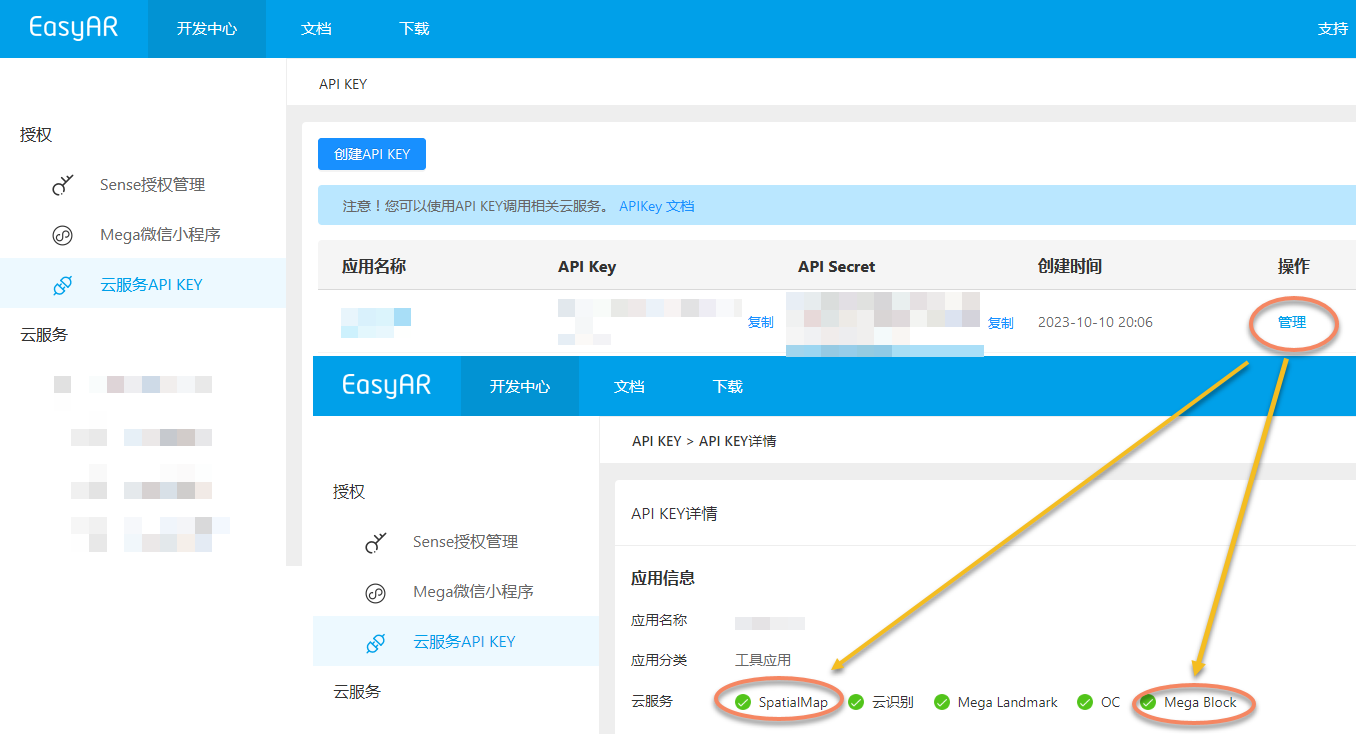
When the permissions are insufficient, you will see an error message indicating that the service connection verification failed.
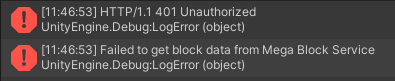
When the block does not exist in the service:
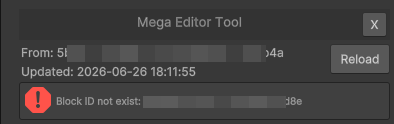
| Name | Description |
|---|---|
| X | Delete the editor tool. |
| From | The App ID of the currently connected service. |
| Updated | The service connection time. |
| Reload | Reconnect to the service. If the block ID is specified and the block exists in the service, you will enter the Mega block editor tool interface. Otherwise, the error interface will continue to be displayed. |
Select Block
This interface is only displayed when the ID of the Source is not specified.
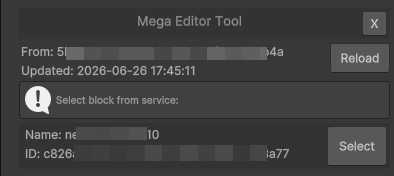
| Name | Description |
|---|---|
| X | Delete the editor tool. |
| From | The App ID of the currently connected service. |
| Updated | The service connection time. |
| Reload | Reconnect to the service. If the block ID is specified and the block exists in the service, you will enter the Mega block editor tool interface. Otherwise, the error interface will continue to be displayed. |
| Name | The block name. |
| ID | The block ID. |
| Select | Select this block. |
After clicking Select, you will enter the Mega block editor tool interface, and the ID and Name of the Source will be set to the ID and Name of this block.