Enable Mega editor tool
This article describes how to enable the Mega editor tool in the Unity editor, making it convenient to place 3D content aligned with the real scene in the editor.
Before you start
- Refer to Is my localization feature ready to use? to confirm that the localization map library has been correctly created and maps have been added.
- Add a Mega tracking target in the scene.
Note
The following content and tools apply only to the process of developing Unity applications with EasyAR Mega. Plugin version >= 4003 is required. In plugin versions 4.7 - 4002, the tool is already enabled when adding a Mega tracking target in the editor is completed.
If you are developing a mini program, refer to Use the Unity editor to create and upload annotations (mini program development).
The following Unity packages must already be imported into the project:
com.easyar.sensecom.easyar.mega
Create editor tool
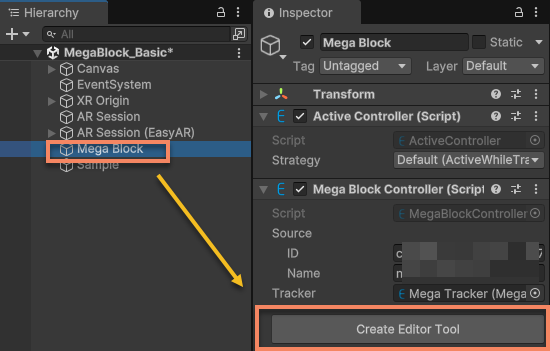
Select the tracking target in the editor and click the Create Editor Tool button.
Tip
If the application needs to create the tracking target in script instead of in the editor, after placing it in the editor, record the tracking target and/or its child objects. At runtime, configure the tracking target through script and mount the child objects under the tracking target.
Connect service
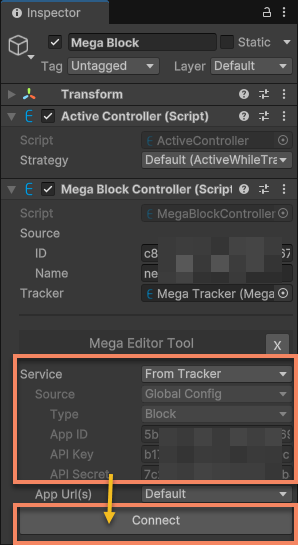
Check the service information and connect to the service.
Important
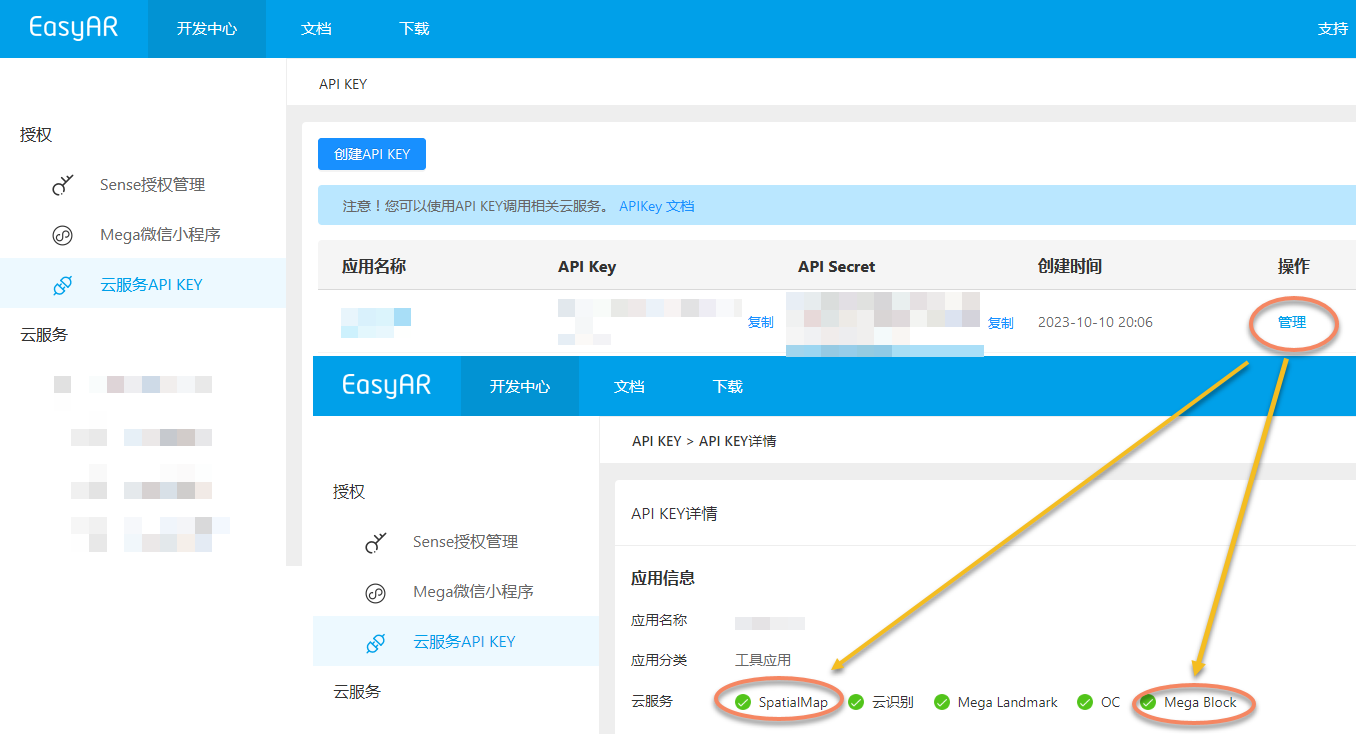
Before connecting, you need to check the permissions of the API Key.
- If the service Type is
Block, make sure the API Key in use has permission to access theMega Blockservice and theSpatialMapservice. - If the service Type is
Landmark, make sure the API Key has permission to access theMega Landmarkservice.
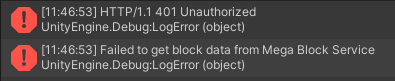
If permissions are insufficient, you will see an error message indicating that service connection verification failed.
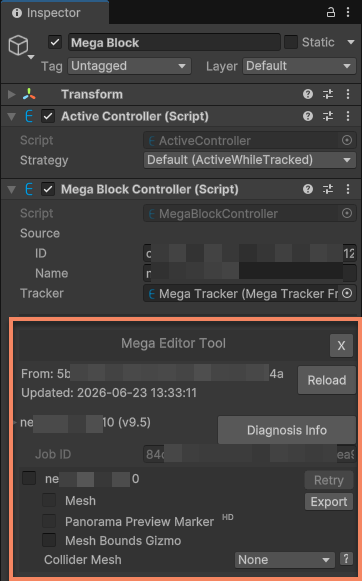
If the target data source has been correctly configured, after the service is connected normally, you can see the data update time and the control interface for block editor data.
Tip
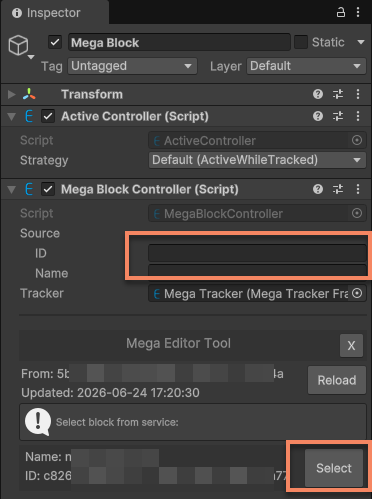
If the target data source is left empty, after the service is connected normally, you can see the list of block data in the service. After selecting the block you want to use, you can likewise enter the control interface for block editor data, and the target data source will be filled automatically.
Manage tool data in the scene
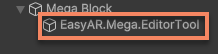
Editor tool data is stored under the EasyAR.Mega.EditorTool node. Deleting this node is equivalent to deleting the editor tool data.
Caution
Do not directly modify the contents of the EasyAR.Mega.EditorTool node, especially its Transform. Otherwise, the editor tool may fail to work properly, or content may be displayed at the wrong position during tracking.
Reload service data
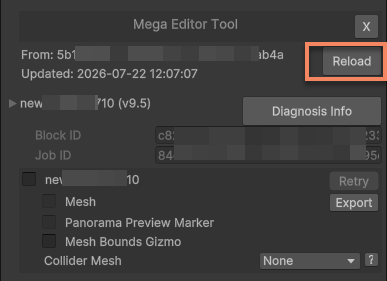
The block data displayed by the editor tool is not updated automatically when localization map library data changes. After localization map library data is updated, such as when a block is added or deleted, click the Reload button to reload service data.
Caution
If the localization map library uses a block with the same block id to overwrite the original block, before data is updated, the mesh and other content displayed by the editor tool are still the contents of the original block. This may cause inconsistency with the real environment after the update and affect the accuracy of content placement.
If a block is deleted from the localization map library, the editor tool can still obtain the block mesh and other data, but the application can no longer track that block at runtime, which may cause content display errors.