Collect mobile screenshot and screen recording data
When AR visual effects on mobile devices behave abnormally, collect screenshots and screen recording files of the issue in time and submit them to the EasyAR technical support team so that we can locate and resolve the problem quickly.
Mobile screenshots
- Models with a Home button (such as iPhone 8, iPhone SE, etc.)
Quickly press the power button and the Home button at the same time. After you release them, the screen flashes with a shutter sound, indicating that the screenshot was captured successfully.
- Models without a Home button (such as iPhone X and later)
Quickly press the power button and volume + button at the same time. After you release them, the screen flashes with a shutter sound, indicating that the screenshot was captured successfully.
Mobile screen recording
iPhone series
Start screen recording
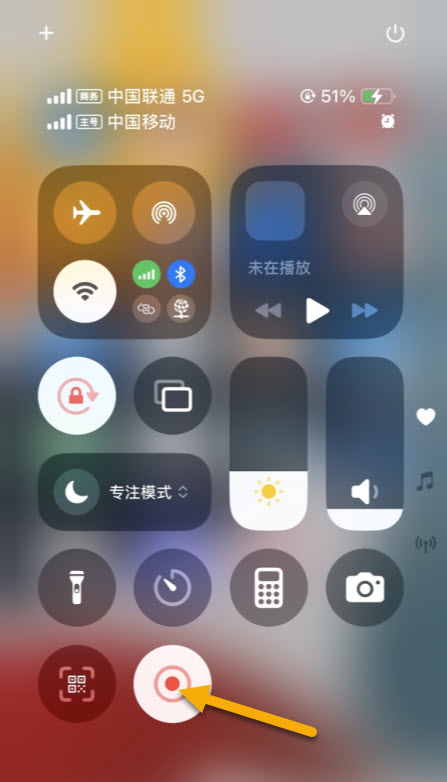
Tap the "Screen Recording" icon. Recording starts after a 3-second countdown.
To record your own voice: press and hold the screen recording icon, then tap the microphone icon so it turns red.
Note
Full-screen models (iPhone X and later): swipe down from the upper-right corner of the screen to open Control Center;
Non-full-screen models (iPhone 8 and earlier): swipe up from the bottom of the screen to open Control Center.
Stop and save
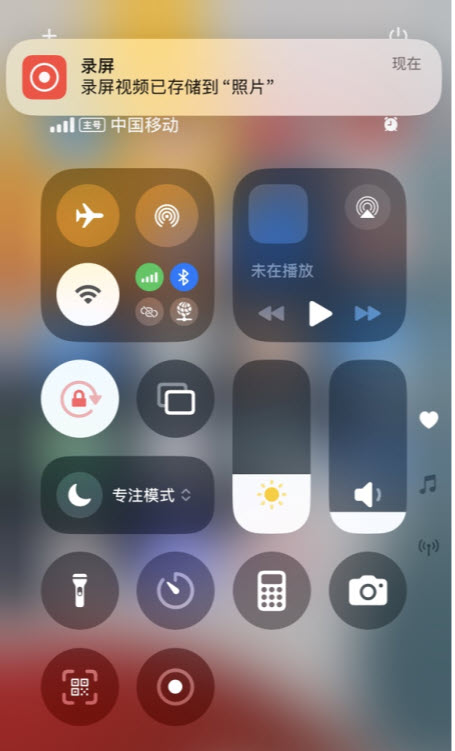
Tap the screen recording icon in Control Center again, or tap the red status bar at the top of the screen and select "Stop".
The recorded video is automatically saved to the Photos -> Screen Recording album.
Android series (mainstream brands)
Open the screen recording tool
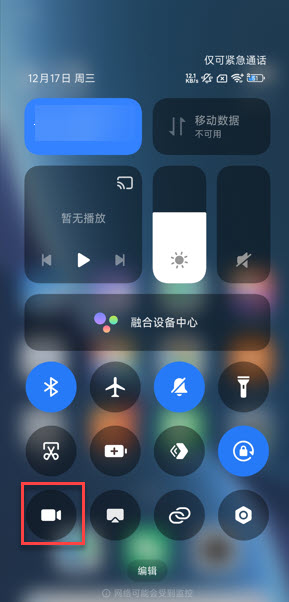
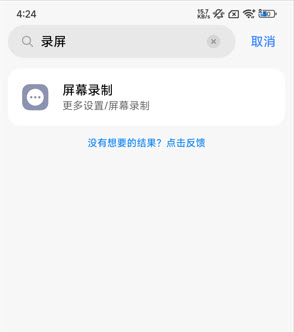
Start screen recording Tap the "Screen Recording" icon.
Stop and save When finished, tap the floating icon or the "Stop" button in Control Center. The video is saved to the album.
File feedback
Send the collected screenshots and screen recording files to the EasyAR technical support team.