Acquire changed areas for incremental updates
This chapter describes how to use a panoramic camera to acquire changed data for incremental update mapping, so that data in local areas where the scene has changed can be updated.
Note
Current Mega incremental update data acquisition only supports GoPro Max/Max2 cameras. Acquisition with other brands of panoramic cameras is not supported yet.
Preparation
Read Mega user guide.
Read Introduction to incremental updates to understand the basic principles of incremental update mapping.
Refer to GoPro Max configuration to set the parameters of the GoPro Max panoramic camera.
Refer to GoPro Max2 configuration to set the parameters of the GoPro Max2 panoramic camera.
Clarify the area that needs to be acquired and updated.
Incremental update data acquisition route planning
Similar to the need for route planning before Mega panoramic data mapping acquisition, route planning in advance is also required before acquiring incremental update data.
The overall guideline for incremental update route planning is: cover the update area while acquiring enough unchanged existing mapped area. In general, the acquisition route for an incremental update should have at least 20 meters of trajectory that also satisfies:
- It overlaps with the existing map acquisition route.
- The environment during the incremental update is basically consistent with the environment during the existing map acquisition.
The following are several typical incremental update use cases and corresponding route planning methods.
Some areas
on the trajectoryof the original acquisition need to be updatedThe dashed line in the figure below represents the original acquisition trajectory, where area
Cneeds to be updated and other areas remain unchanged. During acquisition, you can keep the previous route. In addition to acquiring the areaCthat needs to be updated, synchronously acquire the areasBandDon both sides, as shown by the green solid line in the figure.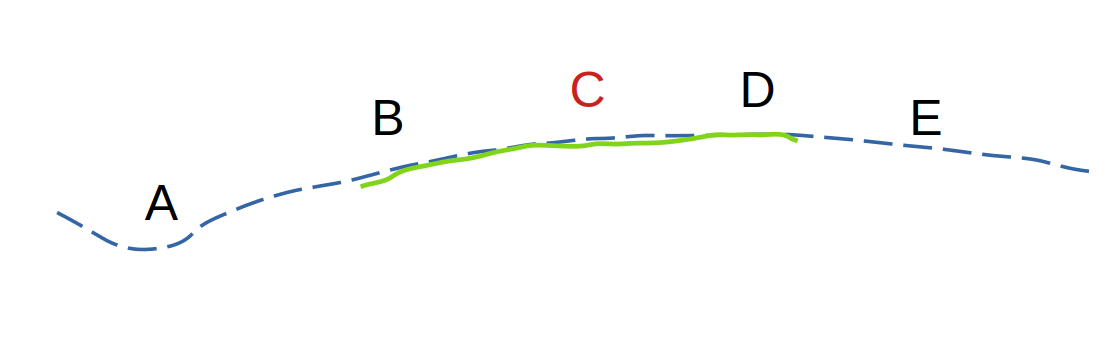
Areas
adjacent to but outside the trajectoryof the original acquisition need to be updatedThe dashed line in the figure below represents the original acquisition trajectory, where areas
EandFneed to be updated and other areas remain unchanged. During incremental acquisition, you can keep the previous route. In addition to acquiring the areasEandFthat need to be updated, synchronously acquire the nearby areasCandD, as shown by the green solid line in the figure. Choose the acquisition start segment and end segment in the unchanged areasCandD.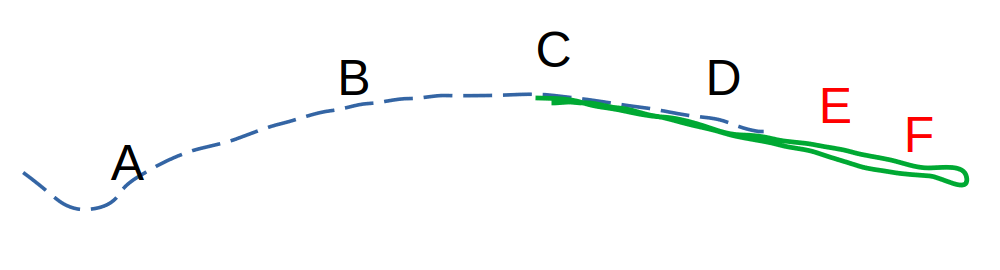
Areas
not adjacent to and outside the trajectoryof the original acquisition need to be updatedThe dashed line in the figure below represents the original acquisition trajectory, where areas
EandFneed to be updated and other areas remain unchanged. During incremental acquisition, you can keep the previous route. In addition to acquiring the areasEandFthat need to be updated, synchronously acquire the nearby areasCandD, as shown by the green solid line in the figure. Choose the acquisition start segment and end segment in the unchanged areasCandD.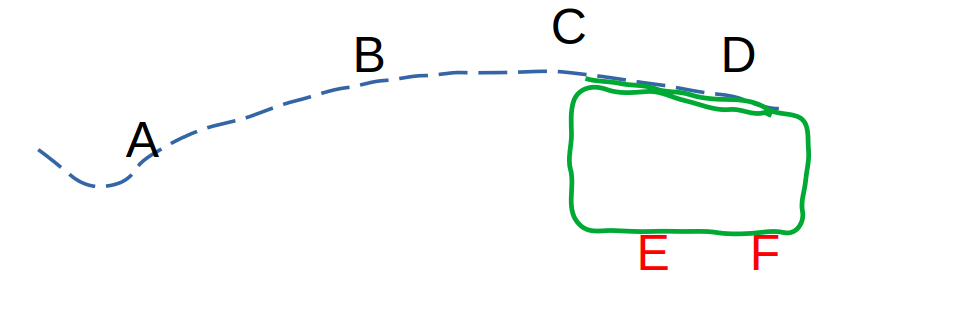
Note
A single incremental update acquisition is limited to no more than 16 minutes. Do not exceed this limit when planning the route.
Start acquisition
Check the settings against the GoPro Max/Max2 settings checklist to confirm that they meet the requirements.
Confirm acquisition conditions
Avoid acquisition when there are many people nearby.
Avoid acquisition when lighting is intense, such as around noon on a clear sunny day.
Avoid acquisition on rainy, snowy, or foggy days.
Power on and prepare
Power on the GoPro Max/Max2 camera and check it.
Securely fix the camera on the selfie stick, with the side of the camera that has the screen facing yourself.
Make sure there are close-range objects such as buildings or statues within 3 meters around the starting point. For example, do not choose the middle of a large square as the start of acquisition.
If the acquisition route
includes outdoor areas, first power on the camera in an open outdoor area and wait in standby mode for more than2 minutesbefore going to the acquisition start point to begin acquisition.
Start acquisition
Hold the panoramic camera about 20 cm above your head. Do not hold it too high or too low, and keep the selfie stick vertical.
Press the start recording button or use the GoPro Quik APP to control the camera and start recording.
At the starting location, move sideways for more than 2 meters while facing nearby buildings or walls with rich texture.
During acquisition
Hold the selfie stick firmly throughout acquisition and keep the camera as stable as possible.
Walk at no more than 1 meter/second,
avoid fast movement, and do not run, ride a bicycle, or acquire data from a vehicle.When turning or making a U-turn,
reduce turning speedto avoid rapid rotation.Avoid obstacles. Indoors, pay attention to ceiling height. Do not bump or wipe the camera.
Pay attention to acquisition duration. A single incremental update acquisition
must not exceed 16 minutes.
End acquisition
After acquisition ends, stop shooting by pressing the shooting button or through the GoPro Quik APP, and wait until
storage is complete.Check that the duration of the video saved by the camera is consistent with the actual acquisition duration.
Avoid invalid acquisition data
Non-standard acquisition may cause invalid acquisition, that is, acquisition data is unavailable. Common causes include the following. Please try to avoid them, and if they occur, re-acquire the data.
❌ Forgetting to remove the lens protective cover, including the transparent protective cover.
❌ Abnormal recording stop, such as camera battery depletion, storage card space exhaustion, or automatic shutdown due to camera overheating protection.
❌ The camera is bumped during acquisition, such as hitting a door frame or beam.
❌ The camera falls or slips off the selfie stick during acquisition.
❌ Removing the camera during acquisition to wipe the lens.
❌ Non-standard acquisition methods such as bicycle acquisition, umbrella acquisition, or acquisition on a boat.
❌ The selfie stick is not kept vertical during acquisition and leans against the body.
Next step
After completing incremental update panoramic data acquisition,
- Refer to Panoramic camera data export guide to export the data you acquired.
- Refer to Incremental update mapping operation guide to upload newly acquired data for map updates.