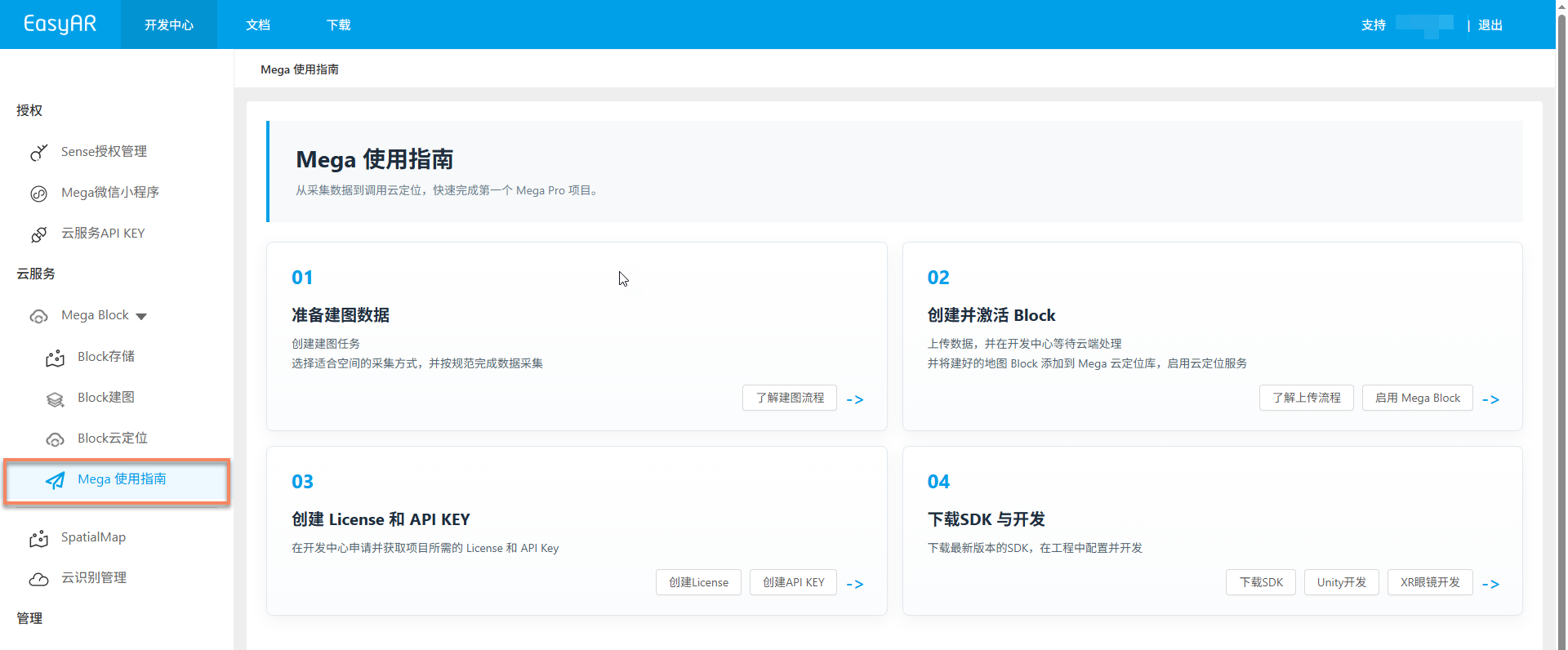
Enable a Mega trial
Users using Mega services for the first time can select "Try Mega" from the left menu of the Developer Center to enable a trial. Each account can create only one trial Mega service.
The trial package includes resource quotas such as 1 mapping task project, 2 cloud localization databases, and 3 request concurrency QPS. For details, see the package description in Mega localization service introduction.
Note
For users who have already enabled a Mega service (including trial or paid), the "Try Mega" entry is no longer displayed in the left menu of the Developer Center. If you need to continue using or expand capacity, contact EasyAR sales or refer to the purchase process in Manage localization databases.
Before you begin
- Visit EasyAR Developer Center and log in
- Confirm that the current account has not created a Mega service before
Enable steps
1. Click "Try Mega"
Select "Try Mega" from the left menu of the Developer Center, and click the Try Mega button in the upper-right corner of the page.
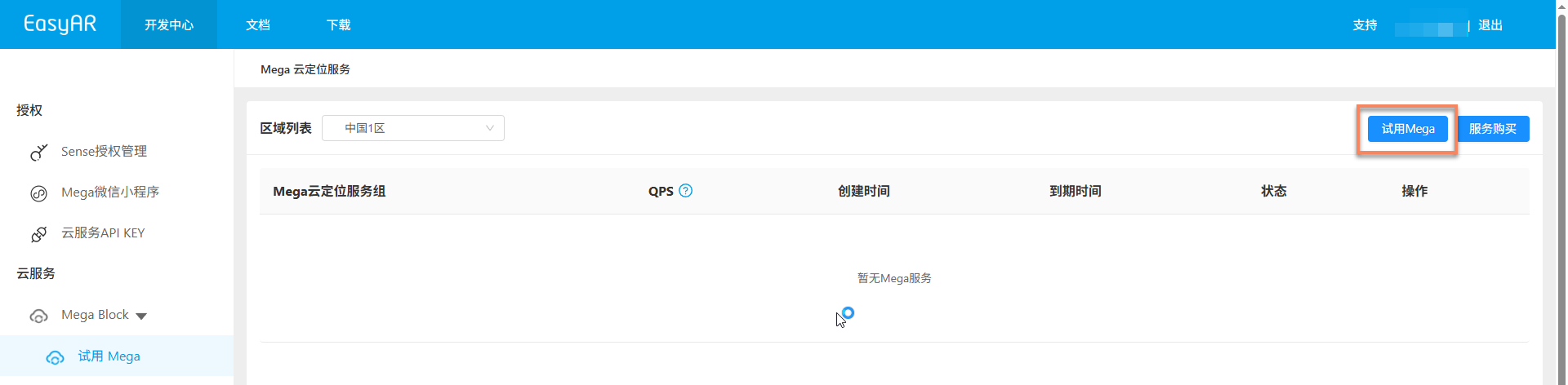
Important
This entry is visible only to accounts that have not enabled a Mega service. If you have already created a Mega service, skip this page and directly refer to Configure localization database to complete the subsequent configuration.
2. Select service region
In the pop-up dialog, carefully select the region where the Mega service will be created. After the region is selected, it affects the deployment location of cloud localization computing nodes. Select it based on the operating region of your AR product and network latency requirements.
After selection, click the Confirm button.

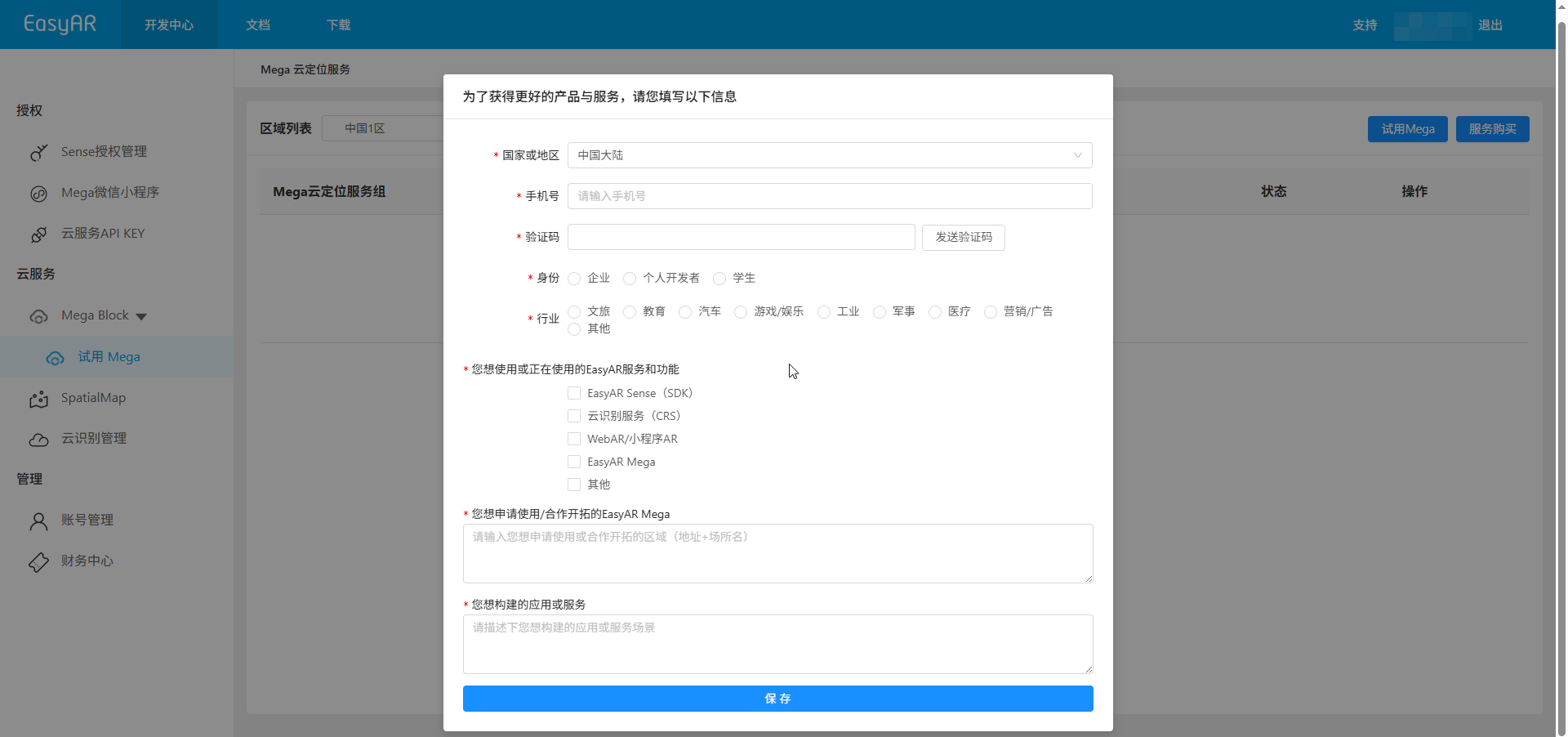
3. Fill in related usage information
If the account's personal usage information is incomplete, an information dialog pops up at this time. Fill in the information completely and click the Save button. After it is saved successfully, you can go to the "Create trial Mega service" page.
4. Fill in service information
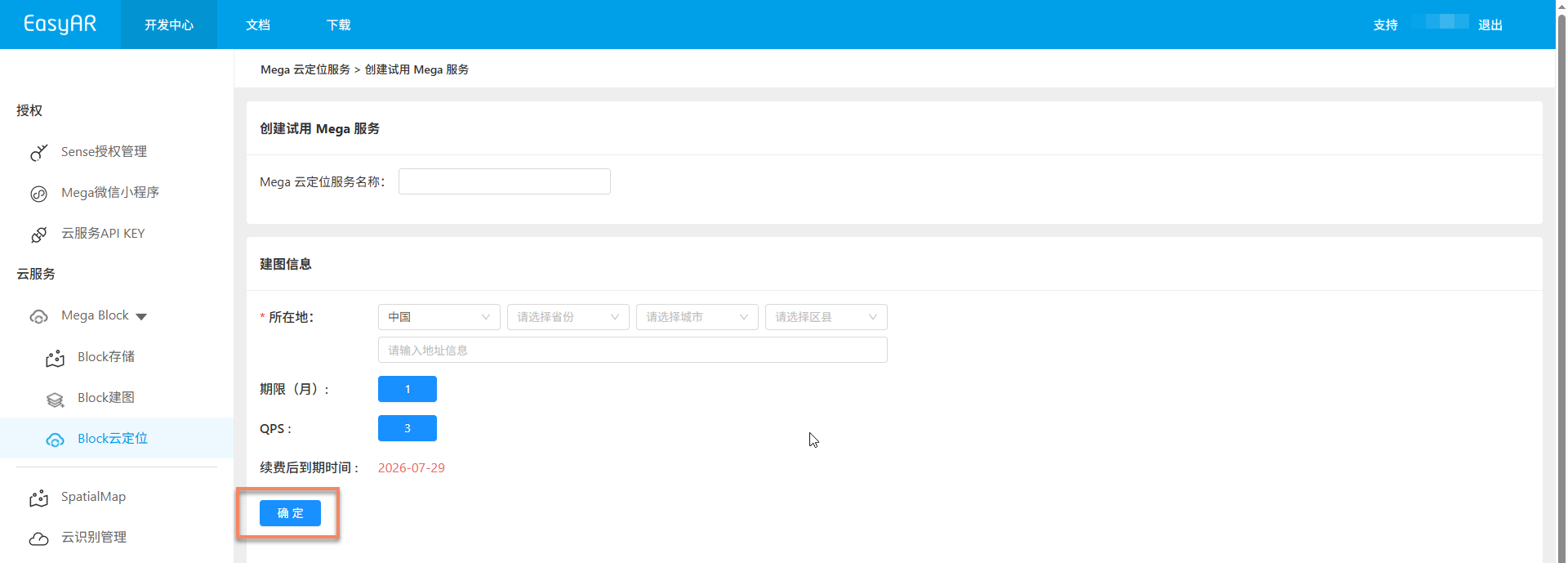
On the "Create trial Mega service" page, fill in the following information:
- Mega cloud localization service name: used to identify this trial service, making it easy to identify and manage later in the console
- Mapping location information: fill in the geographic location corresponding to the Mega Block mapping task
After the information is complete, click OK to complete enabling the trial Mega cloud localization service.
After enabling
After the trial Mega service is enabled successfully, you can automatically unlock Mega Block related menus and view service groups and cloud localization databases on the "Block cloud localization" page.
Next, refer to the Mega user guide (Chinese, English) to start your dedicated Mega journey.