XGRIDS 장치로 Mega용 공간 데이터 수집
이 절에서는 XGRIDS의 laser scanning 장치를 사용해 환경을 수집한 다음 LCC Studio로 재구성하고 EasyAR Mega에 필요한 데이터를 내보내는 방법을 설명합니다.
전체 흐름
XGRIDS 장치를 Mega에 사용하는 경우 일반적으로 다음 단계가 필요합니다.
- 수집 경로 계획. 수집 전에 수집할 영역에 따라 미리 경로를 계획합니다. 특히 대규모 scene을 수집해야 할 때 중요합니다.
- onsite 데이터 수집. 지원되는 laser 장치를 사용하여 onsite 환경 데이터를 수집합니다.
- LCC Studio로 raw data 처리. 컴퓨터에서 LCC Studio를 사용해 onsite 수집 데이터를 가져오고 scene의 3D 데이터를 재구성합니다.
- Mega cloud에 데이터를 업로드하여 localization map 생성. LCC Studio 결과에서 Mega에 필요한 파일을 선택해 server에 업로드합니다.
- AR 콘텐츠 배치 및 원격 테스트. Unity 등 3D engine에서 재구성 scene을 확인하고, AR 콘텐츠를 설계하며, remote debugging, application packaging 등을 수행합니다.
- onsite 테스트와 체험.
Mega가 지원하는 XGRIDS 장치 유형
현재 Mega가 지원하는 XGRIDS 장치는 다음과 같습니다.
- PortalCam P1
- Lixel 시리즈
참고
EasyAR Mega는 현재 XGRIDS 장치가 스캔한 raw data의 직접 업로드를 지원하지 않습니다. 먼저 LCC Studio에서 처리하고 필요한 형식으로 내보내야 합니다. 현재 LCC Studio 버전에서 지원하는 장치를 확인하려면 해당 user manual을 참조하십시오.
경로 계획 및 onsite 데이터 수집
XGRIDS 장치를 사용해 고품질 데이터를 수집하는 방법은 XGRIDS developer website에서 제공하는 가이드와 튜토리얼을 참조할 수 있습니다.
고품질 scanning 기술을 익히기 위해 LCC 수집 튜토리얼을 읽는 것을 권장합니다.
- XGRIDS 공식 LCC 수집 가이드를 읽고 수집 시 주의 사항을 익히십시오.
- PortalCam P1 수집 가이드에서 PortalCam P1을 조작하고 수집에 사용하는 방법을 알아보십시오.
LCC Studio로 scan 데이터 처리
LCC Studio를 사용해 onsite scan 데이터를 처리하는 방법은 LCC Studio 공식 튜토리얼을 참조하여 자세한 작업 가이드를 확인할 수 있습니다.
LCC Studio 공식 웹사이트에서 LCC Studio, user manual, release notes를 다운로드합니다.
LCC Studio 튜토리얼 시리즈를 보고 scene 생성 및 편집 방법을 알아보십시오.
LCC Studio 결과에서 Mega에 필요한 파일 찾기
LCC Studio에서 scene 생성을 완료한 후 컴퓨터에서 Mega 개발에 필요한 파일을 확인할 수 있습니다. 구체적인 방법은 다음과 같습니다.
LCC Studio의
My scenes아래에서 환경 오른쪽 위의...를 클릭합니다.Open file location을 선택합니다. 관련 파일이 있는 disk 위치가 열립니다. 이 directory에서 Mega에 필요한 관련 파일을 찾을 수 있습니다.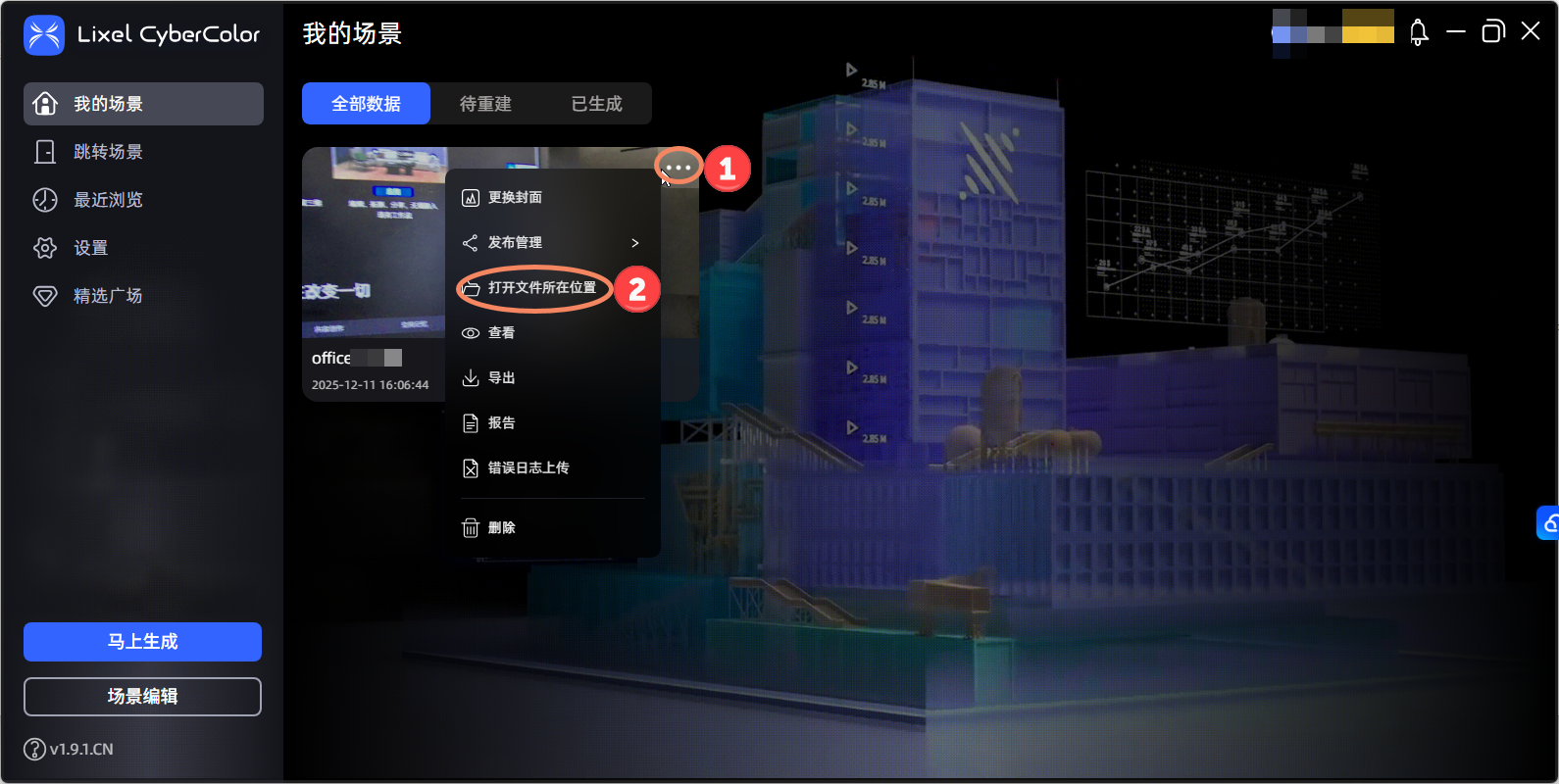
ply-result\point_cloud\iteration_100directory에는point_cloud.ply형식의 3D-GS 파일이 저장되어 있습니다.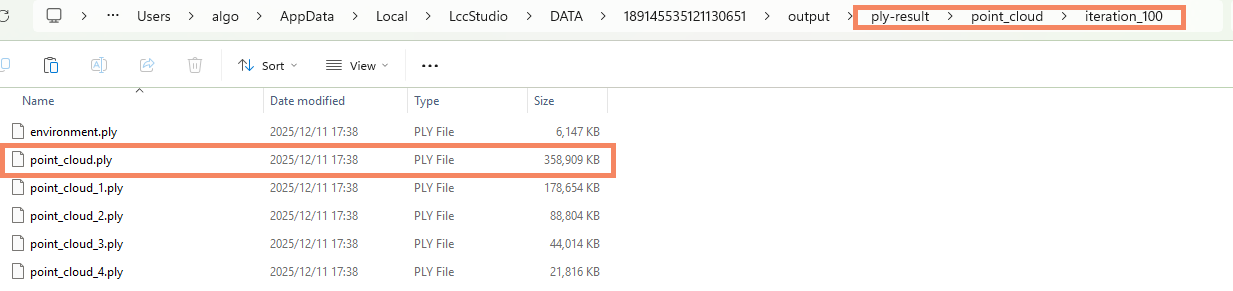
renderdirectory에는lcc형식의 3D-GS 파일(*.lcc, )이 저장되어 있습니다.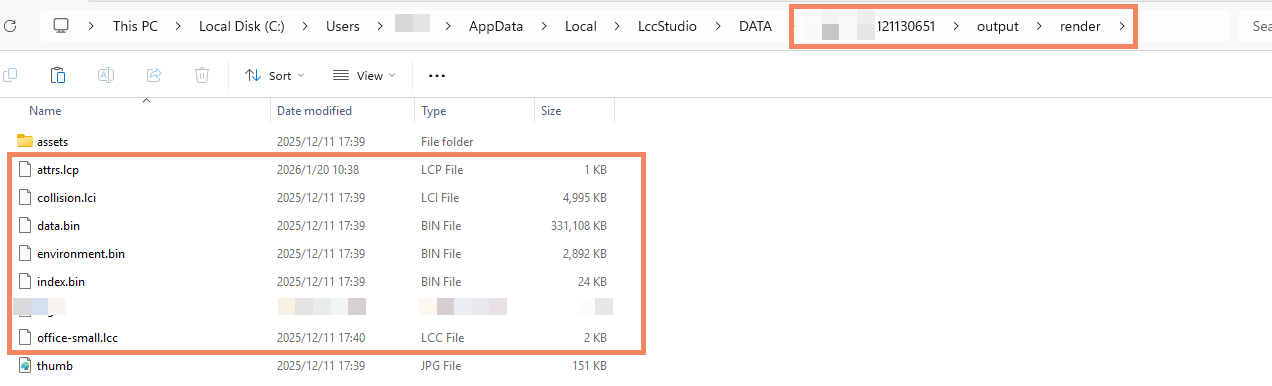
render\assetsdirectory에는 수집 trajectory를 기록하는 poses.json 파일이 저장되어 있습니다.
참고
LCC Studio에서 File -> Export 기능을 사용하고 ply 형식의 3D-GS 파일을 선택하여 Mega용 사용자 지정 directory로 내보낼 수도 있습니다.
다음 단계
위 LCC Studio 재구성 결과 파일을 EasyAR server에 업로드해야 합니다. 자세한 방법은 XGRIDS 데이터를 Mega server에 업로드를 참조하십시오.