휴대폰으로 수집한 데이터 내보내기
휴대폰으로 수집을 완료한 후에는 수집된 데이터를 내보내야 합니다. 휴대폰 수집 데이터의 확장자는 .emp이며, 내보낼 때 파일 이름 suffix에 주의하십시오.
Android 데이터 내보내기
휴대폰을 컴퓨터에 연결하고 휴대폰에서 File Management 모드를 연 뒤, 로컬 파일 path Android/data/com.easyar.mega.toolbox/files/MegaStudio/EMP로 들어가 해당 이름의 데이터 파일을 선택하여 내보내면 됩니다.
iOS 데이터 내보내기
Mac 컴퓨터로 내보내기
iPhone을 Mac 컴퓨터에 연결합니다.
Finder 애플리케이션을 열고 휴대폰 아이콘을 클릭한 뒤
Trust를 클릭하고, 휴대폰 쪽에서도Trust를 클릭합니다.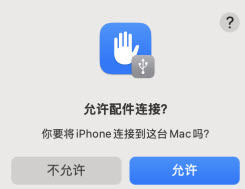
trust 후
Files메뉴를 클릭하고Mega ToolboxApp 아래의MegaStudio폴더를 찾아MegaStudio를 컴퓨터 desktop으로 드래그합니다.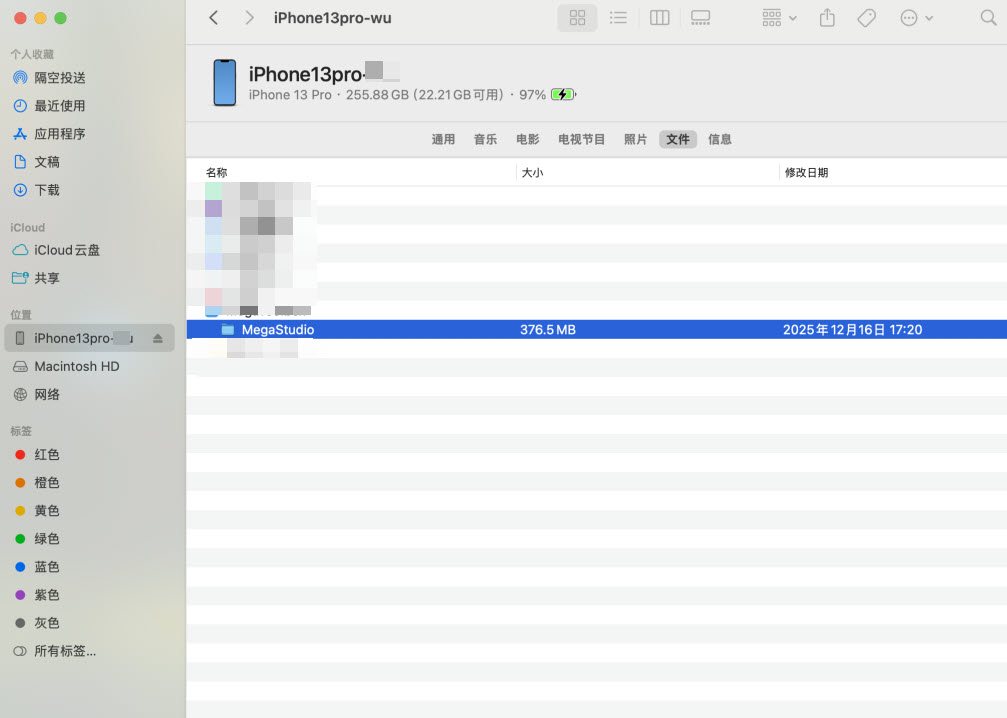
MegaStudio안의EMP폴더를 찾습니다.EMP폴더의***.emp파일이 수집된 파일입니다.
Windows 컴퓨터로 내보내기
Windows 컴퓨터에서 iTunes를 다운로드하고 설치합니다.
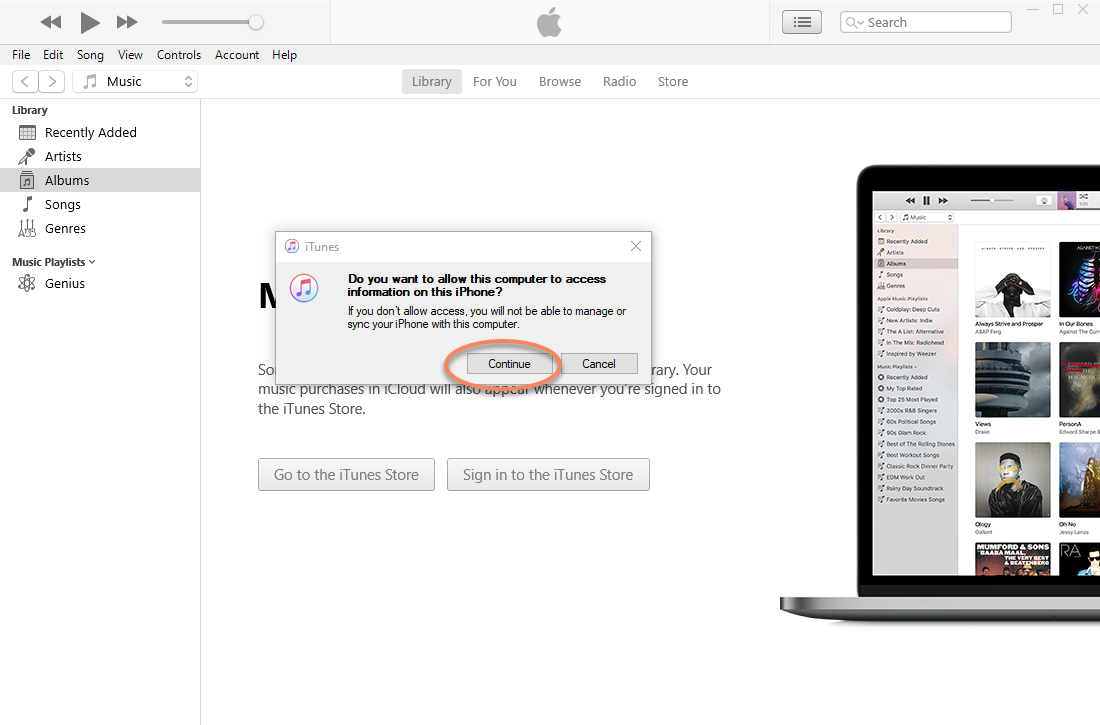
iPhone을 Windows 컴퓨터에 연결하고 trust를 수행합니다.
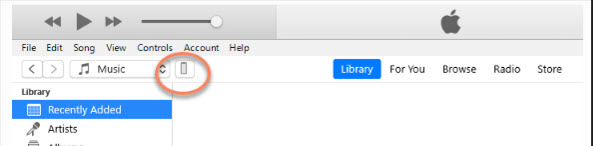
휴대폰 버튼을 클릭합니다
file sharing을 클릭하고
Mega ToolboxApp 아래의MegaStudio폴더를 찾아 save를 클릭합니다.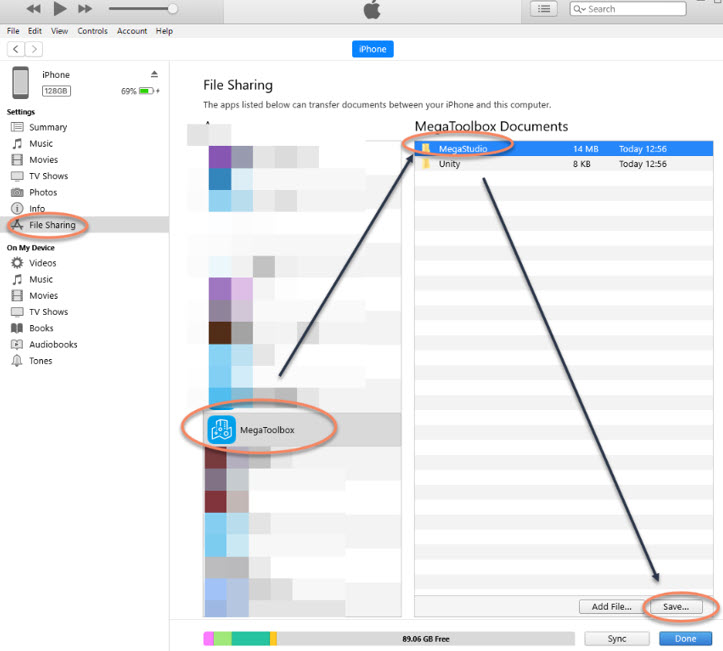
MegaStudio안의EMP폴더를 찾습니다.EMP폴더의***.emp파일이 수집된 파일입니다.
팁
폴더 데이터량이 큰 경우 모두 내보내기가 완료되었는지 주의해야 합니다. 내보내기 후 컴퓨터 쪽 파일 크기를 확인하고 휴대폰의 해당 파일 크기와 비교하는 것을 권장합니다.
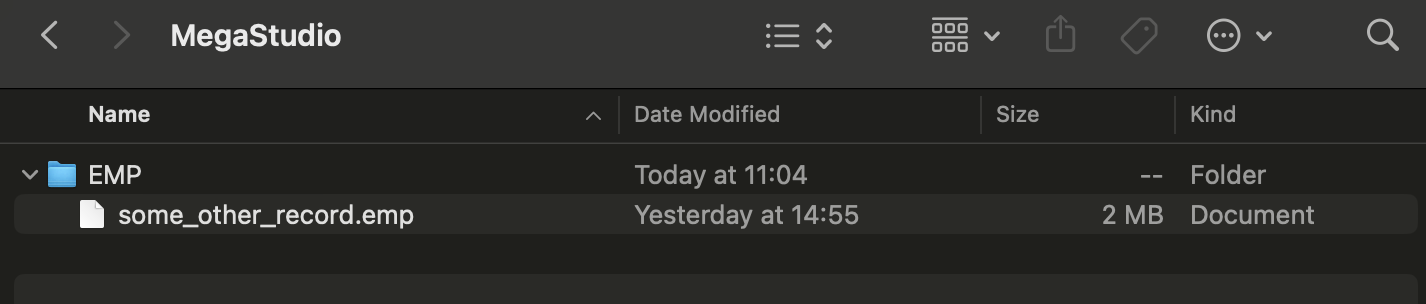
파일을 컴퓨터로 내보낸 후 PotPlayer 또는 VLC Media Player 등의 player를 사용하여 녹화된 비디오를 재생하고, 흐림, 끊김 또는 재생 불가 문제가 있는지 확인할 수 있습니다. 문제가 있으면 다시 수집해야 합니다.
다음 단계
- “EasyAR Developer Center”에서 새 mapping 프로젝트 생성
- 수집한 object 또는 소규모 공간에 따라 object phone acquisition task 생성 또는 small-scale phone acquisition task 생성