Sparse spatial map data management
This chapter introduces how to manage Spatial Map sparse spatial map data.
Data
The map data management process is as follows:
- Generation and upload: maps are automatically generated by EasyAR Sense on the device side and uploaded to the cloud in a dedicated format.
- Cloud management: through management APIs, developers can integrate management functions such as adding, deleting, updating, and querying maps.
- Sharing and distribution: map sharing is supported. Maps uploaded by any device can be used by other devices for localization, enabling multi-device collaboration.
Data flow
- EasyAR Sense creates and uploads maps to the server. During use, map data is downloaded and used. Before use, cache validity is checked first.
- The user side sends operation instructions to the data management server through APIs.
flowchart TB

B[API or EasyAR Web] --> A[Data management server]

A[Data management server] <-->  D[Device-side EasyAR Sense] <--> C>Device-side data cache]
Data center
Considering network distribution data centers, users should select the region corresponding to the server network before purchase. Currently supported:
- China region
- North America region
Method 1: manage spatial maps in the EasyAR Developer Center
Suitable for small-scale business scenarios. The operation steps are as follows:
- Log in to the EasyAR Developer Center and enter SpatialMap.
- Select China region or North America region. If a SpatialMap library has not been created, create a new SpatialMap library first.
- Because EasyAR SpatialMap is bound to EasyAR Sense, the operation is performed on the Sense License Key page to create the SpatialMap library.
- Sense authorization -> SpatialMap
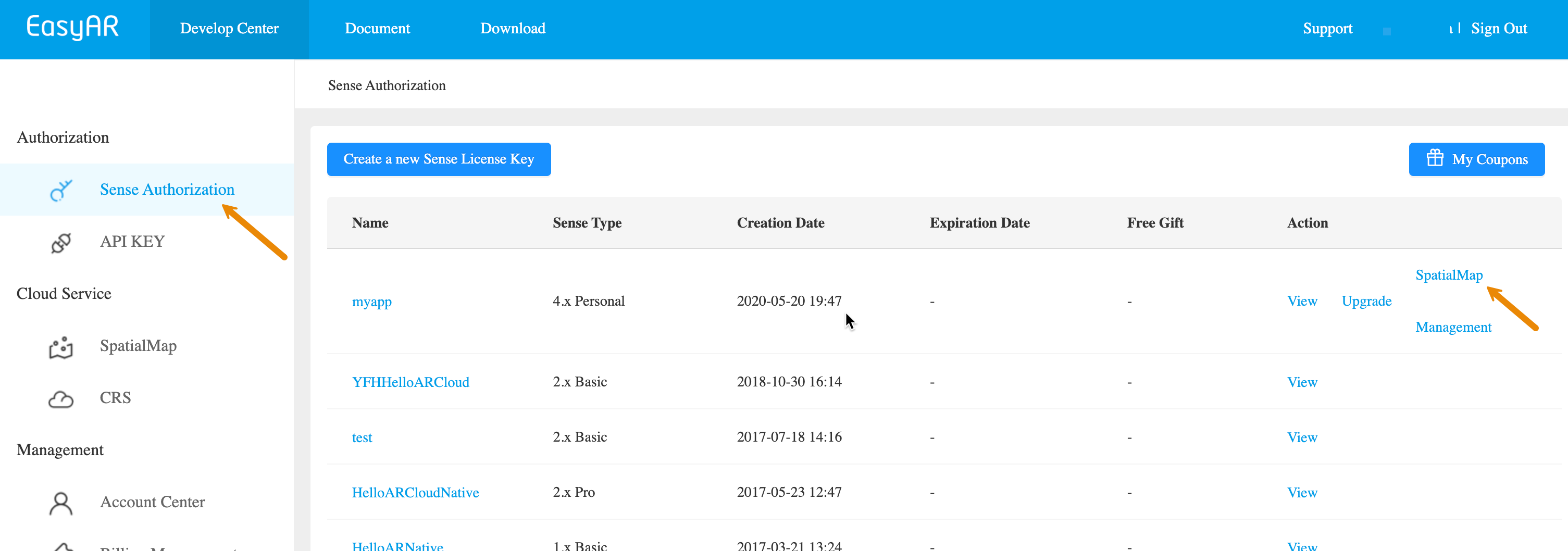
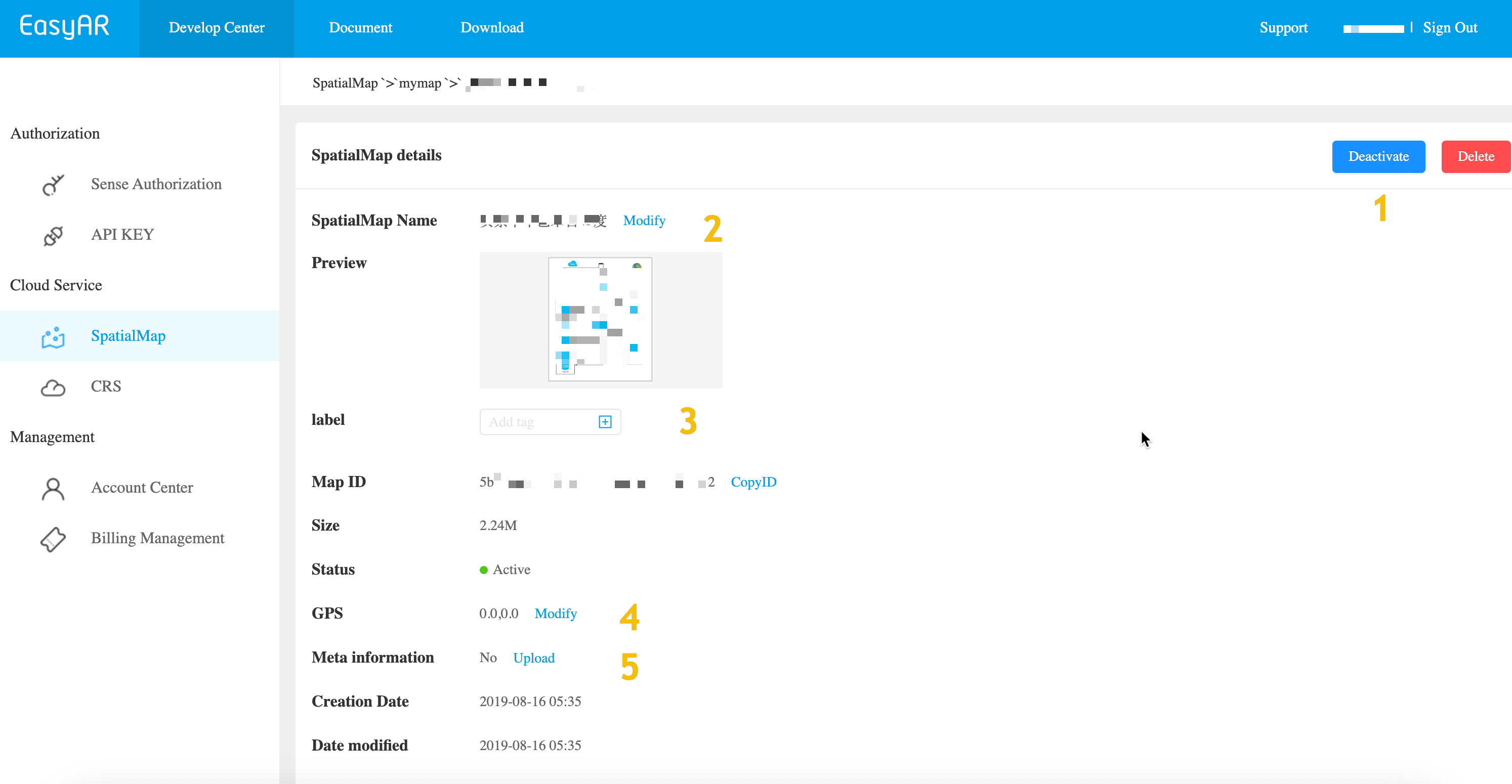
Click Manage in the image library list to enter the SpatialMap list. Click Manage for any spatial map, as shown in the figure, to perform the following management operations on a single spatial map:
- Delete operation
- Update operation (mark 1): disable/enable map
- Update operation (mark 2): modify name
- Update operation (mark 3): modify label: Label
- Update operation (mark 4): modify location: GNSS/GPS
- Update operation (mark 5): modify Meta: associate url resources and custom properties
Method 2: use REST API for automated management
For scenarios that need to process a large amount of map management, it is recommended to use the Web Service REST API to implement automated workflows in your application or management backend.
Preparation resource checklist
- SpatialMap AppId
- Authentication credential: API Key / API Secret or Token
- Cloud URL: request addresses for the Spatial Map service are divided by data center, China (default) and US:
- China region:
https://armap-api.easyar.com - North America region:
https://armap-api-na1.easyar.com
- China region:
Obtain checklist resources
Obtain SpatialMap AppId:
Developer Center -> SpatialMap -> Select image library -> Manage -> Key (Authentication)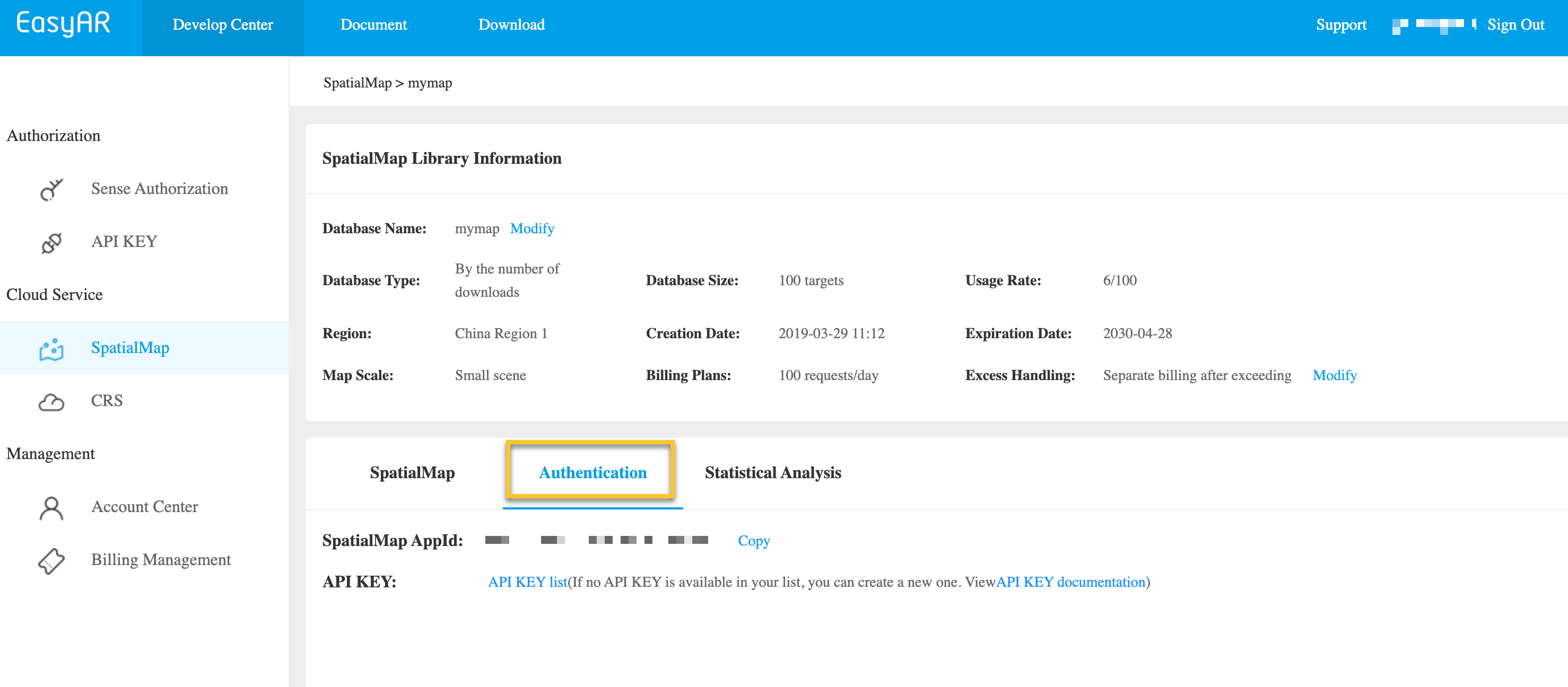
Obtain API Key / API Secret:
Developer Center -> Cloud Service APIKey -> Copy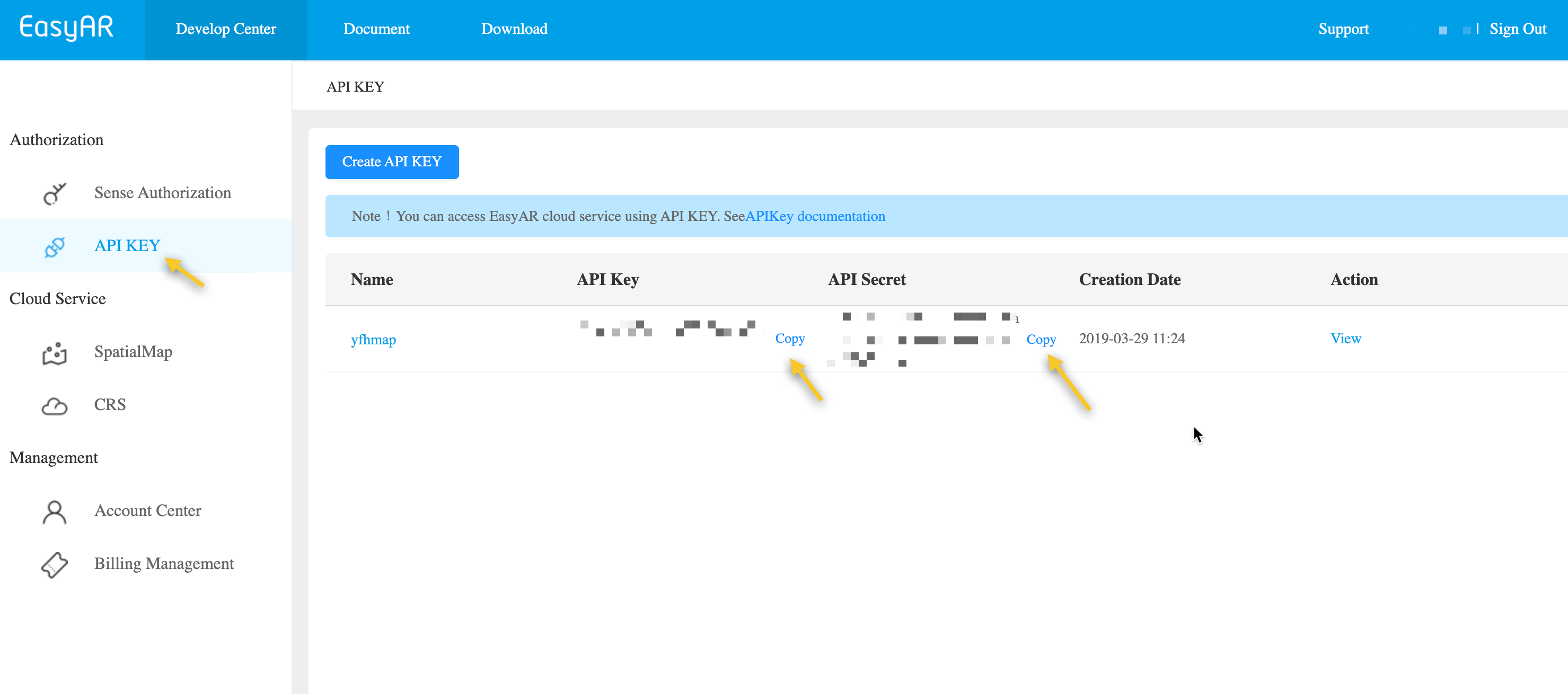
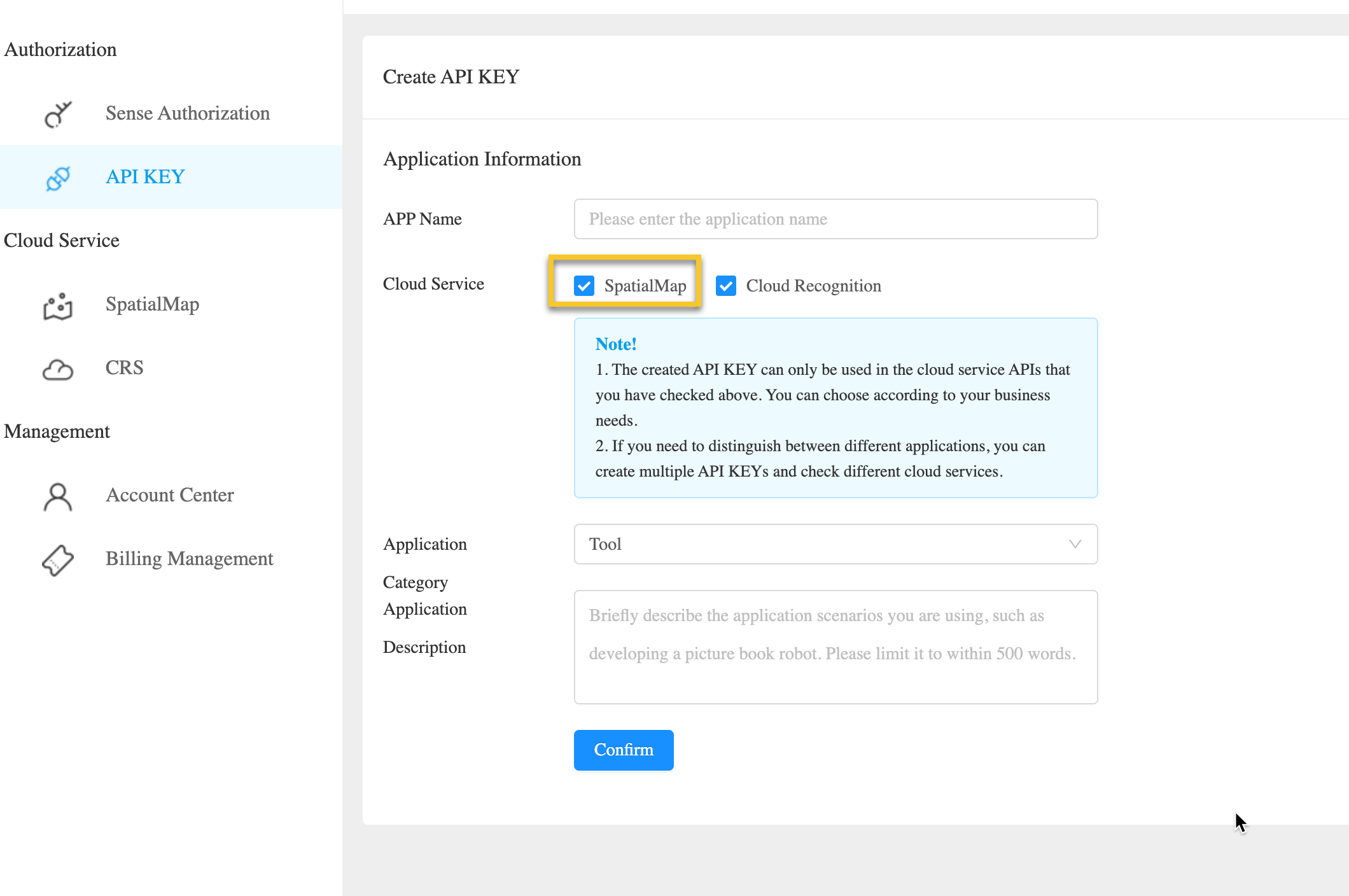
If you do not have an API Key yet, create an API Key and make sure the SpatialMap permission is checked. To learn more about API Key and permission control, refer to API Key introduction.
- Obtain Token:
Developer Center -> Cloud Service APIKey -> Manage -> Select validity period -> Generate Token -> Copy
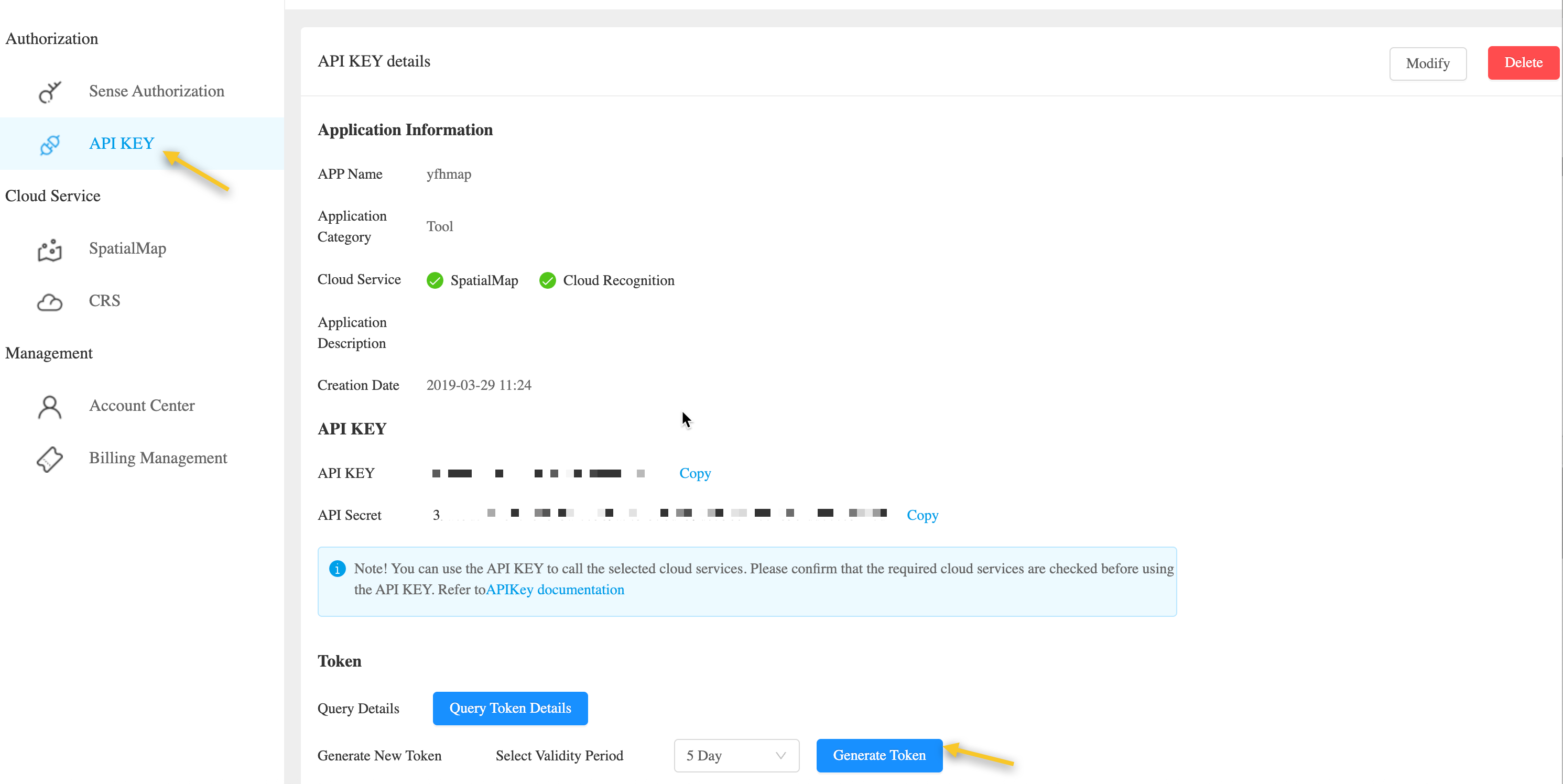
If you need to customize the validity period of the Token, you can refer to UAC API - Create Token and use the original APIKey and APISecret to create a Token.
Multi-end integration guide
In actual workflows, spatial map management is usually integrated into the developer's business server, mobile end, or Unity:
Business service platform: provides API sample code in common server development languages (Curl/Java/NodeJS/PHP) to help developers implement spatial map management.
Mobile end (Unity/Mobile): developers can use Unity to develop and create spatial maps, and then manage spatial maps based on Unity.