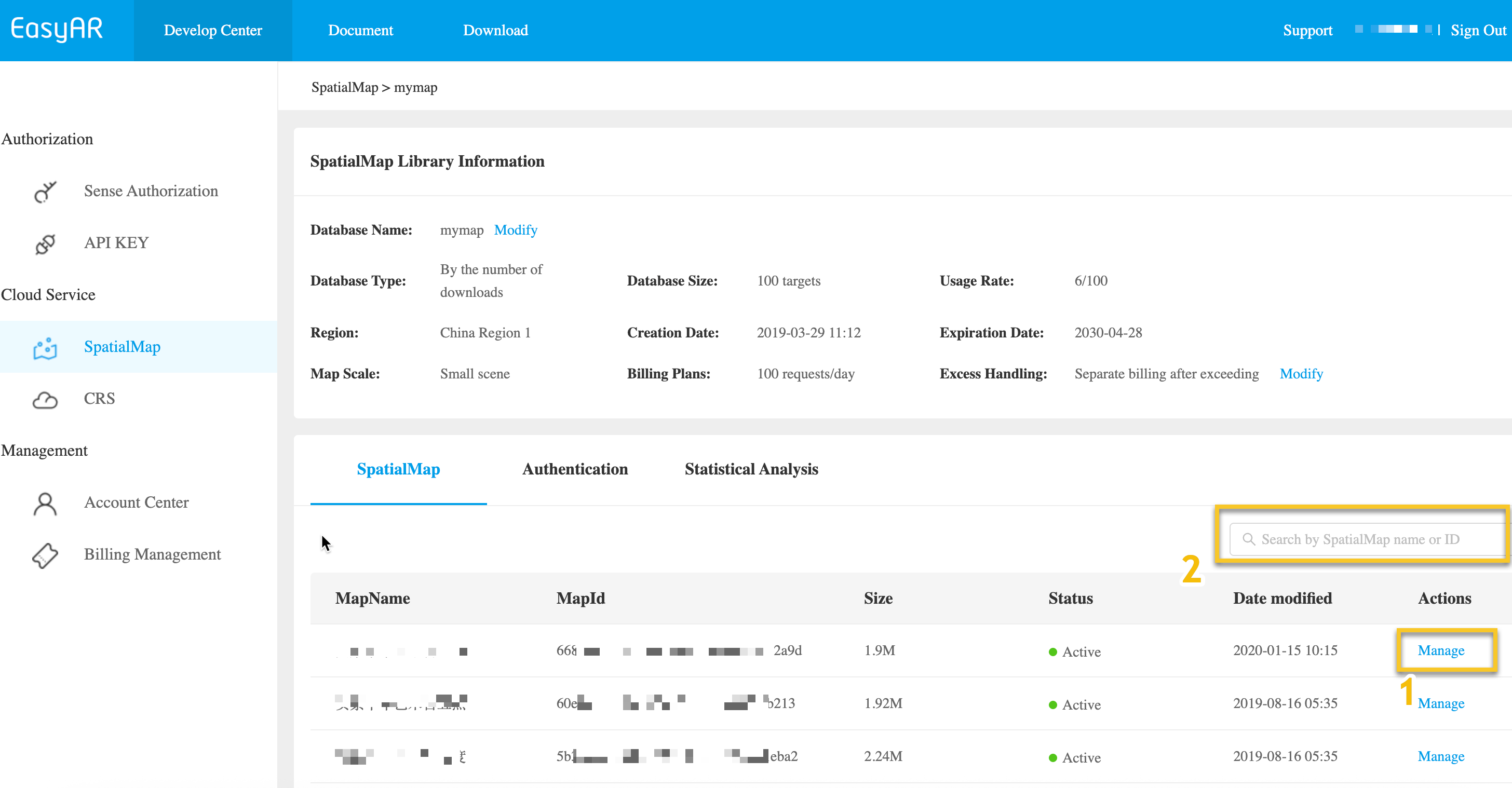
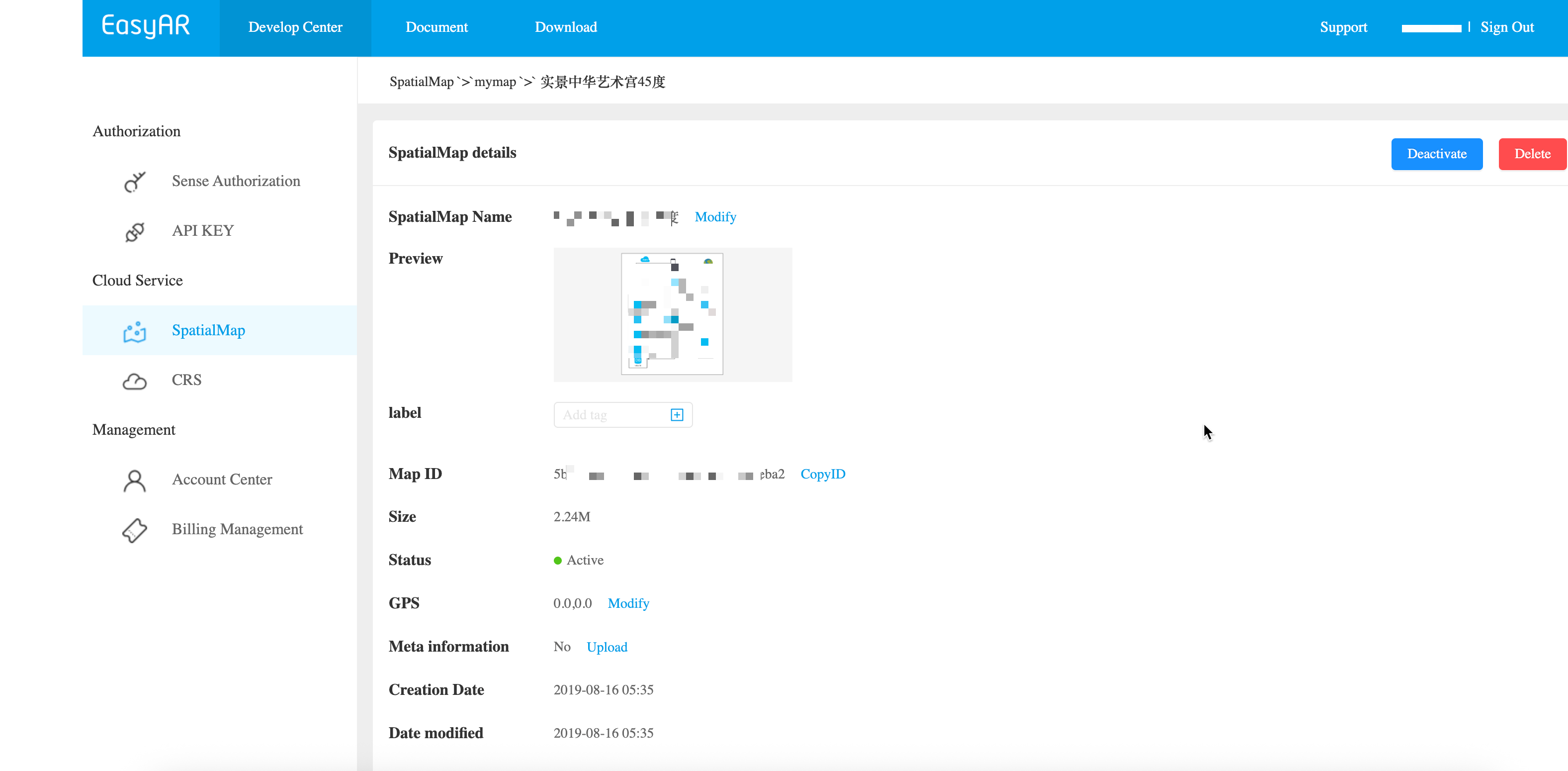
EasyAR Spatial Map usually stores a large amount of spatial map data. This chapter describes how to get Spatial Map details and paginated lists.
After clicking into the details page, you can view the complete properties of the Spatial Map, including:
For developers who need integration with their own backend, REST API management is recommended.
Replace the placeholders with actual parameters and run the curl script.
- Your-URL -> actual Cloud URL
- Your-Token -> actual API Key Authorization Token
- Your-SpatialMap-AppId -> actual SpatialMap appId
curl -X GET "https://armap-api-<cn1|na1>.easyar.com/maps?appId=<Your-SpatialMap-AppId>" \
  -H "Content-Type: application/json" \
  -H "Authorization: <Your-Token>"
Download the Java sample code
Import the project with Maven
Step 1. Open the sample code ListMaps.java
Step 2. Modify the global variables and replace them with the authentication parameters from your preparation checklist
- SpatialMap AppId
- API Key / API Secret
- Cloud URL
ListMaps.java
import okhttp3.OkHttpClient;
import okhttp3.Response;
import org.json.JSONObject;
import java.io.IOException;
import java.util.Set;

public class ListMaps {

    private static final String CLOUD_URL       = "https://armap-api.easyar.com";
    private static final String APPID           = "--here is your SpatialMap AppId--";
    private static final String API_KEY         = "--here is your API Key--";
    private static final String API_SECRET      = "--here is your API Secret--";

    public String  toParam(JSONObject jso) {
        Set<String> keys = jso.keySet();
        StringBuffer sb   = new StringBuffer();
        for (String key : keys){
            sb.append(key);
            sb.append("=");
            sb.append(jso.getString(key));
            sb.append("&");
        }
        return sb.substring(0,sb.length()-1);
    }

    public String list(Auth auth) throws IOException {
        OkHttpClient client = new OkHttpClient.Builder().build();
        JSONObject params = new JSONObject();
        Auth.signParam(params, auth.getAppId(), auth.getApiKey(), auth.getApiSecret());
        okhttp3.Request request = new okhttp3.Request.Builder()
                .url(auth.getCloudURL() + "/maps?"+ toParam(params))
                .get()
                .build();
        Response response = client.newCall(request).execute();
        return response.body().string();
    }
    public static void main(String[] args) throws IOException{
        Auth accessInfo  =  new Auth(APPID, API_KEY, API_SECRET, CLOUD_URL);
        System.out.println(new ListMaps().list(accessInfo));
    }

}
Step 3. Run Main
Step 1. Copy the sample code to listmap.js, and modify Token, appId, and Cloud URL in it
Step 2. Run
npm install axios
node listmap.js
If you need to change the pagination strategy, pass pagination parameters
- pageSize: page size
- pageNum: page number
const axios = require('axios');

class MapService {
    constructor(baseURL, token, appId) {
        this.baseURL = baseURL;
        this.token = token;
        this.appId = appId;
        this.client = axios.create({
            baseURL: baseURL,
            headers: {
                'Authorization': token,
                'Content-Type': 'application/json'
            }
        });
    }

    async listMaps(params = {}) {
        try {
            const queryParams = {
                ...params,
                appId: this.appId
            };

            const response = await this.client.get('/maps', { params: queryParams });

            console.log('=== API Response ===');
            console.log('Status Code:', response.status);
            console.log('Request URL:', response.config.url);
            console.log('Request Headers:', JSON.stringify(response.config.headers, null, 2));
            console.log('Request Params:', JSON.stringify(queryParams, null, 2));
            console.log('Response Data:', JSON.stringify(response.data, null, 2));
            console.log('Timestamp:', new Date().toISOString());

            return response.data;
        } catch (error) {
            console.error('=== API Error ===');
            if (error.response) {
                console.log('Status Code:', error.response.status);
                console.log('Error Data:', error.response.data);
            } else {
                console.log('Error Message:', error.message);
            }
            throw error;
        }
    }
}

async function main() {
    const config = {
        baseURL: 'https://armap-api-<cn1|na1>.easyar.com',
        token: 'your_token_here',
        appId: 'your_app_id_here'
    };

    const mapService = new MapService(config.baseURL, config.token, config.appId);

    const queryParams = {
        pageNum: 1,
        pageSize: 10
    };

    try {
        const result = await mapService.listMaps(queryParams);
        console.log('\n=== Success ===');
    } catch (error) {
        console.log('\n=== Failed ===');
    }
}

if (require.main === module) {
    main();
}

module.exports = MapService;
Step 1. Copy the sample code to listmap.php, and modify Token, appId, and Cloud URL in it
Step 2. Run
php listmap.php
If you need to change the pagination strategy, pass pagination parameters
- 'pageSize': page size
- 'pageNum': page number
<?php
class MapService {
    private $baseURL;
    private $token;
    private $appId;

    public function __construct($baseURL, $token, $appId) {
        $this->baseURL = $baseURL;
        $this->token = $token;
        $this->appId = $appId;
    }

    public function listMaps($params = []) {
        $queryParams = array_merge([
            'appId' => $this->appId
        ], $params);

        $queryString = http_build_query($queryParams);
        $url = $this->baseURL . '/maps?' . $queryString;

        $ch = curl_init();

        curl_setopt_array($ch, [
            CURLOPT_URL => $url,
            CURLOPT_RETURNTRANSFER => true,
            CURLOPT_HTTPHEADER => [
                'Authorization: ' . $this->token,
                'Content-Type: application/json'
            ],
            CURLOPT_SSL_VERIFYPEER => false,
            CURLOPT_TIMEOUT => 30
        ]);

        $response = curl_exec($ch);
        $httpCode = curl_getinfo($ch, CURLINFO_HTTP_CODE);
        $error = curl_error($ch);

        echo "=== API Request ===" . PHP_EOL;
        echo "URL: " . $url . PHP_EOL;
        echo "Headers: Authorization: " . $this->token . PHP_EOL;
        echo "Query Params: " . json_encode($queryParams, JSON_PRETTY_PRINT) . PHP_EOL;

        curl_close($ch);

        echo "=== API Response ===" . PHP_EOL;
        echo "Status Code: " . $httpCode . PHP_EOL;
        echo "Timestamp: " . date('c') . PHP_EOL;

        if ($error) {
            echo "cURL Error: " . $error . PHP_EOL;
            return null;
        }

        $responseData = json_decode($response, true);
        echo "Response Data: " . json_encode($responseData, JSON_PRETTY_PRINT) . PHP_EOL;

        return $responseData;
    }
}

// Configure your API Key Token and Your Spatial Map AppId
$config = [
    'baseURL' => 'https://armap-api-<cn1|na1>.easyar.com',
    'token' => 'your_token_here',
    'appId' => 'your_app_id_here'
];

$mapService = new MapService($config['baseURL'], $config['token'], $config['appId']);

$queryParams = [
    'pageNum' => 1,
    'pageSize' => 5
];

$result = $mapService->listMaps($queryParams);

if ($result) {
    echo PHP_EOL . "=== Success ===" . PHP_EOL;
} else {
    echo PHP_EOL . "=== Failed ===" . PHP_EOL;
}
?>
Create the related code file list_map.py, modify the global variables, and then run
pip install requests
python list_map.py
import time
import hashlib
import requests

# --- Global Configuration ---
API_KEY = "YOUR_API_KEY"
API_SECRET = "YOUR_API_SECRET"
APP_ID = "YOUR_APP_ID"
HOST = "https://armap-api-<cn1|na1>.easyar.com"

def main():
    timestamp = str(int(time.time() * 1000))

    # 1. Prepare parameters
    params = {
        'apiKey': API_KEY,
        'appId': APP_ID,
        'timestamp': timestamp,
        'pageNum': '1',
        'pageSize': '10'
    }

    # 2. Signature Calculation
    sorted_keys = sorted(params.keys())
    sign_str = "".join([f"{k}{params[k]}" for k in sorted_keys]) + API_SECRET
    signature = hashlib.sha256(sign_str.encode('utf-8')).hexdigest()

    # 3. Build Request
    url = f"{HOST}/maps"
    params['signature'] = signature

    print(f"Fetching Spatial Maps from {url}...")
    response = requests.get(url, params=params)
    print(f"Response: {response.text}")

if __name__ == "__main__":
    main()
Create the related code file main.go, modify the global variables, and then run
go run main.go
main.go:
package main
import (
"crypto/sha256"
"fmt"
"io"
"net/http"
"sort"
"strconv"
"time"
)
var (
ApiKey = "YOUR_API_KEY"
ApiSecret = "YOUR_API_SECRET"
AppId = "YOUR_APP_ID"
Host = "https://armap-api-<cn1|na1>.easyar.com"
)
func main() {
ts := strconv.FormatInt(time.Now().UnixNano()/1e6, 10)
params := map[string]string{
"apiKey": ApiKey,
"appId": AppId,
"timestamp": ts,
"pageNum": "1",
"pageSize": "10",
}
// 1. Sort keys
keys := make([]string, 0, len(params))
for k := range params { keys = append(keys, k) }
sort.Strings(keys)
// 2. Build string and sign
builder := ""
for _, k := range keys { builder += k + params[k] }
builder += ApiSecret
signature := fmt.Sprintf("%x", sha256.Sum256([]byte(builder)))
// 3. Request
url := fmt.Sprintf("%s/maps?apiKey=%s&appId=%s×tamp=%s&pageNum=%s&pageSize=%s&signature=%s",
Host, ApiKey, AppId, ts, params["pageNum"], params["pageSize"], signature)
resp, _ := http.Get(url)
defer resp.Body.Close()
body, _ := io.ReadAll(resp.Body)
fmt.Printf("Response: %s\n", string(body))
}
Add the reqwest, tokio, sha2, and hex dependencies to Cargo.toml.
Run cargo run.
use sha2::{Sha256, Digest};
use std::collections::BTreeMap;
use std::time::{SystemTime, UNIX_EPOCH};
const API_KEY: &str = "YOUR_API_KEY";
const API_SECRET: &str = "YOUR_API_SECRET";
const APP_ID: &str = "YOUR_APP_ID";
const HOST: &str = "https://armap-api-<cn1|na1>.easyar.com";
#[tokio::main]
async fn main() -> Result<(), Box<dyn std::error::Error>> {
let ts = SystemTime::now().duration_since(UNIX_EPOCH)?.as_millis().to_string();
// 1. Signature components in BTreeMap (sorted by key)
let mut params = BTreeMap::new();
params.insert("apiKey", API_KEY);
params.insert("appId", APP_ID);
params.insert("timestamp", &ts);
params.insert("pageNum", "1");
params.insert("pageSize", "10");
// 2. Concatenate and add Secret
let mut sign_str = String::new();
for (k, v) in ¶ms {
sign_str.push_str(k);
sign_str.push_str(v);
}
sign_str.push_str(API_SECRET);
let mut hasher = Sha256::new();
hasher.update(sign_str.as_bytes());
let signature = hex::encode(hasher.finalize());
// 3. Request
let url = format!("{}/maps?apiKey={}&appId={}×tamp={}&pageNum=1&pageSize=10&signature={}",
HOST, API_KEY, APP_ID, ts, signature);
let res = reqwest::get(url).await?;
println!("Response: {}", res.text().await?);
Ok(())
}
Create a .NET console project.
dotnet new console
dotnet run
using System;
using System.Collections.Generic;
using System.Linq;
using System.Security.Cryptography;
using System.Text;
using System.Net.Http;

class Program {
    static string API_KEY = "YOUR_API_KEY";
    static string API_SECRET = "YOUR_API_SECRET";
    static string APP_ID = "YOUR_APP_ID";
    static string HOST = "https://armap-api-<cn1|na1>.easyar.com";

    static async System.Threading.Tasks.Task Main() {
        string timestamp = DateTimeOffset.Now.ToUnixTimeMilliseconds().ToString();

        // 1. Build sorted parameters
        var dict = new SortedDictionary<string, string> {
            { "apiKey", API_KEY },
            { "appId", APP_ID },
            { "timestamp", timestamp },
            { "pageNum", "1" },
            { "pageSize", "10" }
        };

        // 2. Concatenate and append Secret
        StringBuilder sb = new StringBuilder();
        foreach (var kv in dict) sb.Append(kv.Key).Append(kv.Value);
        sb.Append(API_SECRET);

        string signature = Sha256(sb.ToString());

        // 3. Execute GET request
        using var client = new HttpClient();
        string query = string.Join("&", dict.Select(x => $"{x.Key}={x.Value}")) + $"&signature={signature}";
        string url = $"{HOST}/maps?{query}";

        var response = await client.GetAsync(url);
        Console.WriteLine($"Result: {await response.Content.ReadAsStringAsync()}");
    }

    static string Sha256(string str) {
        byte[] bytes = SHA256.HashData(Encoding.UTF8.GetBytes(str));
        return BitConverter.ToString(bytes).Replace("-", "").ToLower();
    }
}
- Runtime environment
- Unity 2020 LTS or later
- Scripting Backend: Mono or IL2CPP are both supported
- API Compatibility Level: .NET Standard 2.1 (recommended)
Step 1: Prepare the image file
- Create a directory in the Unity project:
Assets/
└── Scripts/
     └── ListMap.cs
using System.Collections;
using UnityEngine;
using UnityEngine.Networking;

public class ListMap : MonoBehaviour
{
    [Header("Config")]
    public string apiBaseUrl = "https://armap-api-<cn1|na1>.easyar.com";
    public string authorizationToken = "YOUR API KEY AUTH TOKEN";
    public string spatialMapAppId = "SpatialMap-AppId";
    public int pageSize = 5;
    public int pageNum  = 1;

    private void Start()
    {
        StartCoroutine(ListMaps());
    }

    private IEnumerator ListMaps()
    {

        string url =
            $"{apiBaseUrl}/maps?appId={spatialMapAppId}&pageSize={pageSize}&pageNum={pageNum}";

        UnityWebRequest request = UnityWebRequest.Get(url);
        request.downloadHandler = new DownloadHandlerBuffer();

        request.SetRequestHeader("Content-Type", "application/json");
        request.SetRequestHeader("Authorization", authorizationToken);

        yield return request.SendWebRequest();

        if (request.result == UnityWebRequest.Result.Success)
        {
            Debug.Log("List maps success:");
            Debug.Log(request.downloadHandler.text);
        }
        else
        {
            Debug.LogError("List maps failed:");
            Debug.LogError(request.error);
            Debug.LogError(request.downloadHandler.text);
        }
    }
}
Step 3: Configure parameters (Inspector)
Modify the following in the Inspector panel:
- Api Url
- Authorization Token
- Spatial Map App Id
- page size
- page num
Only modify these items to run, and fill in the parameters prepared in the preparation checklist
Step 4: Run
- Click Play
- View the result in Console:
- Success: returns JSON (including result)
- Failure: HTTP / error information