Developer mode
Developer mode is used to set whether to enable the runtime diagnostics panel. The diagnostics panel can be used to switch debug information display and record EIF and EED files.
Developer mode diagnostics panel
The developer mode diagnostics panel opens by default after quickly tapping the screen 8 times (this can be changed by modifying DiagnosticsController.DeveloperModeSwitch). After it is opened, the diagnostics panel is displayed on the right side of the screen.
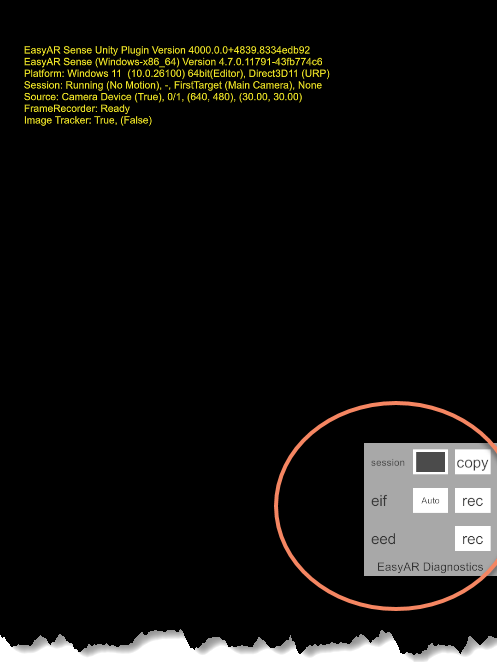
The diagnostics panel provides the following functions:
- session: session information control, used to understand the runtime status and issues of the session
- Toggle: toggle display of SessionDump messages
- copy: copy the session dump information of the current frame
- eif: eif recording control. eif files are used for Unity AR simulation
- Auto/Obsolete: switch the eif format, where Obsolete means using the original EIF format, and Auto means automatically selecting the EIF MKV format or the original EIF format according to platform support
- rec: start/stop eif recording
- eed: eed recording control. eed files are used to capture some key runtime data and provide it to EasyAR technical support for issue analysis
- rec: start/stop eed recording
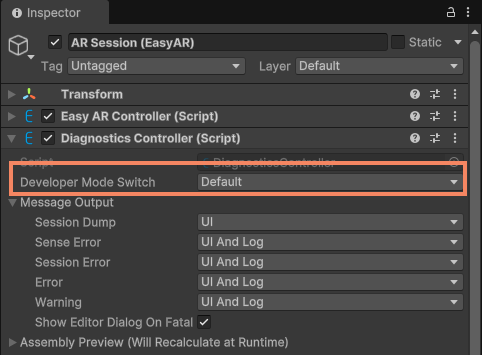
Modify the developer mode switch
You can configure it in the editor through the DiagnosticsController component on the session, or configure it in scripts through the DiagnosticsController.DeveloperModeSwitch interface.
The available modes are:
- Default: quickly tap the screen 8 times on the phone to enter developer mode, and the diagnostics panel opens on the right side of the screen.
- Custom: use the CustomDeveloperModeSwitch interface to customize the condition for enabling the developer mode switch. If it is not defined, the diagnostics panel cannot be opened at runtime.
You can disable developer mode by setting DiagnosticsController.DeveloperModeSwitch to Custom and not modifying CustomDeveloperModeSwitch.
For example, the following code shows how to disable developer mode in a script:
Session.Diagnostics.DeveloperModeSwitch = DiagnosticsController.DeveloperModeSwitchType.Custom;
Tip
- It is recommended to use the default configuration Default during development and testing.
- It is recommended to use Default or Custom for release.
- When using Custom, it is recommended to modify CustomDeveloperModeSwitch to provide another way to enable the diagnostics panel, or provide another custom way to collect runtime data.