Record EED dump files
EED (EasyAR Event Dump) files can be used to capture some key runtime data and provide it to EasyAR technical support for issue analysis, such as tracking results from some trackers and network requests between the program and Mega services. They are usually used when the issue cannot be reproduced with an EIF file.
Record with the developer mode panel
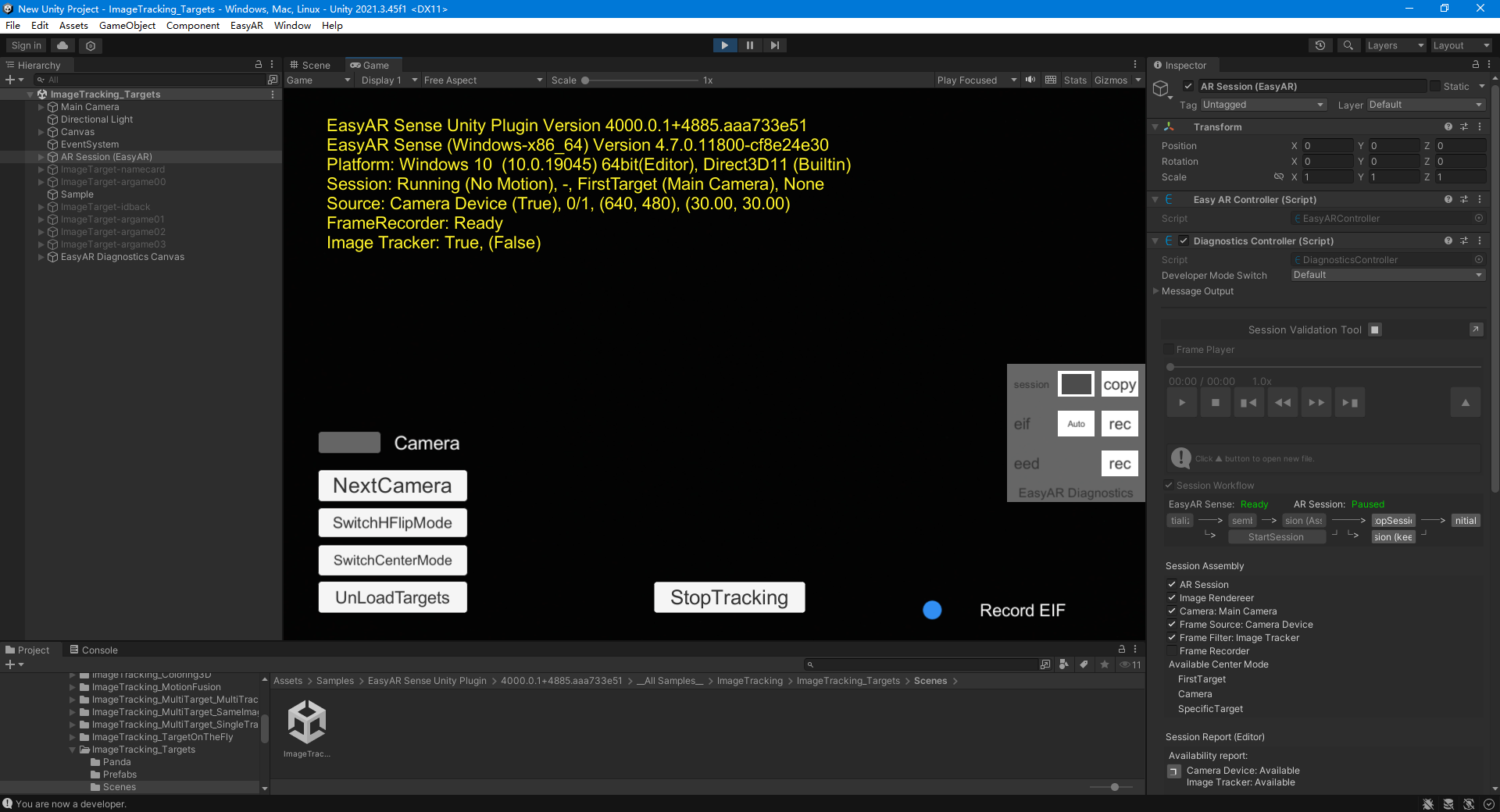
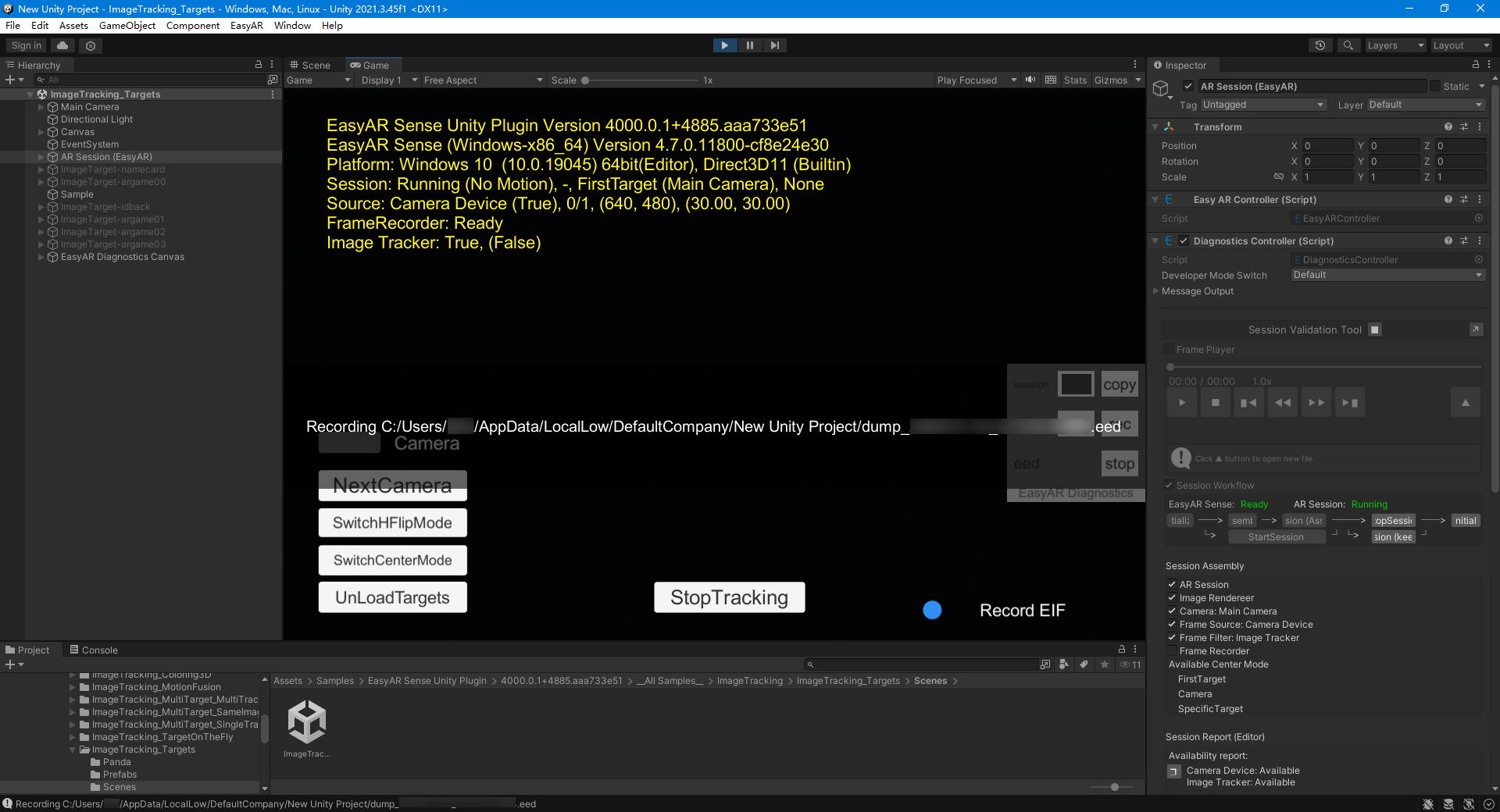
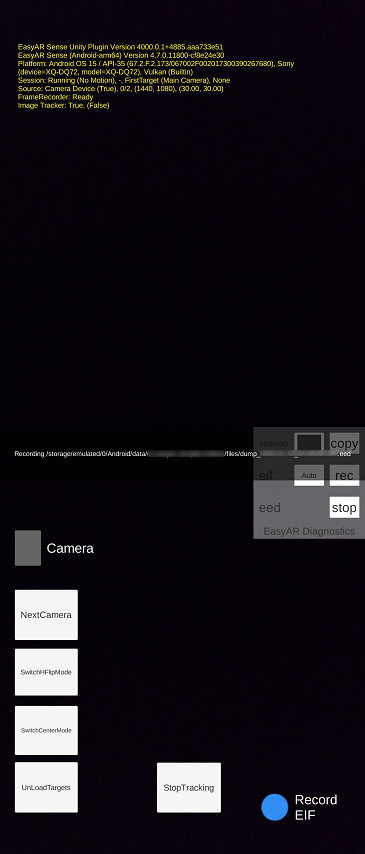
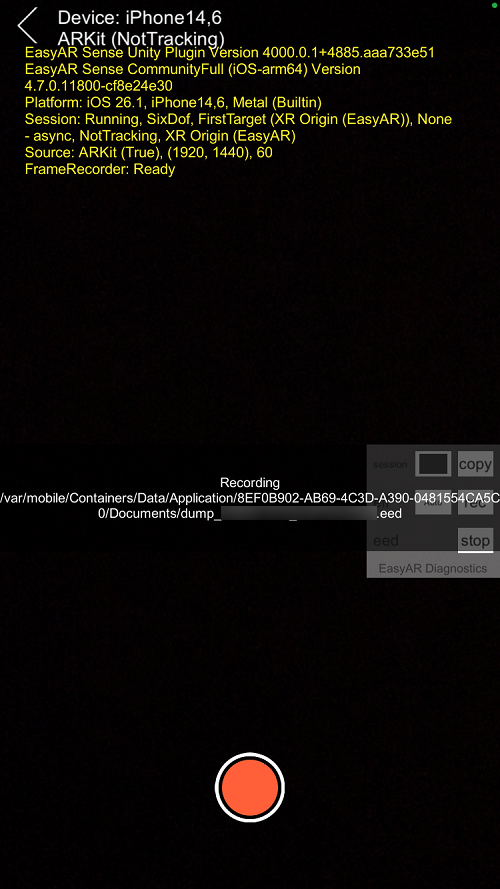
Run the program, then open the developer mode diagnostics panel (quickly tap the screen 8 times with the default configuration), and click rec for eed to start recording. Reproduce the issue, then click stop to finish recording.
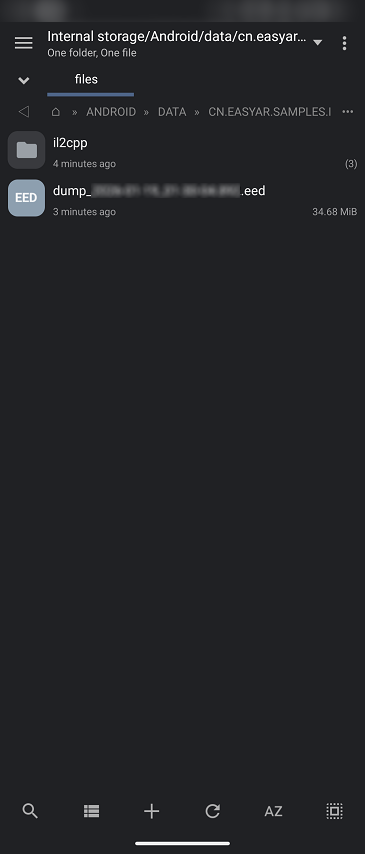
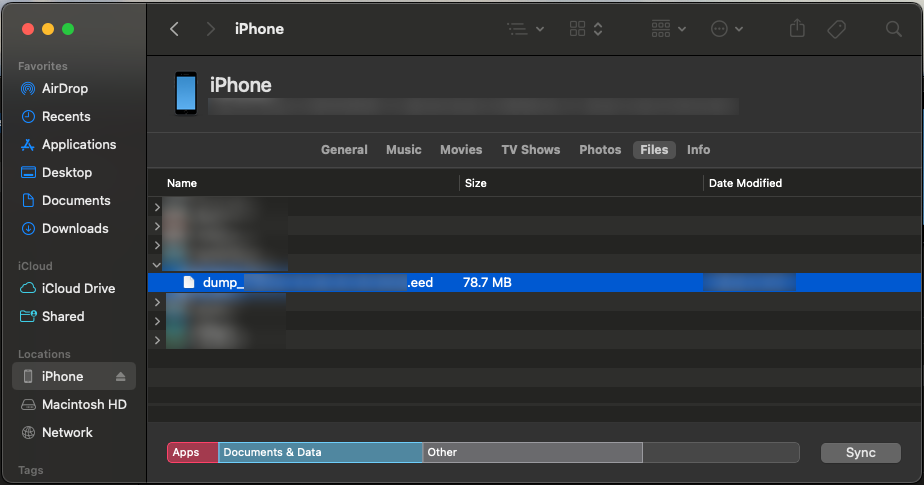
The path of the recorded EED file is displayed during recording.
Record with scripts
You can use EventDumpRecorder.start(string, int) to start recording an EED file, and use EventDumpRecorder.stop() to stop recording.
For example, the following code shows how to record an EED file in a script:
EventDumpRecorder eedRecorder;

bool RecordEED(bool on)
{
    if (on)
    {
        if (session.Assembly == null || session.Assembly.Display == null) { return false; }
        var path = Path.Combine(Application.persistentDataPath, DateTime.Now.ToString("yyyy-MM-dd_HH-mm-ss.fff") + ".eed");
        eedRecorder = EventDumpRecorder.create();
        eedRecorder?.start(path, session.Assembly.Display.Rotation);
    }
    else
    {
        eedRecorder?.stop();
        eedRecorder?.Dispose();
        eedRecorder = null;
    }
    return true;
}