Enable Mega diagnostic mode and bind devices
This article describes how to enable diagnostic mode for a cloud localization library and bind devices through the Mega diagnostic tool. These operations are prerequisites for saving and uploading records with Mega diagnostic mode.
Before you begin
- Understand what the Mega diagnostic tool is and how to log in.
- You have an available cloud localization library, and the version shown in the Mega diagnostic tool is V4.0 or later.
- Your app has integrated Mega localization, and the application type and SDK or plugin version meet the requirements in Supported applications.
Enable Mega diagnostic mode for a localization library
Important
Diagnostic mode applies to the entire cloud localization library. A device must also be bound before it can save and upload records through the Mega diagnostic tool. Enable it only when you need to collect issue data, and disable it promptly after collection is complete.
Diagnostic mode automatically turns off 12 hours after it is enabled. You need to enable it again before the next use.
Log in to EasyAR Developer Center.
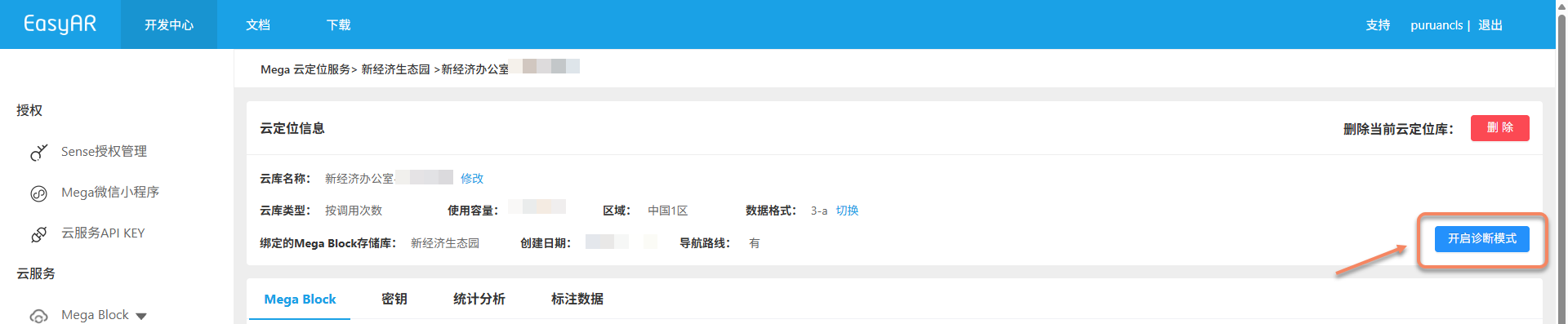
Go to "Mega Block" > "Block cloud localization", open the target cloud localization service group, and enter the cloud localization library management page.
Click Enable diagnostic mode.
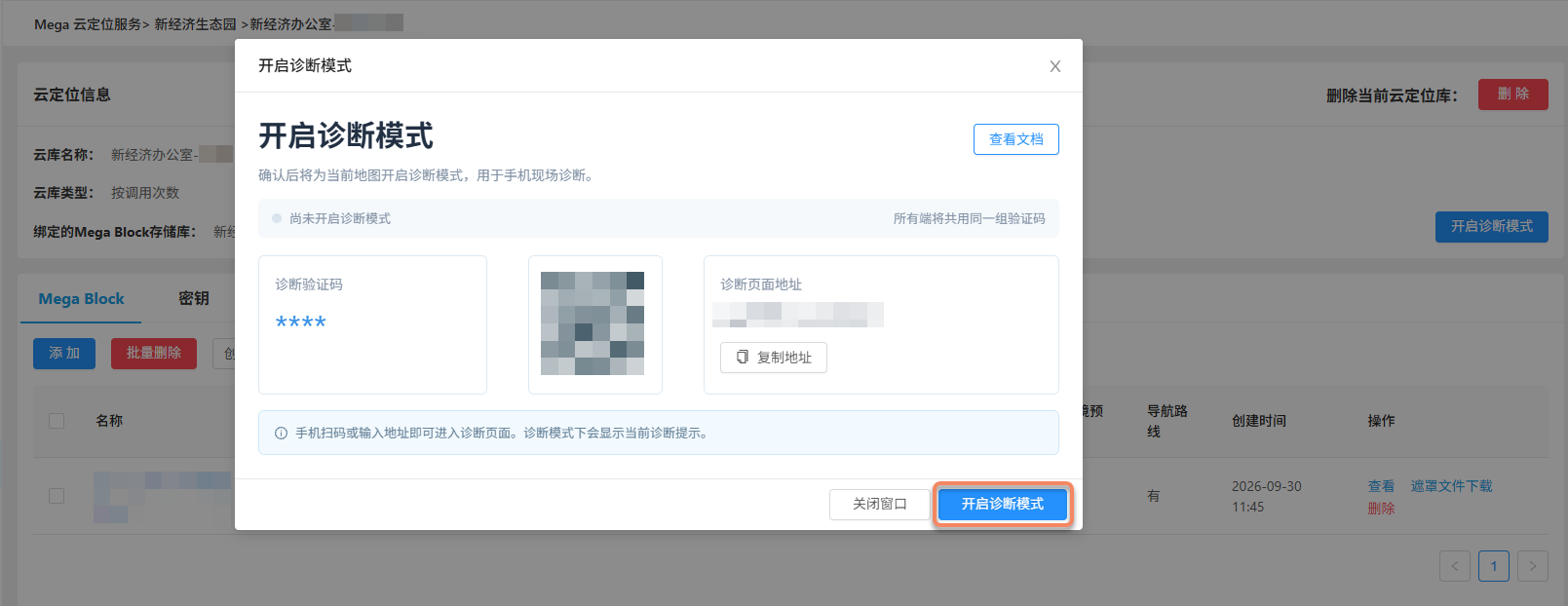
In the dialog, click Enable diagnostic mode again.
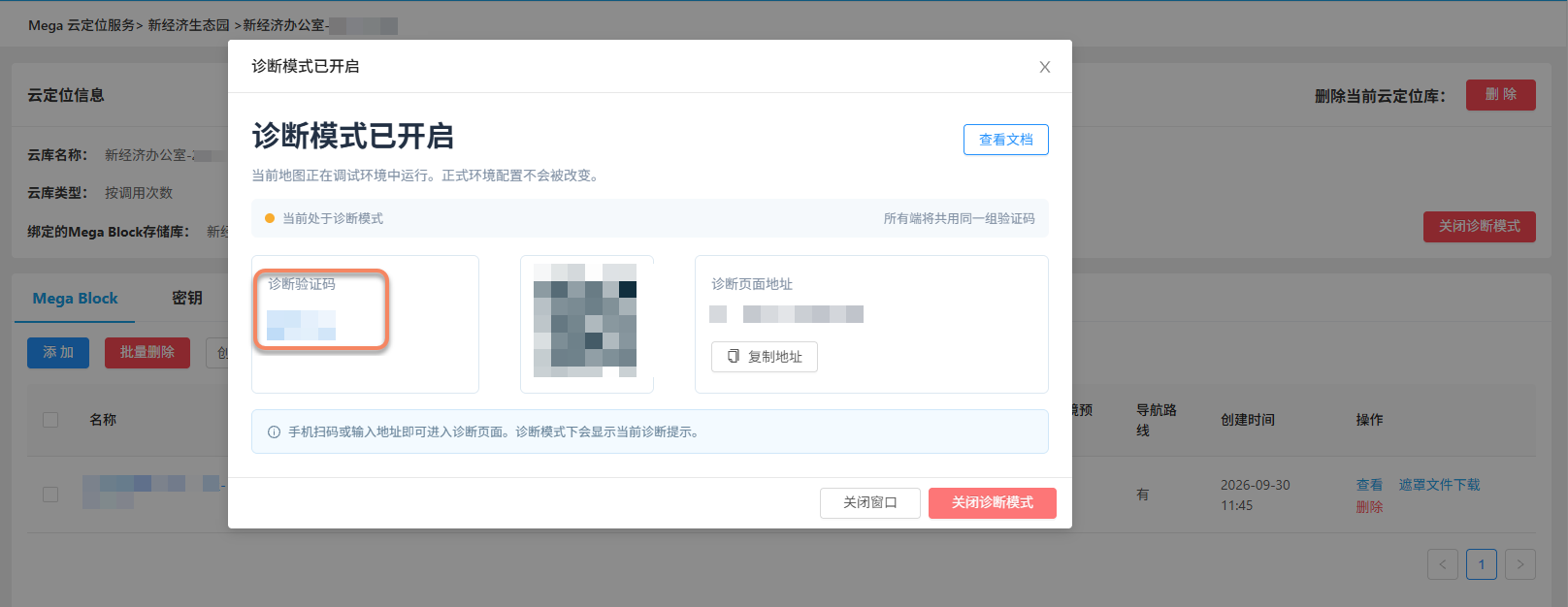
After it is enabled, the page shows a verification code that can be used to log in to the Mega diagnostic tool.
Note
You can also enable diagnostic mode in the Mega diagnostic tool.
Bind devices
When using it for the first time, bind the target device through the Mega diagnostic tool. Already bound devices can skip the following binding steps.
Run the app or WeChat Mini Program on the target device, and start Mega localization with the cloud localization library whose diagnostic mode is enabled.
In the Mega diagnostic tool, go to "My bound devices" and click "Bind a new device".
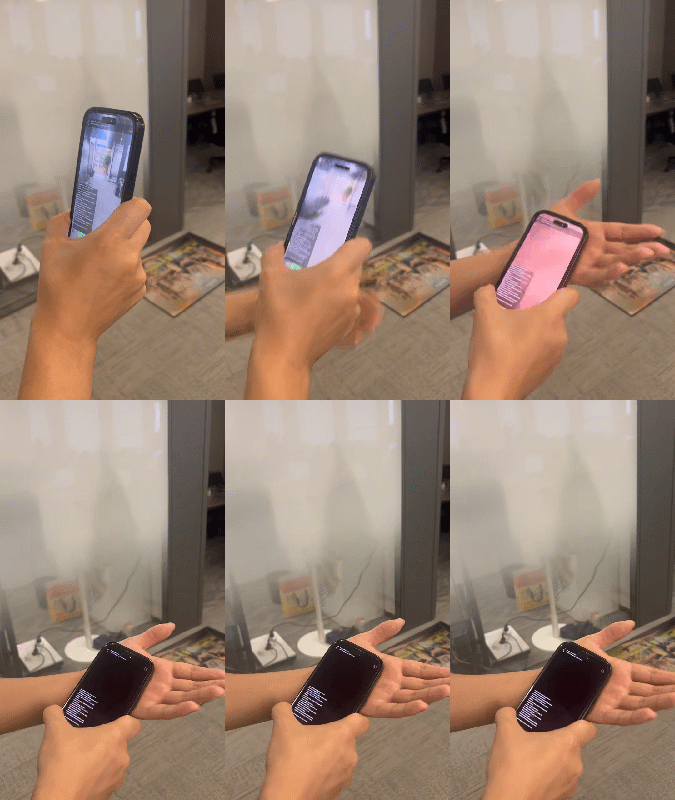
Cover the target device camera completely with your hand or an opaque object, keep the image fully black for several seconds, and let the device appear in the pending binding list. This triggers device registration. You only need to cover the camera once, and can then remove the cover.
Note
Headset devices (MR/AR glasses) do not need to cover the camera and can skip this step.
On the "Device binding" page, click "Refresh list" and find the target device by device name and Mega startup time.
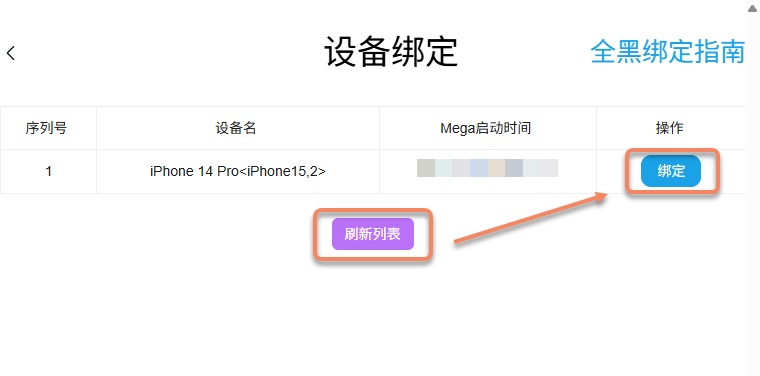
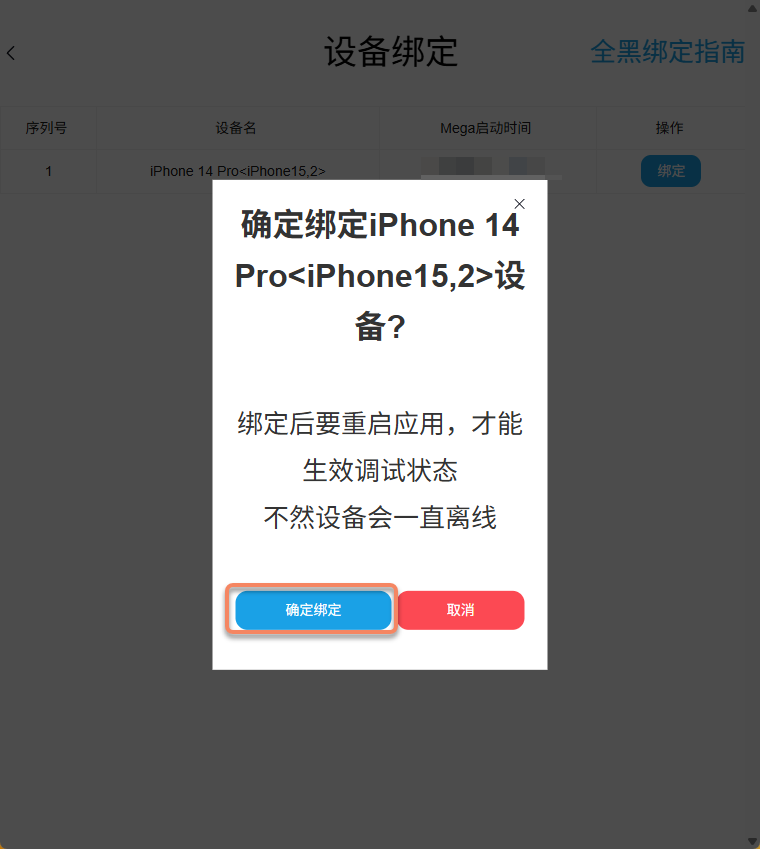
Click "Bind" for the device, and click "Confirm binding" in the confirmation window.
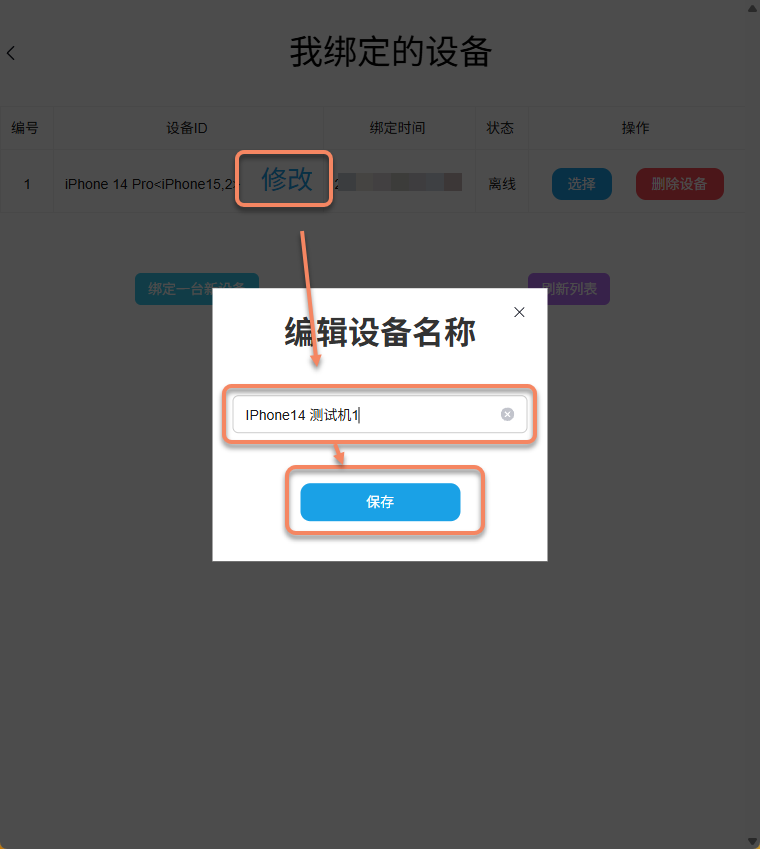
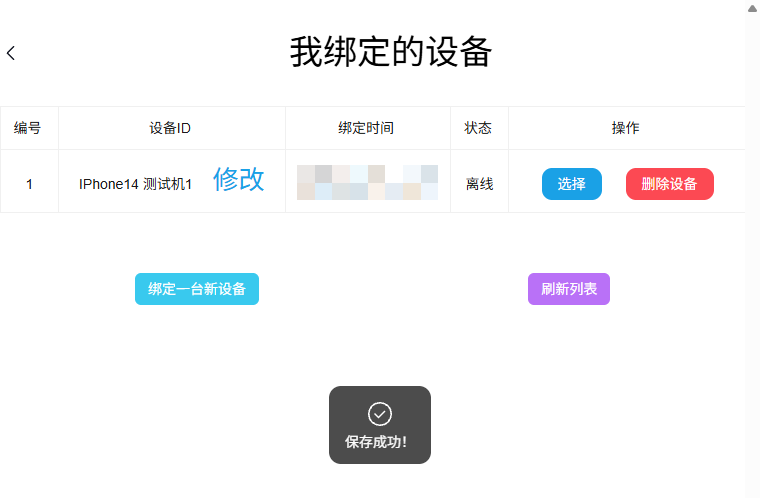
Return to "My bound devices". To change the device name, click "Edit" next to the name, enter a name that is easy to identify, and save it.
Confirm that the device is online
After binding is complete, restart the app or Mini Program and run Mega localization. In "My bound devices", click "Refresh list" and confirm that the device status is "Online" before continuing to save and upload records.
Disable diagnostic mode
After data collection is complete, log in with your account in the Mega diagnostic tool, go to "My cloud localization libraries", find the target localization library, click "Disable diagnostic mode", and click "Disable" in the confirmation window. You can also disable diagnostic mode on the target cloud localization library management page in EasyAR Developer Center.
FAQ
If you cannot find the device or the device is still shown as offline after binding, check the following cases.
Device not found after refreshing the list
Confirm that diagnostic mode is enabled for the target cloud localization library, and that the app on the device is running localization with that library. Phones and other non-headset devices must also completely cover the camera while localization is running, and then refresh the candidate list.
Prompt says "Please enable cloud localization library diagnostic mode!"
Confirm that diagnostic mode is enabled for the target localization library, log in to the Mega diagnostic tool again with the current verification code of that library, and then enter the device binding page.
Device still offline after binding
After binding, you need to restart the app or Mini Program and run Mega localization. Confirm that the device network is available, then refresh the device list.