Mega diagnostic mode
Mega diagnostic mode is used to collect issue data when an app or WeChat Mini Program runs Mega localization. When a published application has issues such as localization failure, accuracy deviation, or tracking jitter, operators can use the Mega diagnostic tool to save and upload runtime data from the moment the issue occurs for analysis by EasyAR technical support.
Important
Using Mega diagnostic mode to submit issue data is relatively simple. You do not need to repackage the application, and developers do not need to be involved.
Using app EIF recording can submit more complete issue data, but may require developer involvement.
Supported applications
The cloud localization library used by the application must be V4.0 or later.
The application must have integrated Mega localization and use the following SDK or plugin versions, or later:
| Application type | SDK or plugin | Minimum version |
|---|---|---|
| Unity packaged app | EasyAR Sense Unity Plugin | 4003.2.0 |
| Native app | EasyAR Sense SDK | 4.11.0 |
| WeChat Mini Program | EasyAR Mega WeChat Mini Program plugin | 2.1.0 |
Mega diagnostic tool
The Mega diagnostic tool is a web application that can be opened in a mobile or desktop browser without installation. You can use it to enable or disable diagnostic mode, bind devices, and save and upload runtime data from when an issue occurs for analysis by EasyAR technical support.
When using it, the device where the issue occurs must stay online and run Mega localization in the target app or WeChat Mini Program. You can operate the diagnostic tool on another phone or computer to save and upload data from that device.
Log in to EasyAR Developer Center.
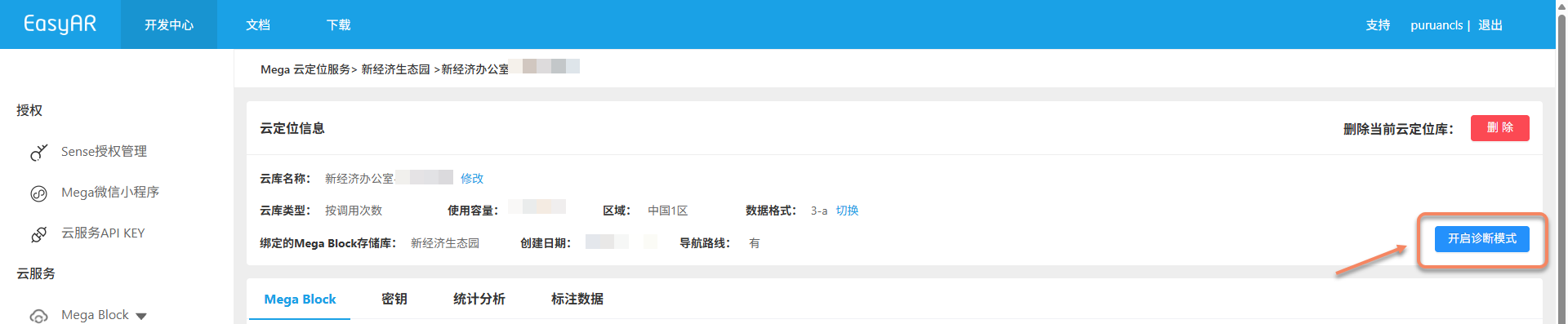
Go to "Mega Block" > "Block cloud localization", open the target cloud localization service group, and enter the cloud localization library management page.
Click Enable diagnostic mode.
Scan the QR code with a phone or enter the address to open the Mega diagnostic tool.
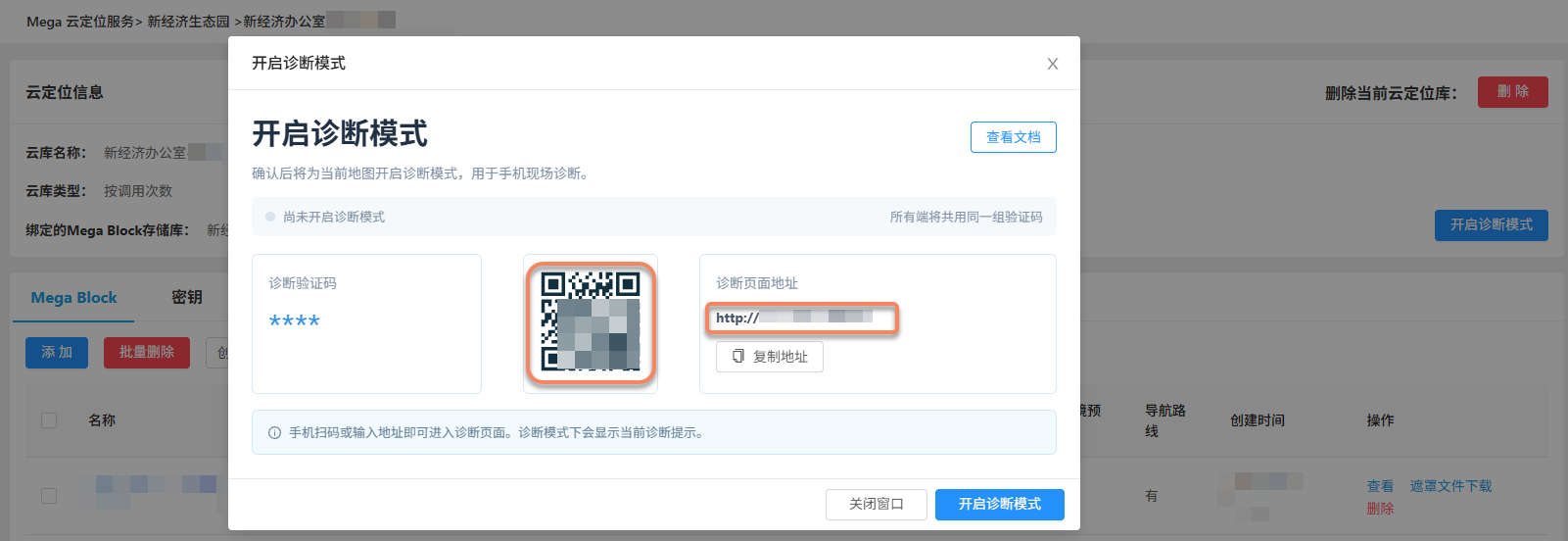
The Mega diagnostic tool supports the following login methods:
- Account login: Log in with your EasyAR Developer Center account and password to manage diagnostic mode for cloud localization libraries.
- Verification-code login: Log in with the verification code generated after diagnostic mode is enabled for the target cloud localization library to enter the device management flow for that library.
Workflow
Diagnostic mode is a configuration of the Mega cloud localization library, used to submit issue data from running Mega localization. After enabling diagnostic mode and binding a device, restart the app or Mini Program, and the SDK or Mini Program plugin automatically records runtime data. You can complete data feedback with these steps:
- Enable Mega diagnostic mode: Enable diagnostic mode for the target cloud localization library in EasyAR Developer Center or the Mega diagnostic tool.
- Bind device: Run localization on the target device, then find and bind the device through the Mega diagnostic tool.
- Save and upload records: Use the app or WeChat Mini Program normally to run localization. After an issue occurs, save and upload records through the Mega diagnostic tool as soon as possible.
- Submit issue information: Provide EasyAR technical support with the issue symptoms, occurrence time, device information, and the filenames and times of uploaded records. If screenshots or screen recordings are available, provide them as well to help correlate analysis.
- Disable diagnostic mode: After issue data collection is complete, disable diagnostic mode for the target cloud localization library.