Record and report issues during app runtime
When using an app that has integrated Mega localization, if you encounter issues such as localization failure, position deviation, or unstable tracking, you can use the Mega diagnostic tool to save and upload runtime data from when the issue occurs, and then report the issue information to EasyAR technical support.
Before you begin
- Your app has integrated Mega localization, and the application type and SDK or plugin version meet the requirements in Supported applications.
- Diagnostic mode has been enabled for the target cloud localization library. Diagnostic mode automatically turns off 12 hours after it is enabled. You need to enable it again before the next use.
- You have logged in to the Mega diagnostic tool and completed device binding.
After completing the above preparations and restarting the app as described below, you can use it normally. The SDK or plugin automatically records runtime data, and you only need to save the record after an issue occurs.
From automatic recording to issue feedback
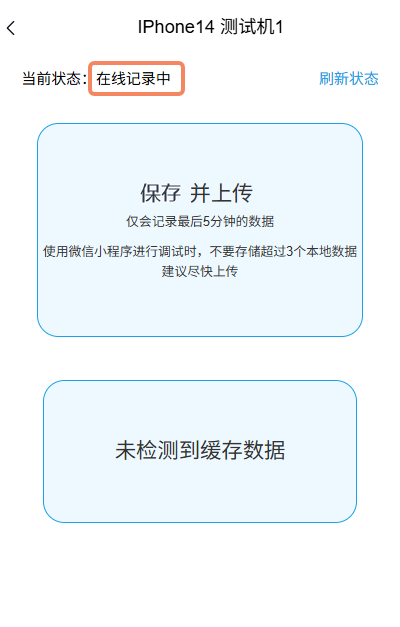
After binding is complete, restart the app and run Mega localization. When the device shows "Recording online", the SDK or plugin is continuously and automatically recording runtime logs. You do not need to click a button to start recording.
Clicking "Record and upload" saves the latest 5 minutes of runtime logs as a data package to be uploaded. Saving and uploading do not stop log recording and do not clear the runtime log cache. If another issue occurs later, you can save and upload a new data package again.
The colors in the diagram indicate where each operation happens:
- Blue box: Operations and runtime on the device running your app. Log recording and data package generation are completed automatically by the device.
- Red box: Operations performed in the Mega diagnostic tool on another phone or computer.
%%{init: {"htmlLabels": false, "flowchart": {"htmlLabels": false, "padding": 20}}}%%
flowchart TD
    A["Complete device binding"] --> B["Restart app<br/>Run Mega localization"]
    B --> C["Use the app normally<br/>Device keeps recording logs automatically"]
    C --> D["Issue occurs during use"]
    D --> E["Click record and upload"]
    E --> F["Save latest 5 minutes of logs<br/>Generate data package<br/>Log recording continues"]
    F --> G{"Choose upload method"}
    G -->|Upload now| H["Upload data in diagnostic tool<br/>Wait for upload to complete"]
    G -->|Upload later| I["Choose upload later<br/>Data package remains on original device"]
    I -->|Upload when original device is online| H
    I -->|Continue using| C

    classDef appDevice fill:#e3f2fd,stroke:#1565c0,color:#0d47a1,stroke-width:2px;
    classDef diagnosticTool fill:#ffebee,stroke:#c62828,color:#8e0000,stroke-width:2px;
    class B,C,D,F appDevice;
    class A,E,G,H,I diagnosticTool;
When diagnostic mode is valid, the app stays in the foreground, and the device is online, you can save and upload records multiple times without binding or restarting each time. Data packages saved multiple times within a short period may contain overlapping logs.
Save records after an issue occurs
Important
Operate the Mega diagnostic tool on another phone or computer, and keep your app running on the target device. During saving and uploading, keep the app in the foreground, do not lock the screen, and keep the network connected.
Each click of "Record and upload" can save only the latest 5 minutes of runtime logs. After an issue occurs, click it as soon as possible to avoid the data from the moment of the issue falling outside the saved range.
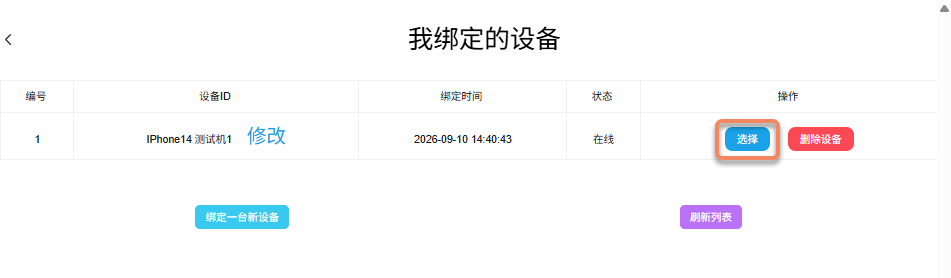
Confirm that your app is running Mega localization on the target device. In "My bound devices" in the Mega diagnostic tool, confirm that the target device status is "Online", and click "Select" for that device.
Confirm that the device page shows "Recording online". At this point, the SDK or plugin is continuously and automatically recording runtime logs. You can continue using the app normally without manually starting recording.
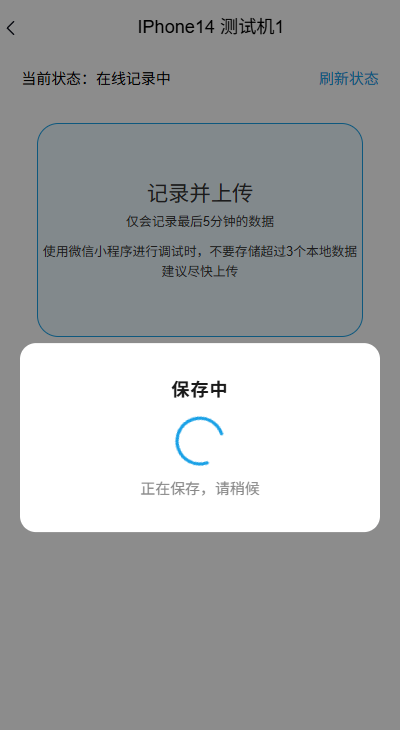
When issues such as localization failure, position deviation, or unstable tracking occur during use, click "Record and upload" in the Mega diagnostic tool as soon as possible to save the latest 5 minutes of runtime logs as a data package. After the tool shows "Saving", wait for the data package to finish saving.
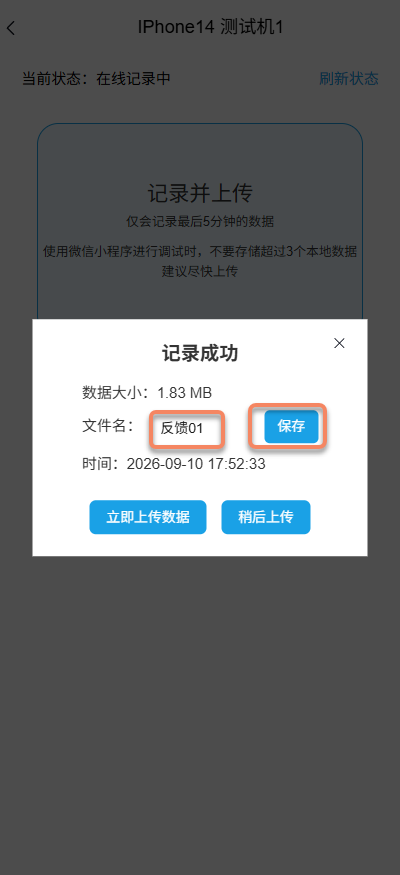
In the "Record saved" window, view the data size and time.
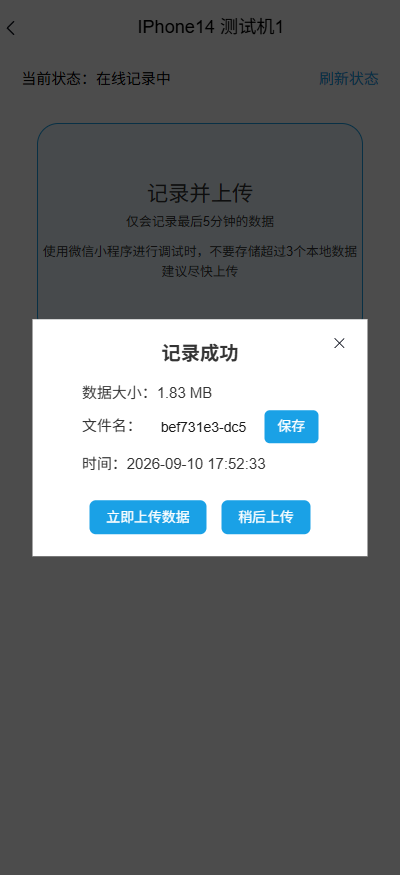
To distinguish different records, enter a name in "File name" and click "Save" on the right. Use a name that helps identify the issue, such as "entrance localization offset".
Note
"Record and upload" first saves the data package, and then you choose whether to upload it immediately or later. Seeing "Record saved" only means saving is complete; you still need to complete the upload steps below.
Upload records
After a record is saved, you can upload it immediately or upload it later from the "Local data files" list.
Upload immediately
In the "Record saved" window, click "Upload data now".
Wait for upload to complete. The tool shows the current upload progress and file count.
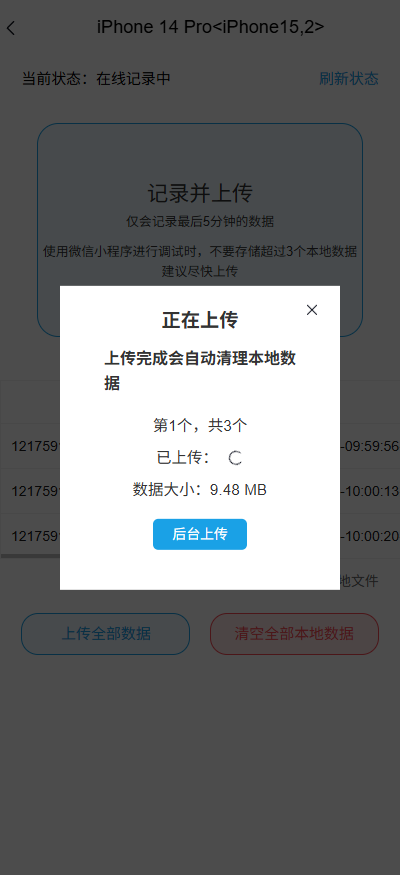
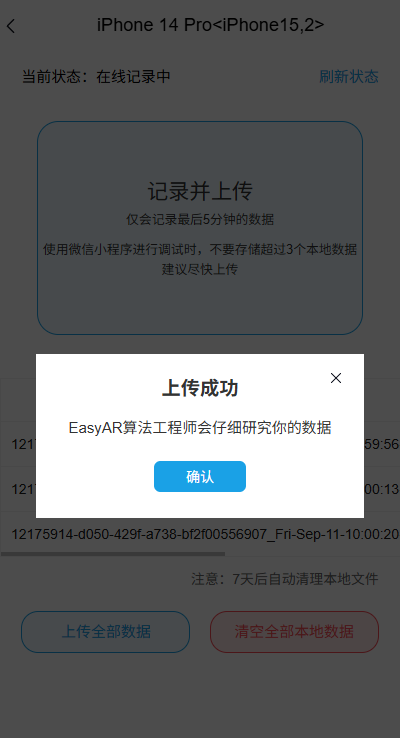
When the tool prompts "Upload successful", this upload is complete.
Upload later
- In the "Record saved" window, click "Upload later". The record appears in the "Local data files" list on the device page.
- You can continue using the app normally. If another issue occurs, save a new record using the steps above.
- When preparing to upload, run the app on the original collection device and start Mega localization, then confirm that the device is online.
- In the Mega diagnostic tool, enter the device page, click "Refresh status", confirm that the pending record is still in the list, and then click "Upload data" and wait for upload to complete.
Note
Pending data packages are stored on the collection device. WeChat Mini Programs have limited available storage space. The number of records that can be saved depends on data size and remaining space. Saving may fail when space is insufficient, so upload in time.
After upload succeeds, the corresponding pending data package is automatically deleted, but the runtime data cache is not cleared at the same time. Therefore, records saved multiple times within a short period may contain overlapping data. Unuploaded local files are cleaned according to the expiration policy. Complete upload within the 7-day retention period prompted by the tool.
Report issues
- After upload is complete, tell EasyAR technical support what issue you encountered when using the app, when it occurred, and the device information, and include the filenames and times of uploaded records. If you have screenshots or screen recordings from that time, provide them as well. For details, see How to clearly communicate issues.
- After data collection is complete, disable diagnostic mode.
FAQ
If saving or uploading cannot be completed, check the following cases according to device status and tool prompts.
Prompt says "Current device is offline!"
Confirm that the target cloud localization library is still in diagnostic mode, the collection device network is available, and the app is running Mega localization. On the device page, click "Refresh status" and confirm that the device is online before saving or uploading.
Save failed
Check whether the app has exited, the collection device network is disconnected, or local storage space is insufficient. After the device is online again, first check the "Local data files" list to confirm whether the record has been saved. If it has not been saved and the data from when the issue occurred is still within the latest 5 minutes, retry saving. If it is outside the saved range, continue using the app normally and save a record promptly when the issue occurs again.
Upload failed
Keep the original collection device online and check the network connection. In the "Local data files" list, confirm that the unuploaded record still exists, and then retry upload.