레이저 수집 작업 생성(E57)
이 문서에서는 E57 형식 레이저 수집 작업의 전체 워크플로를 설명합니다. 작업 생성, 데이터 업로드, 매핑 프로세스를 포함하며, 사용자가 E57 레이저 수집 및 매핑 전체 흐름을 표준화된 방식으로 완료하도록 돕습니다.
E57 레이저 수집 작업 생성
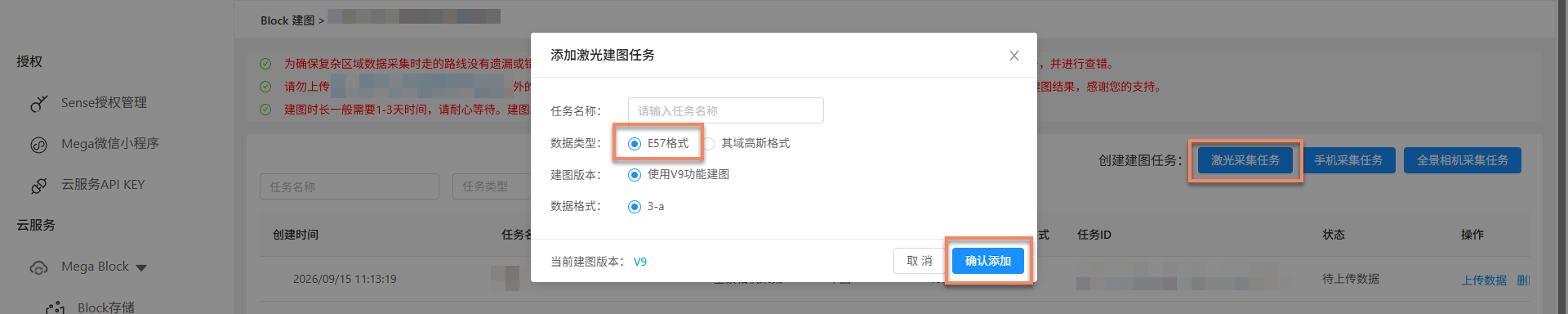
After creating a project, click Manage to enter the mapping task management page (skip this step for Mega Go). Click the Laser acquisition task button in the upper-right corner. In the pop-up dialog, enter Task name, select E57 format for Data type, use the latest version for Mapping version and Data format, and click Confirm add to create a Qiyu acquisition task.

데이터 준비
Before starting a mapping task, make sure the acquired spatial data meets the requirements and is organized and stored according to the specifications. The following sections describe data acquisition and export in detail.
데이터 수집 및 내보내기
Use a laser scanner to acquire spatial data. For related device configuration and acquisition points, see:
데이터 업로드
데이터 업로드를 클릭하고 팝업 창에서 해당 옵션을 선택합니다. 각 옵션의 자세한 설명은 아래를 참조하십시오:
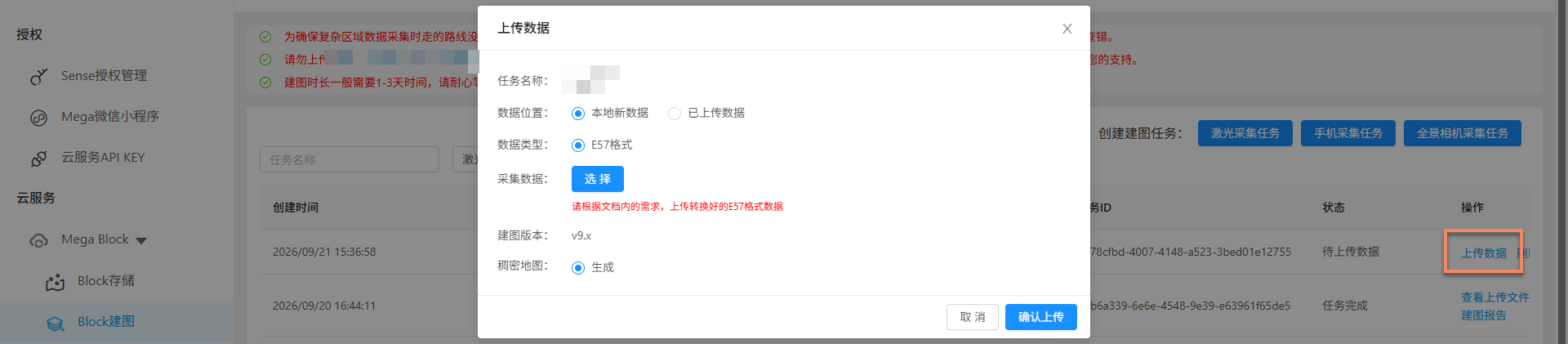
데이터 위치
The available upload methods vary depending on the region where the mapping project is located:
China Region 1
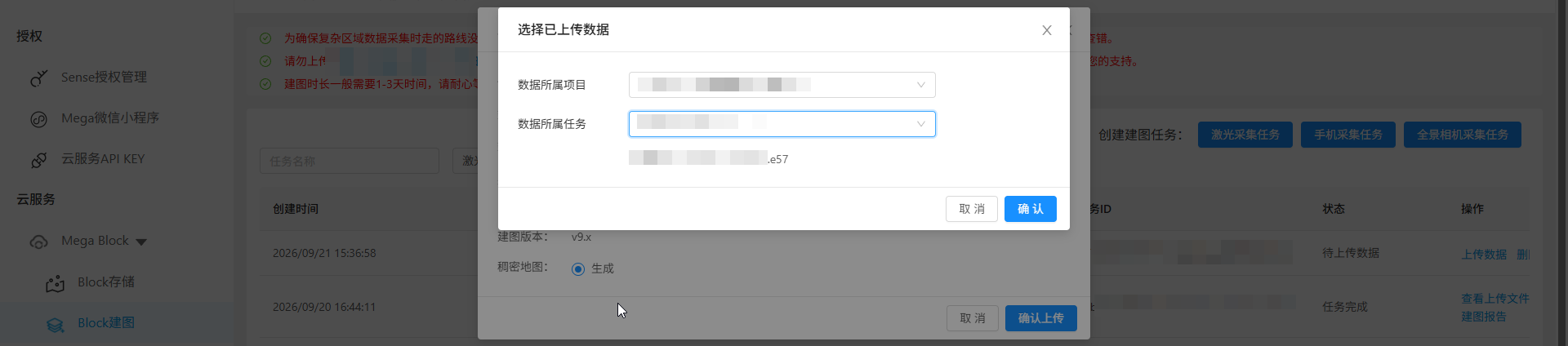
Depending on the data source and storage method, you can choose either of the following methods:
- Local new data
- Uploaded data (not supported by Mega Go)
Global
Only Local new data is supported.
수집 데이터
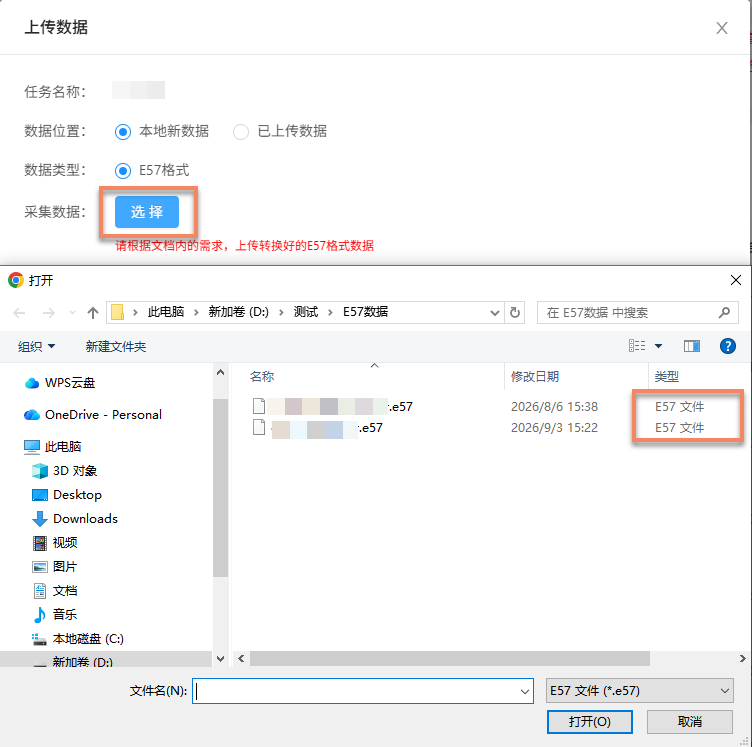
Upload a file with the .e57 suffix. Click Select, choose the specified file in the directory, and click Open.
업로드 확인
- After clicking
Confirm upload, the list displays the upload progress and status. - During data upload, keep the computer powered on and the network connected. Do not close the browser, refresh the page, or click other menus; otherwise the upload will be interrupted and must be performed again.
매핑 시작
After data upload is complete, the mapping process starts automatically. The status is displayed as Queued or Generating, as shown below. Wait patiently for mapping to complete.

보조 기능
The following functions help you manage and operate mapping tasks more efficiently:
업로드된 파일 보기
Click View uploaded files to view all uploaded files in the dialog and confirm that all files have been uploaded, avoiding mapping failures caused by missing files.

매핑 중지
Before the mapping task is complete, if you find that the wrong data was uploaded or the trajectory data does not match the actual situation, click Stop mapping, then click Confirm in the second confirmation dialog to stop mapping.

작업 삭제
If the current mapping task failed or is no longer needed, click Delete task to delete it. Click Delete in the second confirmation dialog to complete the deletion.

매핑 결과 확인
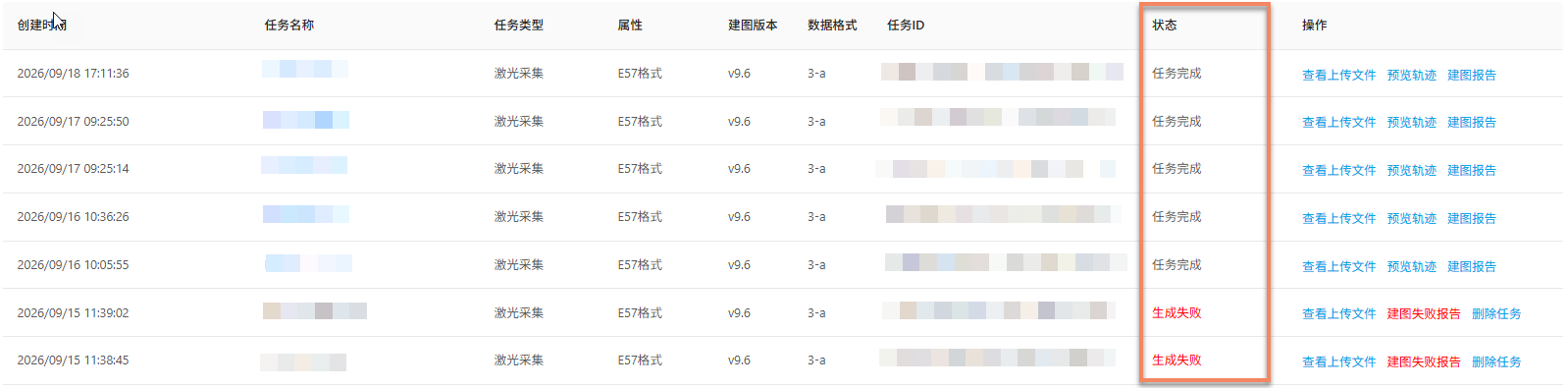
After the task enters the mapping process, you can determine whether the mapping task is complete from Task status. When the status is Task complete or Generation failed, the mapping task has ended.
매핑 성공
When the task status is Task complete, mapping succeeded and the mapping result has been generated. You can further inspect the result and confirm whether it meets expectations.
View mapping results:
- Review acquisition route (not supported by Mega Go)
- View mapping report
- View Block information (not supported by Mega Go)
- Preview spatial model
매핑 실패
When the task status is Generation failed, mapping failed. Troubleshoot the problem as follows:
- View mapping report: View mapping report and find a solution based on the report information.
- Refer to troubleshooting: Read the mapping failure troubleshooting guide for common solutions.
- Contact technical support: If the methods above do not solve the problem, contact EasyAR staff and provide the
JobIDfrom the mapping report for fast diagnosis.