使用 Mega 插件實現遮擋
遮擋 (Occlusion) 是提升 AR 虛實融合沉浸感的關鍵技術。本文將指導您如何在 xr-frame 環境下,通過 EasyAR 雲定位與標註實現遮擋效果。
開始之前
遮擋的實現方式
離線建模:利用 Unity 編輯器在 Block 座標系下,針對現實世界中的實體(如牆體、立柱、大型設備)創建 1:1 匹配的幾何體;或通過對 Block 稠密模型進行裁剪與減面處理得到優化後的模型。
運行時對齊:在 xr-frame 運行時,通過雲定位將 Block 座標系與現實空間對齊,並加載對應的幾何體。
材質替換:爲這些幾何體賦予特殊的遮擋材質。
視覺效果:當 GPU 渲染其他虛擬物體時,會因深度測試未通過而自動剔除被遮擋部分的像素,從而使虛擬物體遵循現實物理空間的遮擋邏輯。
如何佈置簡單幾何體的遮擋
對照稠密模型及全景圖精確擺放方塊標註。擺放後標註看起來就像是一面“牆”或者“柱子”。
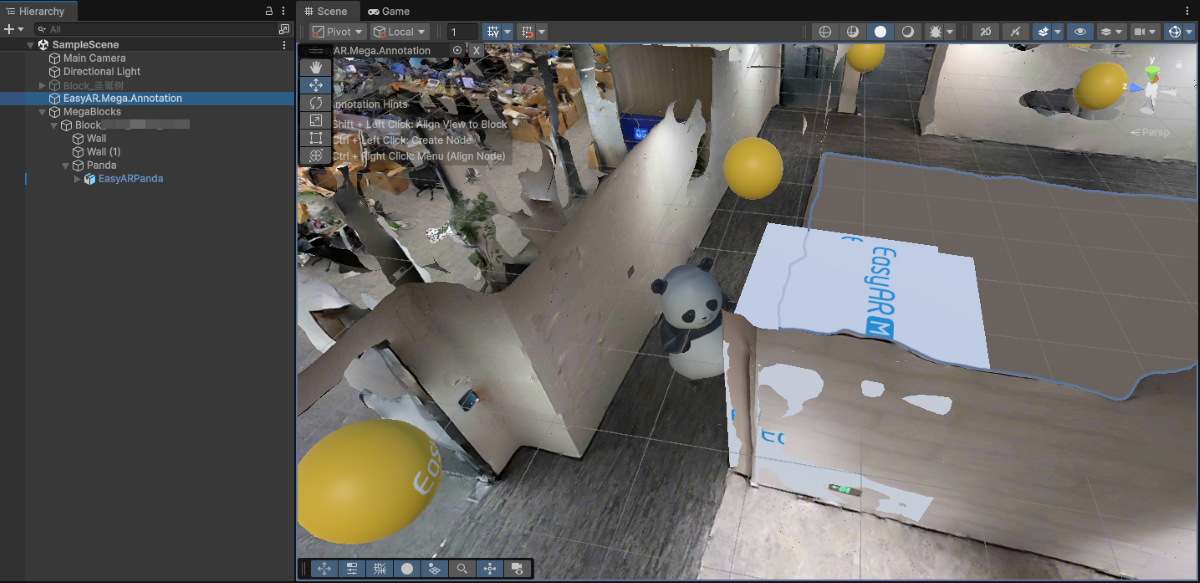
修改標註的名稱(如
occlusion_wall),記錄 ID ,上傳標註。在 xr-frame 小程序中利用其內置幾何體加載作爲遮擋的標註。
在 EMA 加載的回調中使用
scene.createElement(xrFrameSystem.XRMesh,{})創建簡單的幾何體賦予easyar-occulusion材質。附註
easyar-occulusion材質的加載,註冊,反註冊,卸載由 AR Session 控制。
```ts
handleEmaResult(ema: easyar.ema.v0_5.Ema) {
    let blockHolder: easyar.BlockHolder = session.blockHolder;
    ema.blocks.forEach(emaBlock => {
        const blockInfo: easyar.BlockInfo = {
            id: emaBlock.id
        };
        // 若 Block 節點不存在,創建 Block 節點
        blockHolder.holdBlock(blockInfo, easyarPlugin.toXRFrame(emaBlock.transform));
    });
    ema.annotations.forEach(annotation => {
        if (annotation.type != mega.EmaV05AnnotationType.Node) {
            return;
        }
        const nodeAnnotation = annotation as easyar.ema.v0_5.Node;
        const xrNode: xrfs.XRNode = easyarPlugin.createXRNodeFromNodeAnnotation(nodeAnnotation, blockHolder);
        const emaName: string = nodeAnnotation.name;
        const geometryStr: string = nodeAnnotation.geometry === "cube" ? "cube" : "sphere";
        const assetInfo = AnnotationMetaData[nodeAnnotation.id as keyof typeof AnnotationMetaData];
        let model: xrfs.Element;

        if (assetInfo) {
            // GLTF部分
        } else {
            model = scene.createElement(
                xrFrameSystem.XRMesh,
                {
                    // 使用插件註冊好的遮擋材質
                    material: "easyar-occlusion",
                    // 使用 xr-frame 內置幾何體,此處也可以直接使用 "cube"
                    geometry: geometryStr,
                    name: emaName,
                    "receive-shadow": "false",
                    "cast-shadow": "false"
                    // 注意不要修改 Scale
                }
            );
            xrNode.addChild(model);
        }
    })
}
```
有了遮擋後,這個熊貓就可以躲在牆後面跳舞了。
如何佈置複雜幾何體的遮擋
適用於異形設備、不規則建築等需要高精度遮擋的場景。您可以使用建圖結果中的遮罩文件,或通過 Unity 中的 Mega Studio 導出 Block 稠密模型,裁剪並減面得到用於遮擋的白模。
使用建圖結果中的遮罩文件
通過雲定位庫的 遮罩文件下載 入口下載建圖結果中的 glb 格式遮罩文件進行裁剪。裁剪後的模型在 xr-frame 中加載時不需要繞 Y 軸旋轉。
附註
此下載方式僅適用於建圖版本 9.6 及以上的建圖結果。
將 Block 添加到雲定位庫後,記錄對應的 Block ID,在該 Block 所在行的 操作 列中點擊 遮罩文件下載。
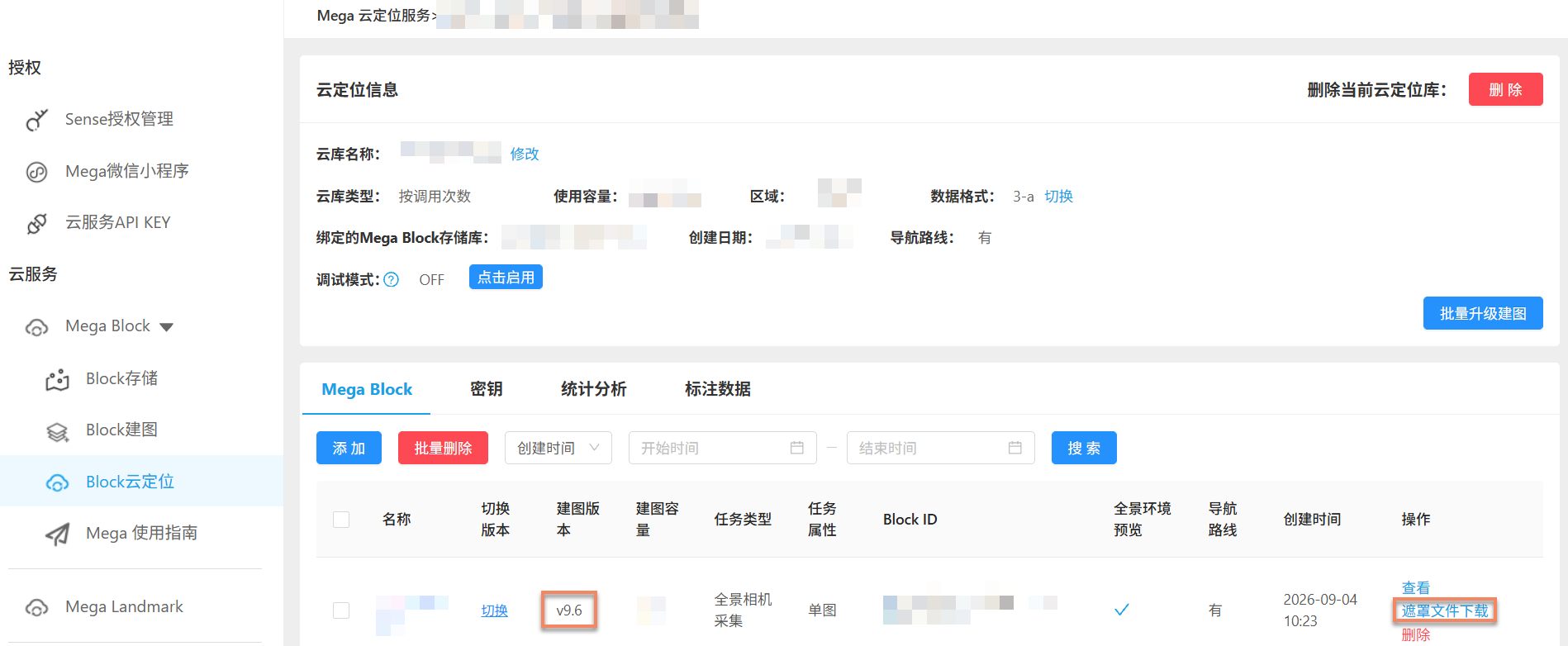
在彈窗中選擇 低精度,點擊對應的 下載 按鈕,下載
glb格式的遮罩文件。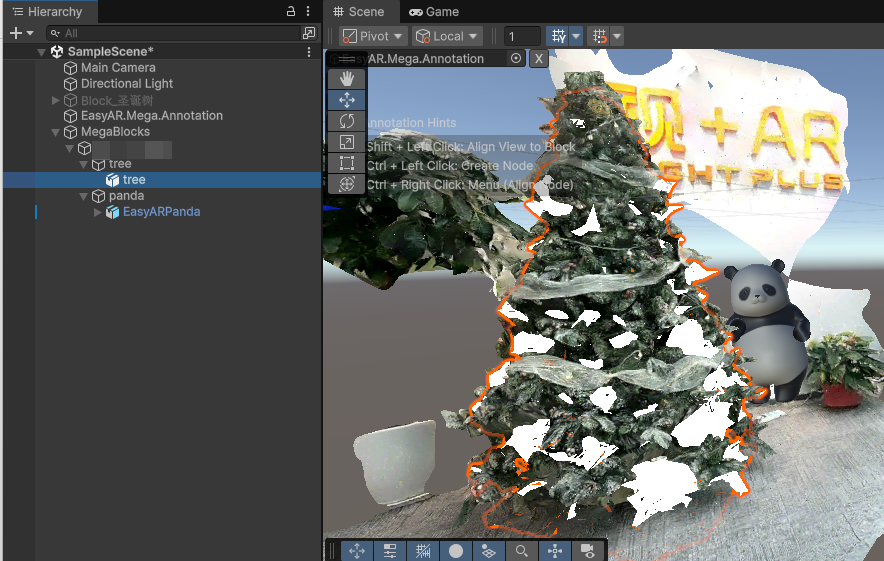
在數字內容創建軟件(例如 Blender)中打開下載的模型。
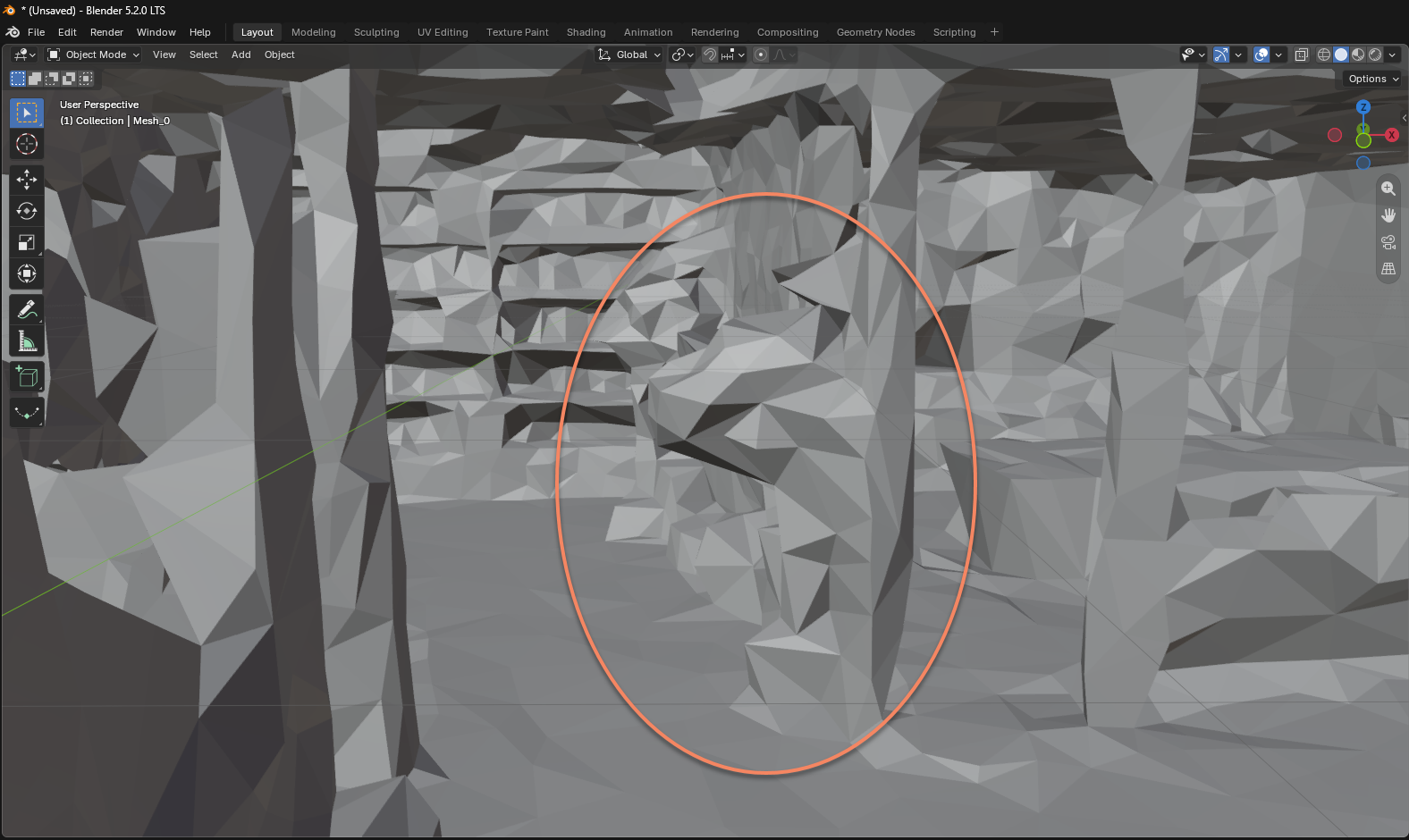
裁剪模型,只保留需要用於遮擋的部分,保存爲
glb格式。處理時保持模型原有的位置、旋轉、縮放和座標系不變,以便在運行時與對應的 Block 對齊。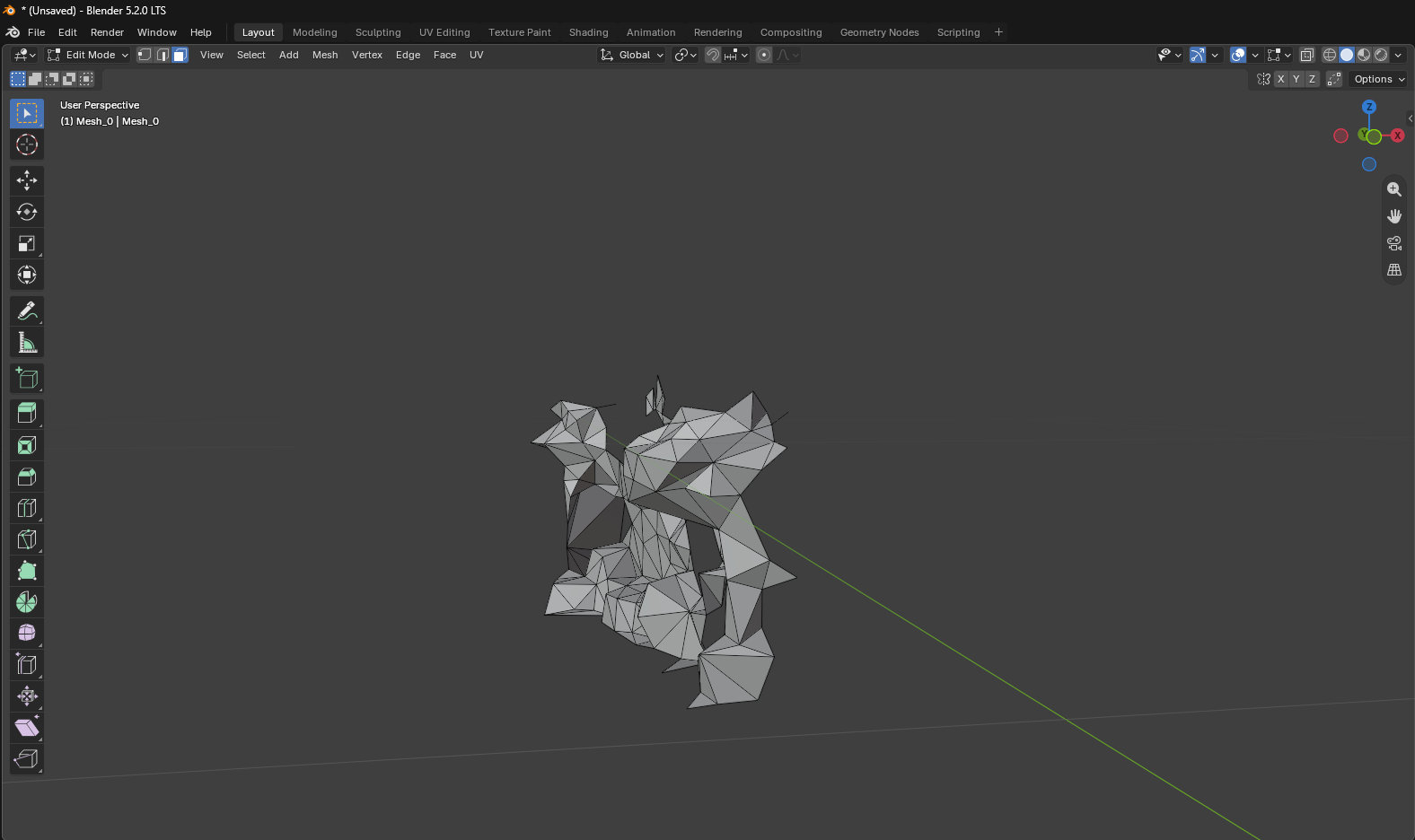
準備裁剪後的
glb文件。可以將文件上傳到小程序可訪問的 HTTPS 託管服務器並獲取 URL,也可以將文件放到小程序工程的miniprogram/assets/目錄下,直接使用相對路徑。使用託管服務器時,需要在小程序後臺配置對應的下載合法域名,並將該域名添加到小程序白名單。在組件的資源配置
sampleAssets.occlusionMesh.src中填寫模型地址。模型放在assets/目錄時使用相對路徑,例如:src: "assets/occlusion_mesh_sd.glb",也可以填寫託管服務器的 HTTPS URL,例如
https://your-domain.example/occlusion.glb。組件應實現模型加載、掛載、遮擋材質和資源釋放邏輯。模型掛載到定位成功的 Block 節點下,並保持模型原有的位置、旋轉和縮放。
模型加載完成且定位成功後,在第一個 Block 節點下創建
XRNode,再掛載XRGLTF模型:showOcclusionMesh() { if (!scene) { console.error("Empty scene"); return; } const blockHolder = session?.blockHolder; if (!blockHolder) { console.warn("Session not initialized"); return; } if (occlusionMeshNode) { return; } const root = blockHolder.blocks[0]?.el; if (!root) { console.warn("Localization must succeed before showing the occlusion mesh"); return; } if (!scene.assets.getAsset("gltf", sampleAssets.occlusionMesh.assetId)) { console.warn("Occlusion mesh asset is not loaded"); return; } const node = scene.createElement(xrFrameSystem.XRNode); root.addChild(node); const model = scene.createElement(xrFrameSystem.XRGLTF, { model: sampleAssets.occlusionMesh.assetId }); node.addChild(model); node.getComponent(xrFrameSystem.Transform).visible = this.data.occlusionMeshVisible; occlusionMeshNode = node; },定位成功後,將模型掛載到 Block 節點下,無需手動設置空間位置。
此方式直接顯示下載的原始白模,保留模型默認的位置、旋轉、縮放和可見材質。關於資源加載和節點掛載,詳見 如何在 xr-frame 運行時加載 AR 場景下的 3D 內容。
在對應 Block 的實景中運行小程序,定位成功後顯示遮罩文件,檢查模型是否與實景貼合,以及虛擬物體是否被裁剪後保留的區域遮擋。
使用 Unity 導出的稠密模型
通過 Unity 中的 Mega Studio 導出 Block 稠密模型,再進行裁剪和減面,得到用於遮擋的白模。
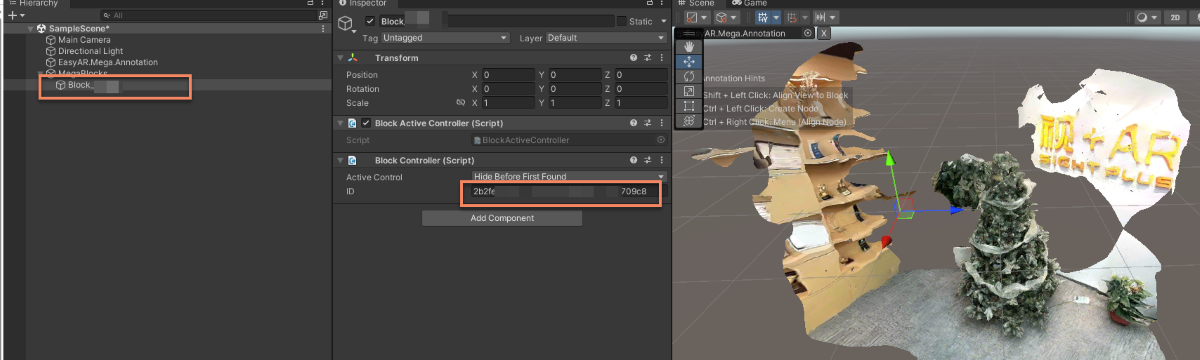
在 Unity 場景中點擊 Mega Block 節點,在 Inspector 面板中記錄 BlockID
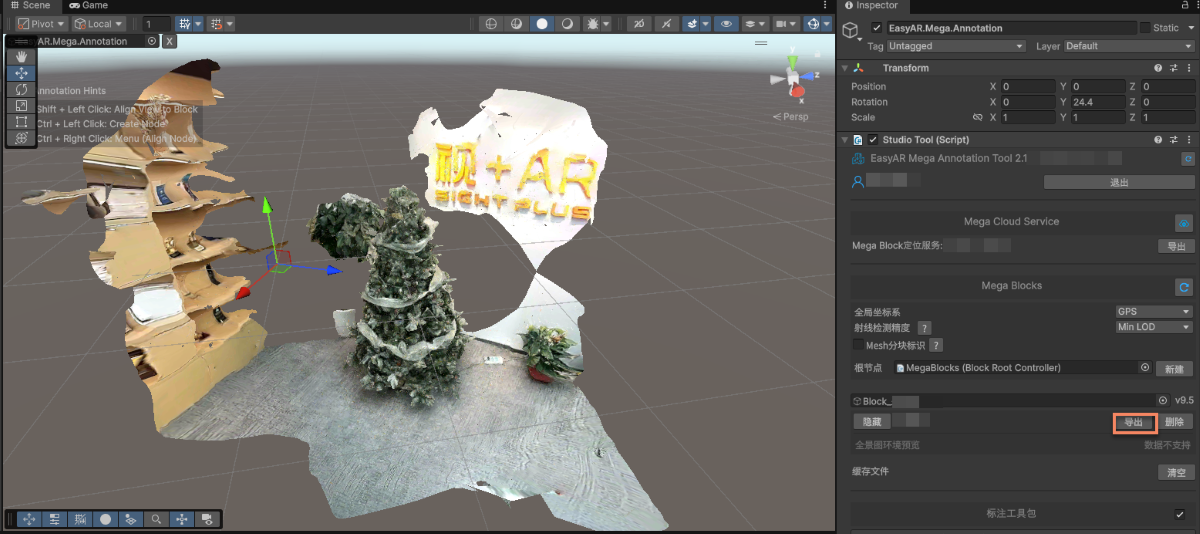
在 Mega Studio 的 Block 中選擇導出。
修改導出選項後導出。
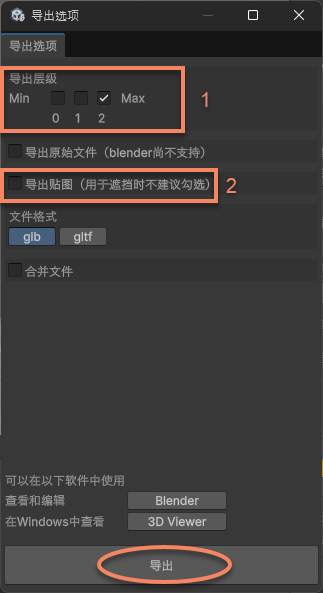
圖中 1 爲 LOD 層級,層級越低模型越簡單,面數越少,若需要最高的精度選擇2,若能接受降低精度以減少面數選擇 1 或者 0。
圖中 2 爲導出貼圖選項,由於我們只需要白模作爲遮擋,不需要貼圖。
將導出後的模型在數字內容創建軟件(例如 Blender)中進行裁剪,減面,保存爲
Glb。提示
例子中使用的是 Blender 的 Decimate Modifier
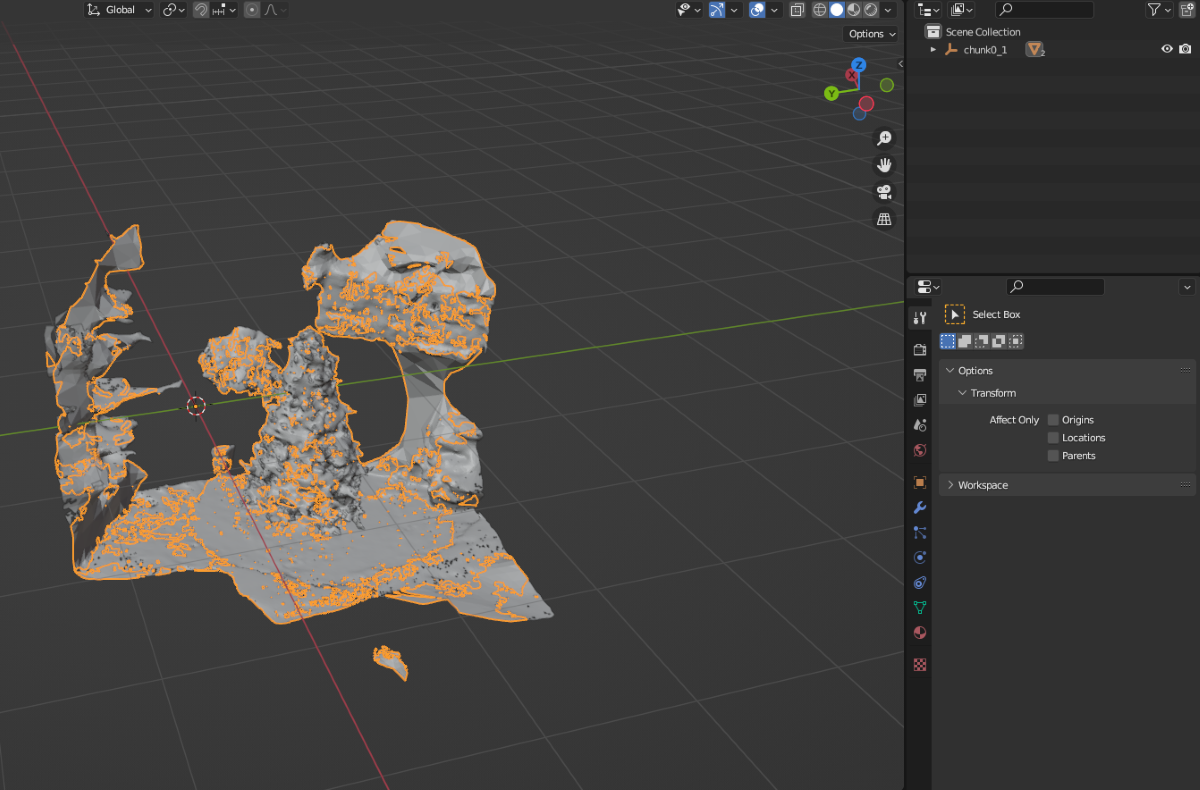
裁剪並減面後:
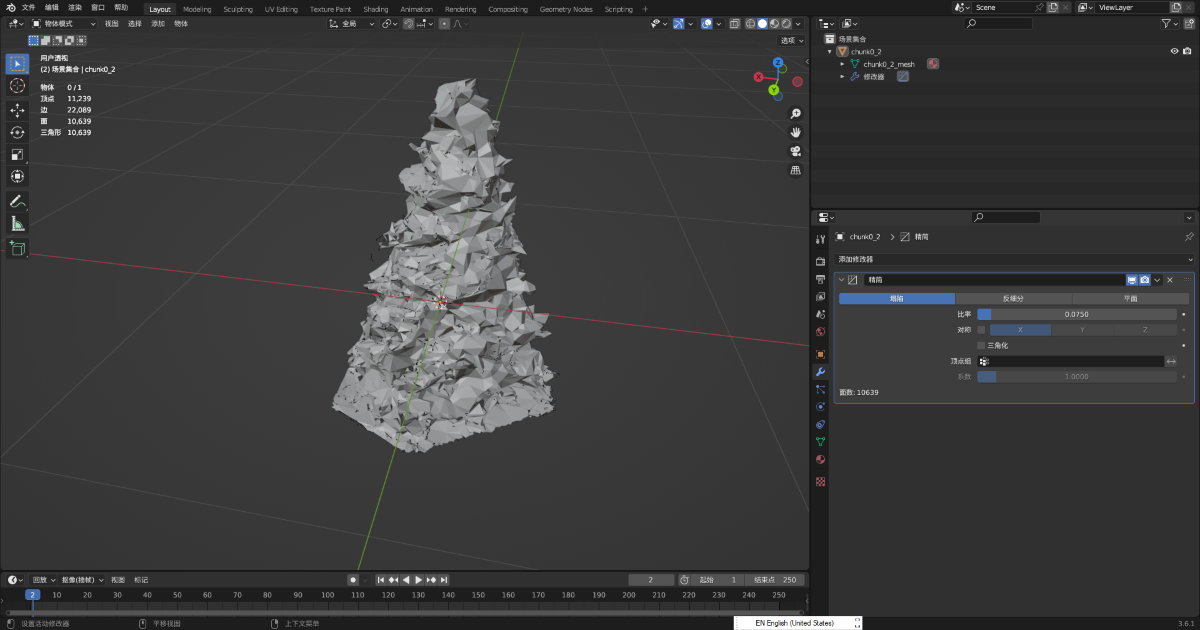
將遮擋用的
Glb文件放到小程序工程的miniprogram/assets/目錄並使用相對路徑,或掛載到可訪問的 HTTPS 文件服務器並使用 URL。使用服務器 URL 時,需要在小程序後臺配置對應的下載合法域名,並將該域名添加到小程序白名單。在 xr-frame 小程序中加載作爲遮擋的 GLTF。
首先加載遮擋用的 GLTF 模型,然後使用
scene.createElement(xrFrameSystem.XRGLTF,options)創建 GLTF 模型。使用
assets.getAsset("material", "easyar-occlusion")獲取材質對象使用
model.getComponent(xrFrameSystem.GLTF).meshes.forEach((m: any) => {m.setData({ neverCull: true, material: occlusionMaterial });}修改 GLTF 模型的材質。附註
easyar-occulusion材質的加載,註冊,反註冊,卸載由 AR Session 控制。
```ts
const sampleAssets = {
    occlusion1: {
        assetId: "occlusion1",
        type: "gltf",
        src: "url/occlusion1.glb",
        options: {}
    }
}
async loadAsset() {
    if (!scene) {console.error("Empty scene"); return;}
    try {
        await scene.assets.loadAsset(sampleAssets.occlusion1);
    } catch (err) {
        console.error(`Failed to load assets: ${err.message}`);
    }
},
addOcclusion() {
    model = scene.createElement(
        xrFrameSystem.XRGLTF,
        {
            "model": assetInfo.assetId,
            "anim-autoplay": assetInfo.animation ? assetInfo.animation : "",
            "scale": assetInfo.scale ? assetInfo.scale : "1 1 1",
            name: "tree"
        }
    );
    const blockID = "aaaa1234-bbbb-cccc-dddd-eeeeee123456" //此處應填寫 Block ID
    if (!blockHolder.getBlockById(blockParent.id)) {
        // 若沒有存在的 Block 節點,則建立一個
        blockHolder.holdBlock({
            id: blockID
        })
    }
    // 取得 xr-frame 場景中的 Block 節點
    let blockElement = blockHolder.getBlockById(blockParent.id).el;
    // 將裁剪後的遮擋模型掛載到 Block 節點下,作為其子節點
    blockElement.addChild(model);
    /**
     * 由於 GLTF 載入器的行為不同,為了保證模型在 xr-frame 上的朝向與 Unity 的渲染結果完全一致
    * 有時需要對載入後的模型原地繞 Y 軸旋轉 180 度
    */
    let modelTransform = model.getComponent(xrFrameSystem.Transform);
    let currentRotation = modelTransform.quaternion.clone();
    let targetRotation = currentRotation.multiply(new xrFrameSystem.Quaternion().setValue(0, 1, 0, 0));
    modelTransform.quaternion.set(targetRotation);
    //注意必須在修改 Transform 後修改材質
    if (assetInfo.assetId == 'occlusion1') {
        //取得 Mega 外掛提供的遮擋材質
        let occlusionMaterial = scene.assets.getAsset("material", "easyar-occlusion");
        //修改遮擋材質
        model.getComponent(xrFrameSystem.GLTF).meshes.forEach((m: any) => {
            m.setData({ neverCull: true, material: occlusionMaterial });
        });
    }
}
```
附註
這裏使用 Mega Block 稠密模型進行裁剪後作爲遮擋不需要使用標註同步空間位置,這是因爲在數字內容創建軟件(如 Blender) 中,可以在不改變座標系定義的情況下對模型進行減免和裁剪。
若需要精確擺放自己製作的 GLTF 模型遮擋,請參考如何擺放與空間對齊的遮擋模型
最終實機運行效果見文章頂部視頻。
遮擋的效果預期
xr-frame 小程序上遮擋的效果主要由以下幾點影響:
- 定位跟蹤本身的精度
- 模型擺放的準確程度
- 模型本身的精度(如果不是簡單的幾何體)
在定位漂移時出現數公分未對齊的情況是正常的。
遮擋用的模型面數太多容易影響性能,建議只在必要區域使用,並且儘量使用簡單的幾何體作爲遮擋。