WeChat ミニプログラム Mega プラグインサンプルプロジェクトの説明
この記事では、サンプルプロジェクトで示される各機能の使用方法、実装方法、注意事項を詳しく説明します。
始める前に
- Unity エディターで annotation を作成してアップロードし、annotation 名とその ID を記録できること。
- Unity エディターで実世界に合わせた 3D コンテンツを作成できること。
- サンプルプロジェクトを完全に実行できること。
annotation 位置にモデルを表示する方法
Unity エディターでアノテーションを正確に配置してアップロードし、アノテーション名とその ID を記録する
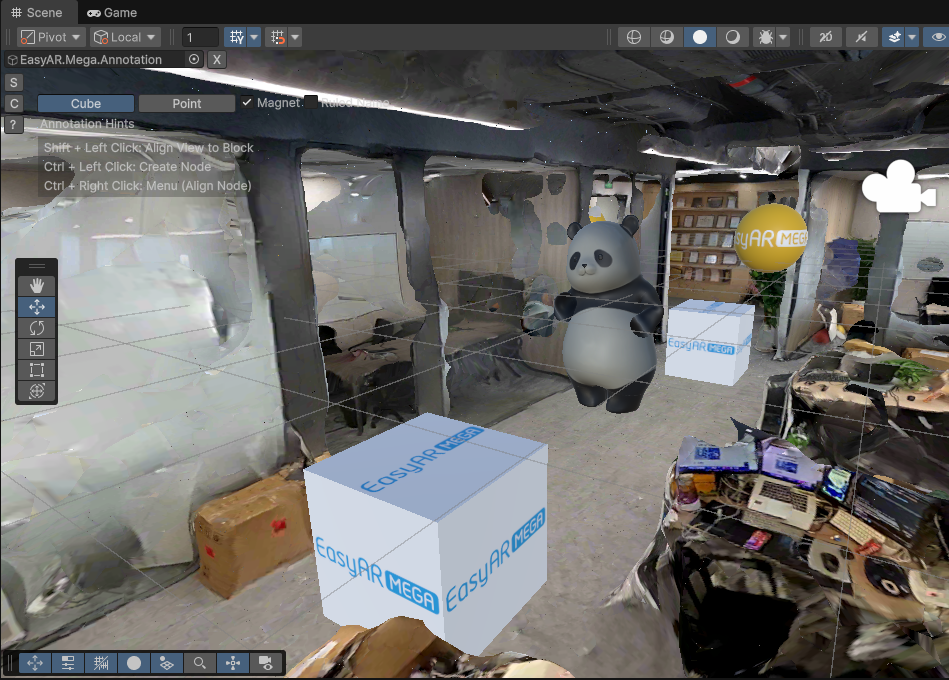
GLTF モデルアセットを追加
miniprogram/components/sample-easyar-mega/index.tsのsampleAssetsにモデルアセットを追加します。const sampleAssets = { your_model_name: { assetId: "your_model_asset_id", type: "gltf", src: "url/model.glb", options: {} } }追加したモデルアセットを読み込む
miniprogram/components/sample-easyar-mega/index.tsのloadAsset()関数でモデルを読み込みます。async loadAsset() { try { await scene.assets.loadAsset(sampleAssets.your_model_name); } catch (err) { console.error(`Failed to load assets: ${err.message}`); } }置換するアノテーションを設定
miniprogram/components/sample-data/annotation-metadata.tsで置換するアノテーションを設定します。複数を置換する場合はカンマで区切ります。export const AnnotationMetaData: Record<string, any> = { "aaaaaaaa-bbbb-cccc-dddd-123456789012": { assetId: "panda", scale: "0.5 0.5 0.5" }, "aaaaaaaa-bbbb-cccc-dddd-123456789013": { assetId: "your_model_asset_id", scale: "1 1 1" } };アノテーションを置換してモデルを読み込む
EMA 読み込み後のコールバックで、xr-frame の「ファクトリメソッド」
scene.createElement(xrFrameSystem.XRGLTF, options)を使用してモデルノードを作成します。パラメータ:
xrFrameSystem.XRGLTF: 作成する要素タイプが GLTF モデルであることを指定します。options: コンポーネントのプロパティに対応する初期化設定項目です。
コード内の主要プロパティ:
"model": 必須。読み込み済みリソース ID (asset-id) を指します。"anim-autoplay": 任意。読み込み後に自動再生するアニメーション名を指定します。"scale": 任意。assetInfo.scaleまたは "1 1 1"。name: 必須。アノテーション名。
注意
プロパティ Key の文字列と非文字列を区別し、サンプルどおりに入力してください。
xrNode.addChild(child)でモデルをアノテーションノードの下にマウントします。異なるプラットフォームのローダーで GLTF モデルが同じ結果に見えるように、読み込み後のモデルをその場で Y 軸周りに 180 度回転する必要があります。
if (assetInfo && assetInfo.assetId && assetInfo.assetId.trim().length > 0) {
    model = scene.createElement(
        xrFrameSystem.XRGLTF,
        {
            /** 前の手順の assetId */
            "model": assetInfo.assetId,
            /** ここで再生するモデルアニメーションを指定できます */
            "anim-autoplay": assetInfo.animation ? assetInfo.animation : "",
            "scale": assetInfo.scale ? assetInfo.scale : "1 1 1",
            name: emaName
        }
    );
    xrNode.addChild(model);
    /**
     * GLTF ローダーの動作は異なるため、xr-frame 上のモデルの向きが Unity のレンダリング結果と完全に一致するように、
     * 読み込み後のモデルをその場で Y 軸回りに 180 度回転する必要があります
     */
    let modelTransform = model.getComponent(xrFrameSystem.Transform);
    let currentRotation = modelTransform.quaternion.clone();
    let targetRotation = currentRotation.multiply(new xrFrameSystem.Quaternion().setValue(0, 1, 0, 0));
    modelTransform.quaternion.set(targetRotation);
}
実機で実行
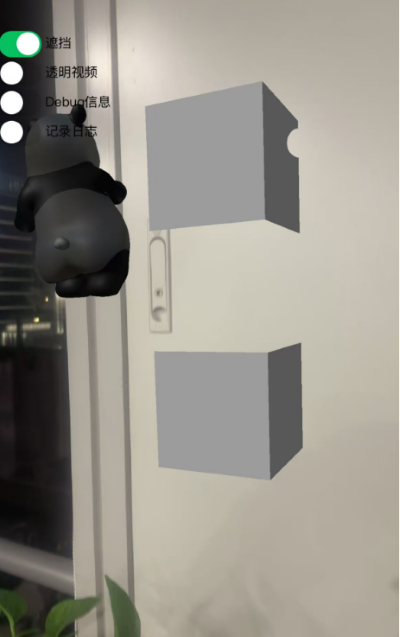
実機実行の結果は次のとおりで、ステップ 1 の Unity エディター上の位置と比較できます。
左側の透明動画ボタンをオンにすると、ワールド座標系の原点(座標
(0, 0, 0)の位置)に透明動画マテリアルのキューブが表示されます。注記
原点位置は空間内の任意のランダムな位置になる場合があります。アノテーションを利用して、オクルージョンモデルを希望する位置に配置できます。詳しくは Unity エディターでアノテーションを作成してアップロード を参照してください。
左側のオクルージョンボタンをオンにすると、ワールド座標系の原点(座標
(0, 0, 0)の位置)にパンダモデルと上下に重なったキューブが表示されます。中央のキューブにはオクルージョンマテリアルがあり、反対側にはオクルージョンマテリアルを持つ静的なパンダモデルがあります。注記
原点位置は空間内の任意のランダムな位置になる場合があります。アノテーションを利用して、オクルージョンモデルを希望する位置に配置できます。詳しくは Unity エディターでアノテーションを作成してアップロード を参照してください。
annotation 位置で透明動画を再生する方法
タイプが
video-textureの動画リソースを読み込む。async loadAsset() { const videoTexture = { assetId: "fireball", type: "video-texture", // 视频资源 URL src: "url/video-resource.mp4", options: { autoPlay: true, loop: true, } }; try { // 加载 video-texture 类型资源 await scene.assets.loadAsset(videoTexture); } catch (err) { console.error(`Failed to load video texture: ${err.message}`); } }EMA 読み込みコールバックを変更する
EMA 読み込みのコールバックで
scene.createElement(xrFrameSystem.XRMesh,options)を使用して簡単なジオメトリを作成し、easyar-video-tsbsマテリアルを割り当て、uniformをu_baseColorMap:video-{$assetId}に変更します。パラメータ:
xrFrameSystem.XRMesh: 作成する要素タイプを基本ジオメトリに指定します。options: 初期化設定項目で、対応するコンポーネントのプロパティです。
コード内の重要なプロパティ:
"geometry": "cube": xr-frame 組み込みの立方体ジオメトリデータを使用します。"material": "easyar-video-tsbs": 事前定義されたマテリアルを指定します。命名から、動画テクスチャをサポートする特殊なマテリアルと推測されます。"uniforms": "u_baseColorMap:video-{$assetId}":
注意
プロパティ Key の文字列と非文字列を区別し、例と完全に同じ方法で入力してください。
これはマテリアルパラメータの動的バインディングです。
video-{$assetId}という名前の動画リソース(テクスチャ)を、マテリアルのベースカラーマップにマッピングします。効果: 表面で動画を再生している立方体が生成されます。
model = scene.createElement(xrFrameSystem.XRMesh, {
    geometry: "cube",
    material: "easyar-video-tsbs",
    uniforms: "u_baseColorMap:video-fireball",
});
xrNode.addChild(model);
注記
video-textureを使用するとき、console にwx.createVideoDecoder with type: 'wemedia' is deprecated警告が表示された場合は無視してください。WeChat 公式チームに確認済みで、この警告は使用に影響しません。
実機で実行する
空間に合わせた occlusion モデルを配置する方法
遮蔽に使用するモデルを正確に配置し、注釈をアップロードします。
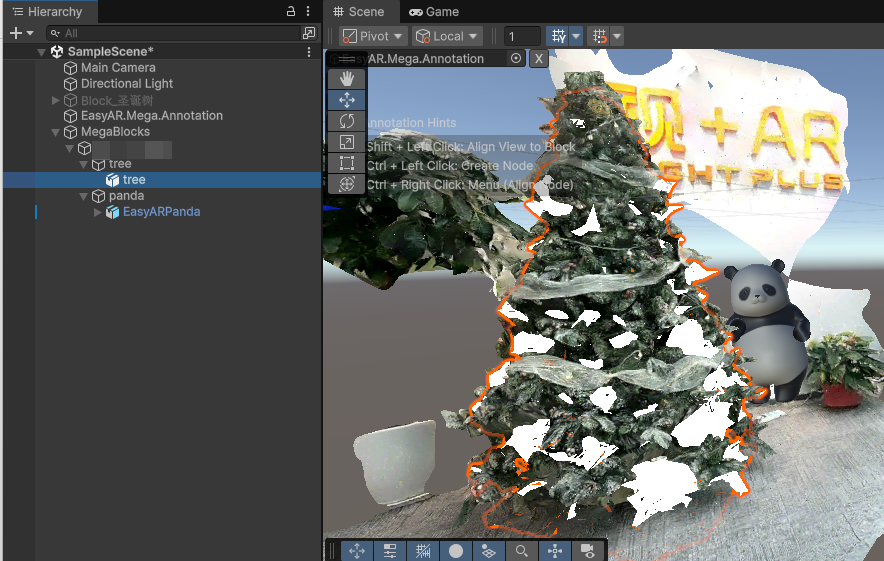
xr-frame Mini Program で遮蔽用の GLTF を読み込みます。
scene.assets.loadAsset()でモデルリソースを読み込みます(手動でアンロードする必要があります)。const sampleAssets = { occlusion1: { assetId: "occlusion1", type: "gltf", src: "url/occlusion1.glb", options: {} } } async loadAsset() { if (!scene) {console.error("Empty scene"); return;} try { await scene.assets.loadAsset(sampleAssets.occlusion1); } catch (err) { console.error(`Failed to load assets: ${err.message}`); } }実行時に EMA 読み込み callback でモデルを読み込み、遮蔽 material を割り当てます
EMA 読み込み callback で
scene.createElement(xrFrameSystem.XRGLTF,options)を使用してモデルノードを作成します。パラメータ:
xrFrameSystem.XRGLTF: 作成する要素タイプが GLTF モデルであることを指定します。options: 初期化設定項目で、コンポーネントのプロパティに対応します。
コード内の重要プロパティ:
"model": 必須。読み込み済みリソース ID(asset-id)を指します。"scale": 任意。assetInfo.scaleまたは "1 1 1"。name: 必須。注釈名。
注意
プロパティ Key の文字列と非文字列を区別し、例の方式どおりに入力してください。
xrNode.addChild(child)でモデルを注釈ノードの下にマウントします。GLTF モデルが異なるプラットフォームの loader で同じ結果に見えるように、読み込み後のモデルをその場で Y 軸周りに 180 度回転する必要があります。
最後に
model.getComponent(xrFrameSystem.GLTF).meshes.forEach((m: any) => {m.setData({ neverCull: true, material: occlusionMaterial });}を使用して GLTF モデルの material を変更します。注記
easyar-occulusionmaterial の読み込み、登録、登録解除、アンロードは AR Session によって制御されます。注釈位置でモデルを遮蔽として使用します:
if (...) {
    model = scene.createElement(
        xrFrameSystem.XRGLTF,
        {
            "model": assetInfo.assetId,
            "scale": assetInfo.scale ? assetInfo.scale : "1 1 1",
            name: emaName
        }
    );
    /**
    * GLTF ローダーの動作は異なるため、xr-frame 上のモデルの向きが Unity のレンダリング結果と完全に一致するように、
    * 読み込み後のモデルをその場で Y 軸回りに 180 度回転する必要がある場合があります
    */
    let modelTransform = model.getComponent(xrFrameSystem.Transform);
    let currentRotation = modelTransform.quaternion.clone();
    let targetRotation = currentRotation.multiply(new xrFrameSystem.Quaternion().setValue(0, 1, 0, 0));
    modelTransform.quaternion.set(targetRotation);
    // 注意: Transform を変更した後に必ずマテリアルを変更してください
    if (assetInfo.assetId == 'occlusion1') {
        // Mega プラグインが提供するオクルージョンマテリアルを取得
        let occlusionMaterial = scene.assets.getAsset("material", "easyar-occlusion");
        // オクルージョンマテリアルを変更
        model.getComponent(xrFrameSystem.GLTF).meshes.forEach((m: any) => {
            m.setData({ neverCull: true, material: occlusionMaterial });
        });
    }
}
実機で実行
Unity editor 上のシミュレーション実行結果と比較できます。